Embarking on your 3D printing journey often begins with the excitement of bringing digital designs to life. However, achieving truly crisp, high-quality prints requires more than just loading a model and hitting ‘print.’ One of the most fundamental steps in dialing in your printer’s performance, especially when working with PLA, is printing and analyzing a temperature tower. This crucial calibration print helps you pinpoint the optimal nozzle temperature for your specific filament, directly impacting everything from layer adhesion to stringing and bridging quality. Consider this your essential “first print” after basic setup, a foundational exercise that lays the groundwork for consistently excellent results.
Understanding the PLA temperature tower
A retro-styled turntable and add-on speaker system with concrete and wood enclosure options. Currently running on Kickstarter.
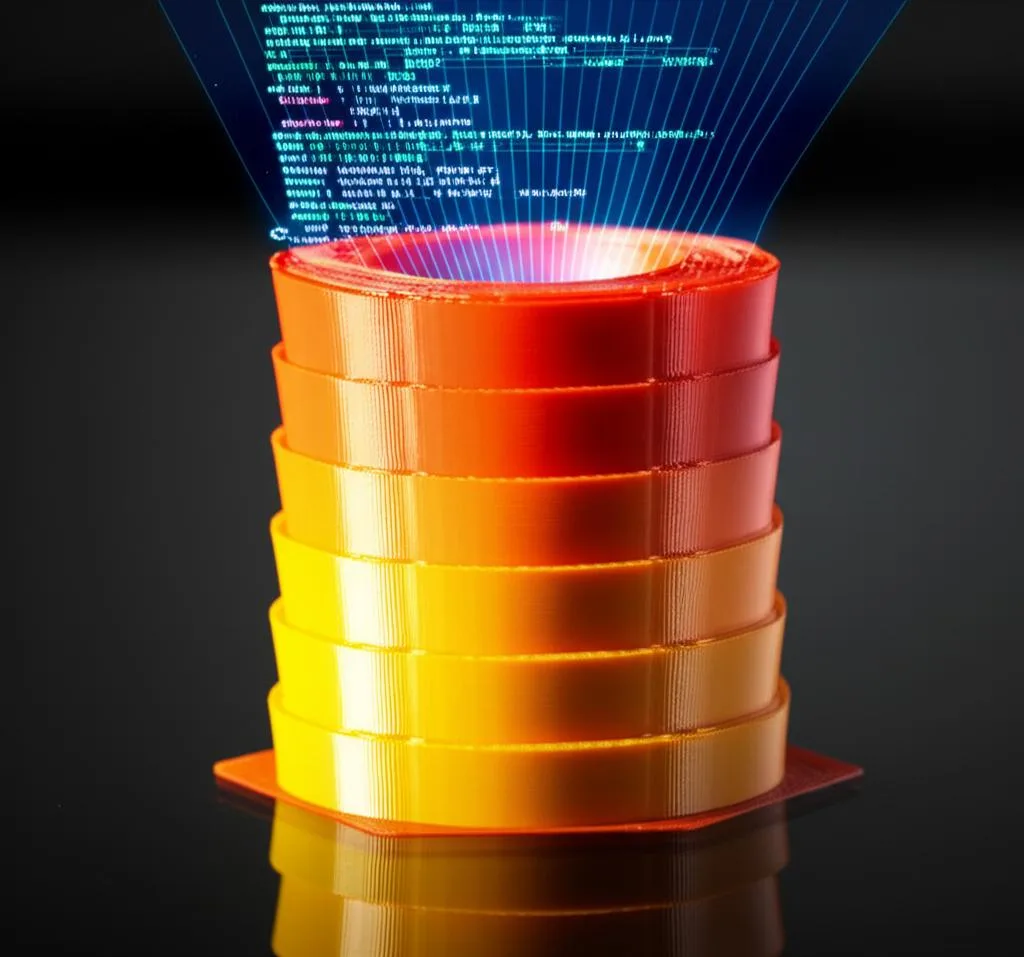
At its core, a temperature tower is a specially designed 3D model that allows you to test a range of nozzle temperatures within a single print. The model is typically segmented, with each segment designed to be printed at a different, progressively lower temperature. For instance, the base might print at 220°C, the next segment at 215°C, and so on, down to perhaps 180°C. This ingenious approach lets you observe how various print characteristics—like surface finish, structural integrity, and the quality of complex features—change across a spectrum of temperatures.
For PLA (Polylactic Acid), this calibration is particularly essential because, while it’s known for its ease of use, its printing characteristics can vary significantly even between different brands and colors. The ‘ideal’ temperature for one roll of PLA might lead to stringing or poor layer adhesion with another. By systematically testing, you can objectively compare the results at each temperature, allowing you to fine-tune your slicer settings for that specific filament. This process ensures you’re not just guessing but making informed decisions based on empirical evidence from your own printer and material.
Before you begin: prerequisites
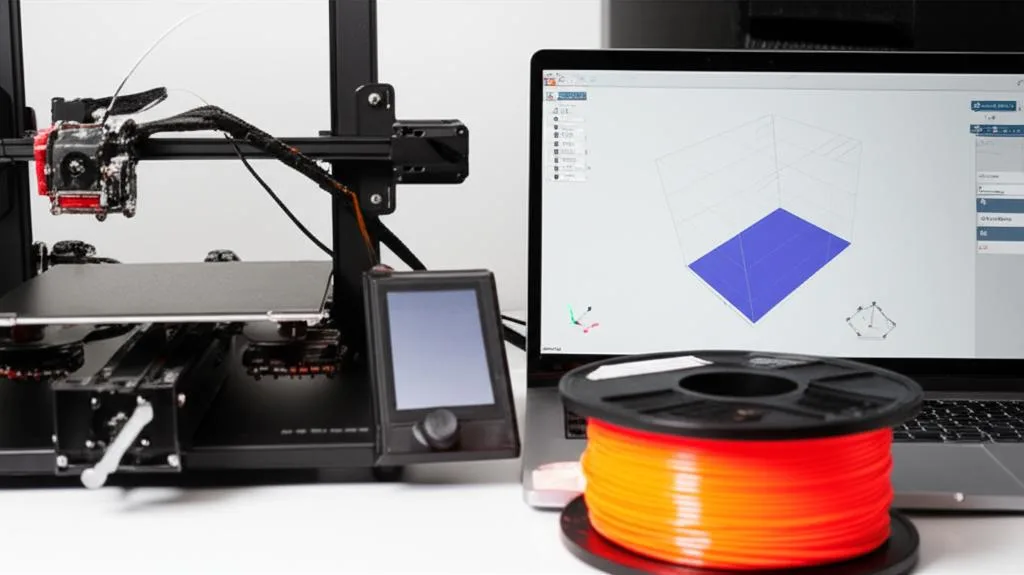
Before diving into the slicer setup for your PLA temperature tower, ensure you’ve covered a few basic prerequisites to guarantee accurate and reliable results:
- Printer Calibration: Your 3D printer should be fully assembled, and basic calibrations like bed leveling and E-steps (extruder steps per millimeter) should already be completed. An uncalibrated printer will introduce too many variables, making your temperature tower results unreliable.
- Fresh PLA Filament: Use a new or known good roll of PLA filament. Old or moisture-laden filament can cause printing issues like stringing and poor adhesion, regardless of temperature, skewing your results.
- Established Slicer Profile: Have a basic PLA slicer profile already set up. This includes settings for layer height (e.g., 0.2mm), infill, print speed, and retraction settings. We’ll only be modifying the nozzle temperature for the tower.
- Suitable Temperature Tower Model: You’ll need an STL file for a temperature tower. These are readily available on platforms like Thingiverse or Printables. Choose one that clearly labels the temperature segments and covers a reasonable range for PLA (typically 180°C to 220°C).
Step-by-step slicer setup guide
Setting up a temperature tower involves instructing your slicer to change the nozzle temperature at specific layers. While the general principle remains the same, the exact method varies slightly between different slicing software.
1. Obtain a temperature tower model
Start by downloading a suitable temperature tower model. Search for “PLA temperature tower” on sites like Thingiverse, Printables, or Cults3D. Look for models that:
- Clearly indicate the temperature range and the specific layer heights where changes occur.
- Are designed to test features like bridging, overhangs, and stringing.
- Fit within your printer’s build volume.
Once downloaded, you’ll typically have an .stl file.
2. Load the model into your preferred slicer
Open your 3D printing slicer (e.g., PrusaSlicer, Cura, Simplify3D) and import the temperature tower .stl file. Position it on the build plate as you would any other model.
3. Configure initial print settings
Before implementing the temperature changes, apply your standard PLA print profile. This means setting:
- Layer Height: A common choice is 0.2mm.
- Infill: 10-20% is usually sufficient for a calibration print.
- Print Speed: Use a moderate speed, e.g., 50-60 mm/s, to allow for good observation of temperature effects.
- Retraction Settings: Use your standard retraction distance and speed.
- Bed Temperature: Typically 50-60°C for PLA.
- Initial Nozzle Temperature: This is crucial. Set the main nozzle temperature in your slicer’s settings to the highest temperature you intend to test on the tower (e.g., 220°C). This ensures the base of the tower starts at the correct initial temperature.
4. Implement temperature changes at specific layers
This is the most critical and varied step. The goal is to insert commands into the G-code that tell your printer to change the nozzle temperature at the start of each new segment of the tower.
Option A: Using post-processing scripts or modifiers (recommended for most users)
Most modern slicers offer user-friendly ways to achieve this without manual G-code editing.
PrusaSlicer:
- Slice the model: First, slice the model with your initial settings.
- Identify Z-heights: In the preview mode, move the layer slider up and down to identify the exact Z-heights (or layer numbers) where each temperature segment begins. Make a note of these.
- Add Height Range Modifiers: Right-click on the temperature tower model on the build plate. Select “Add modifier” -> “Height range”.
- Define Ranges and Temperatures: A new entry will appear in the object list. Click on the gear icon next to “Height range”. Set the “Start Z” and “End Z” for the first segment you want to modify (e.g., 20mm to 40mm).
- Add Temperature Setting: Right-click on the “Height range” modifier in the object list. Select “Add settings” -> “Extruder” -> “Nozzle temperature”. Set the desired temperature for that segment (e.g., 215°C).
- Repeat: Repeat steps 3-5 for each subsequent temperature segment of your tower. Ensure your ranges are contiguous and cover the entire tower.
Cura:
- Extensions Menu: Go to “Extensions” -> “Post Processing” -> “Modify G-Code”.
- Add Script: Click “Add a script”.
- Use “ChangeAtZ” or “Temperature Tower”:
- “ChangeAtZ” Script: This is a versatile option. Add multiple instances of this script. For each instance, specify the “Trigger” (e.g., “Layer No.”), the specific layer number where the temperature should change, and then select “Change Extruder 1 Temp” and input the new temperature (e.g.,
M104 S215). Repeat for each segment. - “Temperature Tower” Plugin: If available (you might need to install it from the Marketplace), this plugin automates the process. You simply input the start temperature, end temperature, and the layer height or number of layers per temperature change. This is often the easiest method.
- “ChangeAtZ” Script: This is a versatile option. Add multiple instances of this script. For each instance, specify the “Trigger” (e.g., “Layer No.”), the specific layer number where the temperature should change, and then select “Change Extruder 1 Temp” and input the new temperature (e.g.,
Option B: Manual G-code editing (for advanced users or specific slicers)
If your slicer lacks robust post-processing options, or you prefer a hands-on approach, you can edit the G-code directly.
- Slice and Save: Slice your model with the highest desired temperature set as the default, and save the G-code file (e.g.,
tower.gcode). - Open in Text Editor: Open the saved G-code file using a plain text editor (like Notepad++, VS Code, Sublime Text).
- Find Layer Changes: Search for layer change comments (e.g.,
;LAYER:Xwhere X is the layer number, or;Z:Y.Ywhere Y.Y is the Z-height). - Insert Temperature Commands: Just before the G-code that starts printing a new segment’s layer, insert a temperature change command. The most common command is
M104 S[temp] T0.
M104 S[temp] T0: Sets the nozzle temperature to[temp](e.g.,M104 S215 T0) and continues printing immediately without waiting for the temperature to stabilize. This is generally preferred for temperature towers to avoid pauses.M109 S[temp] T0: Sets the nozzle temperature to[temp]and waits for it to reach that temperature before continuing. This can introduce blobs or zits if the printer idles for too long.
5. Review and save your G-code
After implementing the temperature changes, always go back to your slicer’s preview mode. Most slicers will visually indicate temperature changes (e.g., by color coding segments or showing temperature readouts in tooltips as you hover over layers). Verify that the temperature changes occur at the correct heights and correspond to the labels on your temperature tower model. Once confirmed, save your G-code file with a descriptive name, such as PLA_TempTower_220-180C.gcode.
Printing your PLA temperature tower
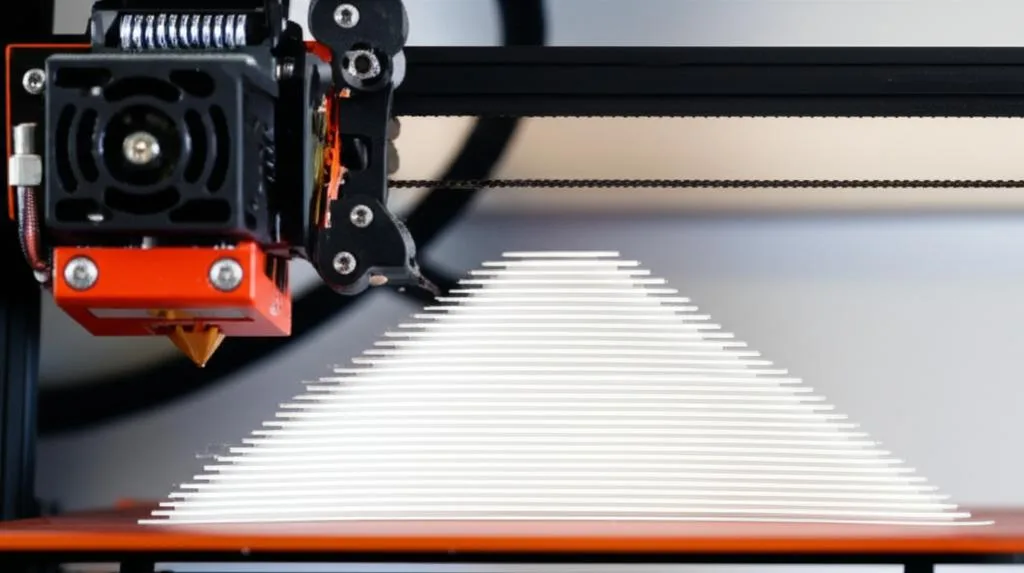
With your G-code ready, transfer it to your 3D printer (via SD card, USB, or Wi-Fi, depending on your setup). Start the print and observe it carefully. Pay attention to how the filament behaves as the temperature changes for each segment. You might notice differences in flow, oozing, or how well bridges are formed in real-time.
Analyzing the results: finding your PLA sweet spot
Once your temperature tower print is complete, it’s time for the critical analysis phase. This is where you objectively compare the features and characteristics of each segment to determine your optimal nozzle temperature.
Visual inspection
Examine each segment closely, paying attention to the following:
- Stringing/Oozing: Look for fine wisps of plastic between features or across gaps. Lower temperatures generally reduce stringing. Identify the highest temperature segment with minimal or no stringing.
- Bridging Quality: Many towers include bridging tests (spanning gaps without support). Assess how straight, flat, and clean these bridges are. Overly high temperatures can cause sagging.
- Overhang Performance: Check the quality of unsupported angles or overhangs. Lower temperatures allow the plastic to solidify faster, leading to cleaner overhangs with less curling or drooping.
- Layer Adhesion: Are the layers well-bonded? Run your fingernail along the layers; they shouldn’t easily separate. Higher temperatures usually promote better layer adhesion, but too high can lead to other issues.
- Surface Finish: Observe the overall smoothness, sheen, and consistency of the printed surfaces. Some filaments might become more glossy or matte at different temperatures. Look for uniformity.
- Dimensional Accuracy: If your tower has small features or holes, check if they are printing accurately. Excessive heat can cause features to bloat.
Physical testing
Beyond visual inspection, perform some physical tests:
- Bend Test: Gently try to bend or flex each segment. Observe which temperature range provides the best balance of flexibility and strength.
- Break Test: Attempt to snap off individual segments. This helps evaluate layer adhesion and overall structural integrity. A good temperature will result in strong, well-bonded layers.
Identifying the optimal temperature
The “sweet spot” is often a compromise. You’re looking for the temperature that offers the best balance across all these quality indicators. For example:
- If a segment at 200°C shows excellent bridging, minimal stringing, and good overhangs, but 195°C has slight stringing but even better overhangs, you might choose 200°C for overall balance, or even try to fine-tune further with 197.5°C.
- Conversely, if 210°C has perfect layer adhesion but significant stringing, and 205°C has slightly less adhesion but no stringing, 205°C might be preferred for aesthetic prints, or 210°C for strength-critical parts where post-processing stringing is acceptable.
There isn’t a single “best” temperature for all PLA; it’s about finding what works best for your specific filament and printer setup, based on the objective results you’ve observed.
Applying your findings
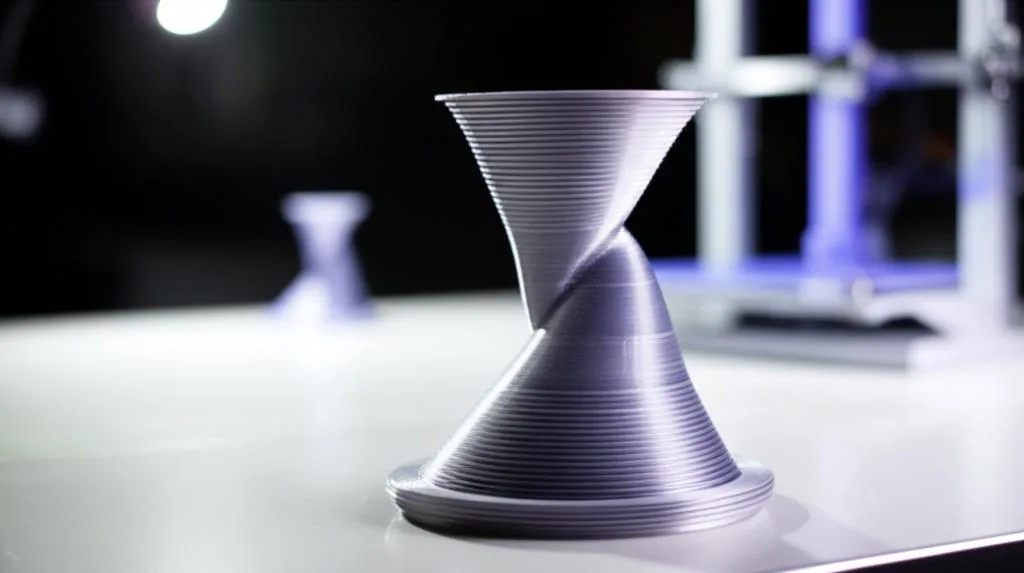
Once you’ve meticulously analyzed your temperature tower and confidently identified your optimal nozzle temperature, it’s time to put that knowledge to good use. Go back into your slicer and update your default PLA profile to reflect this newly discovered optimal temperature. This ensures that all future prints with that specific filament will benefit from your calibration efforts, leading to more consistent and higher-quality results.
Remember, this optimal temperature is specific to the brand and even color of the PLA filament you tested, as well as your particular 3D printer. Different filaments can have slightly different ideal printing temperatures, so it’s a good practice to run a new temperature tower whenever you switch to a significantly different type or brand of PLA.
Conclusion: The foundation of quality prints
Printing and analyzing your first PLA temperature tower is more than just a calibration step; it’s a foundational lesson in understanding how your 3D printer and filament interact. By systematically testing and observing the effects of varying nozzle temperatures, you gain invaluable insight into optimizing print quality. This objective analysis allows you to make informed decisions about your slicer settings, moving beyond guesswork to achieve consistently excellent results.
While the temperature tower addresses a critical variable, it’s just one piece of the puzzle. Consider it a stepping stone towards further calibration, such as fine-tuning retraction settings for even less stringing, optimizing flow rates for dimensional accuracy, and perfecting cooling for overhangs. Embrace this iterative process, and you’ll soon be producing prints that truly stand out.
Frequently asked questions
Can I reuse the same temperature tower G-code for a different brand or color of PLA?
No. The optimal temperature is specific to both the brand and color of the PLA you tested, as well as your particular printer. Different filaments can have significantly different ideal printing temperatures, so you should run a new temperature tower whenever you switch to a different type or brand of PLA.
What if my temperature tower shows good results at two different temperatures—which one should I choose?
Choose the temperature that offers the best overall balance for your specific needs. For example, if 210°C has perfect layer adhesion but significant stringing, and 205°C has slightly less adhesion but no stringing, use 205°C for aesthetic prints or 210°C for strength-critical parts where you can post-process the stringing away.
Do I need to adjust any other slicer settings when running a temperature tower, or just the nozzle temperature?
You should only modify the nozzle temperature for the tower. Start with your standard PLA slicer profile, including your usual layer height (e.g., 0.2mm), infill (10-20%), print speed (50-60 mm/s), retraction settings, and bed temperature (50-60°C). Changing other variables would make your temperature test results unreliable.