
For anyone involved in 3D printing, CAD design, or digital sculpting, encountering imperfect models with gaps and holes is an all too common hurdle. These seemingly minor flaws can lead to significant issues, from failed prints and structural weaknesses to rendering errors in simulations. Fortunately, powerful yet free tools like Autodesk MeshMixer come to the rescue, offering a robust suite of features specifically designed for 3D model repair and preparation. This comprehensive guide will walk you through the process of effectively closing gaps and fixing STL holes in your models using MeshMixer, ensuring your designs are truly watertight and ready for their intended purpose.
Why fixing STL holes and gaps matters for 3D printing
The consumer toolchanger 3D printer: the SnapSwap 4-toolhead system swaps heads in 5 seconds for true multi-color and multi-material printing, with smart calibration and auto filament loading.
- 4 toolheads · 5 s swap
- Up to 500 mm/s · 20,000 mm/s²
- 270 mm cube build volume
- Multi-color & multi-material
The integrity of a 3D model, especially when destined for additive manufacturing, hinges on it being a “manifold” mesh. In simple terms, a manifold mesh is a watertight surface with no internal contradictions, self-intersections, or open edges. When an STL model has holes or gaps, it means its surface isn’t fully enclosed, leaving open boundaries. 3D slicers and printers often struggle with these non-manifold geometries because they can’t definitively determine the inside or outside of the model, leading to:
- Print failures: Slicers might generate incorrect toolpaths, resulting in missing layers, weak spots, or complete print collapse.
- Inaccurate representations: Visualizations and simulations can be flawed due to ambiguous surface definitions.
- Software errors: Other CAD or CAM software might refuse to process or import non-manifold models.
- Wasted material and time: Failed prints mean wasted filament/resin and valuable printing hours.
By learning to properly close gaps and repair STL holes, you’re not just fixing a technical glitch; you’re ensuring the reliability and quality of your entire 3D workflow.
Getting started with MeshMixer
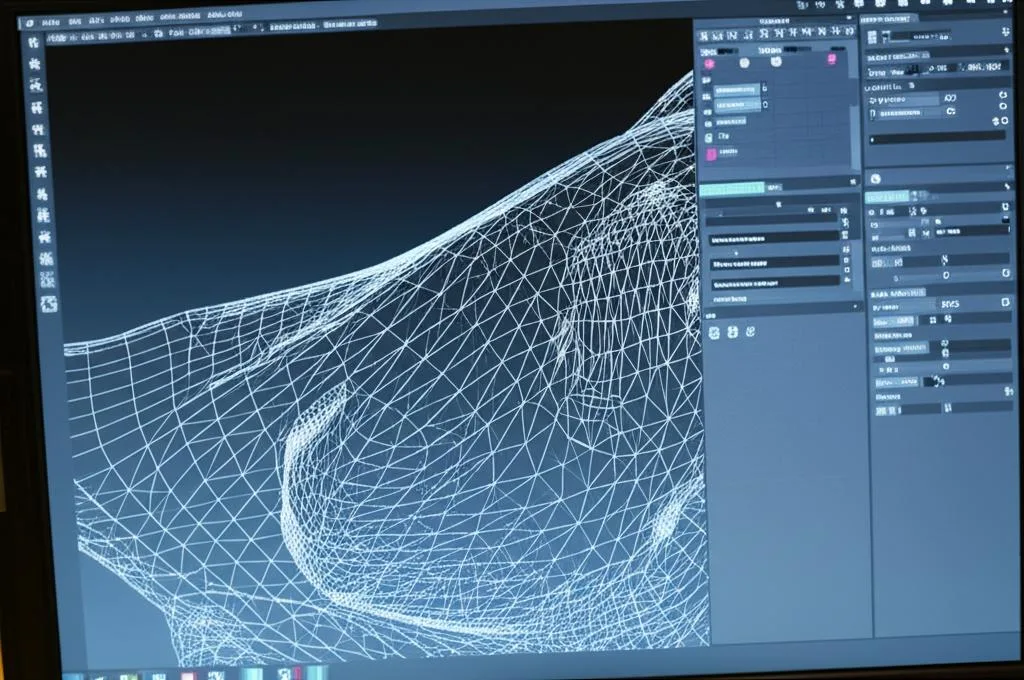
MeshMixer is a free, intuitive, and incredibly versatile software developed by Autodesk. It’s particularly adept at mesh manipulation, sculpting, and preparing models for 3D printing. If you don’t already have it, you can download it from the official Autodesk website.
Loading your STL model
Once MeshMixer is installed and launched, loading your problematic STL model is straightforward:
- Go to File > Import (or simply drag and drop your STL file into the MeshMixer window).
- Navigate to your file and click Open.
- Your model will appear in the workspace. Use the left mouse button to orbit, middle mouse button to pan, and scroll wheel to zoom.
Step-by-step guide to closing gaps and holes
Now, let’s dive into the practical steps to transform your flawed model into a perfect, manifold mesh.
Step 1: Inspecting your model for holes and gaps
Before you can fix something, you need to know where the problems lie. MeshMixer provides an excellent tool for this.
- Accessing the Inspector: In the left-hand toolbar, click on the Inspector icon (it looks like a small wrench or a magnifying glass over a mesh).
- Automatic analysis: As soon as you activate the Inspector, MeshMixer will automatically analyze your model and highlight potential issues with colored spheres (blue for holes, red for non-manifold edges, yellow for small disconnected components, etc.).
- Understanding the spheres: Each sphere indicates a problem area. Hovering over them often gives a brief description. Blue spheres are typically open boundaries or holes that need to be closed.
Step 2: Automatic repair with the Inspector
For simple holes and minor issues, MeshMixer’s Inspector can often perform an automatic repair.
- Using “Auto Repair All”: At the bottom of the Inspector panel, you’ll see an Auto Repair All button. Clicking this will instruct MeshMixer to attempt to fix all identified issues automatically.
- Reviewing the results: After clicking, the spheres should disappear, indicating that MeshMixer has tried to close gaps. It’s crucial to visually inspect your model afterwards. Sometimes, automatic repairs can lead to undesirable geometry, especially on complex or large holes.
- Individual repairs: You can also click on individual colored spheres to apply a local auto-repair to just that specific issue. This gives you more control if you want to address problems one by one.
Pro Tip: While “Auto Repair All” is convenient, it’s not always perfect. For critical or visually prominent areas, manual repair often yields better results.
Step 3: Manual closing of simple holes
When the Inspector’s automatic fixes aren’t sufficient or precise enough, manual methods give you granular control.
Filling simple open boundaries
- Select the area: Go to the Select tool (the square icon in the left toolbar).
- Choose selection type: You can use the brush (default) or lasso tool. For holes, it’s often easiest to double-click an edge of the hole. This will typically select the entire boundary loop of the hole. If it doesn’t, try selecting a few adjacent triangles around the hole.
- Use the “Fill” command: Once the hole boundary (or adjacent faces) is selected, go to Edit > Fill (or press
F). MeshMixer will attempt to bridge the gap with new geometry. - Adjust fill type: In the pop-up menu, you can choose different fill types:
- Flat Fill: Creates a flat plane across the hole. Good for simple, flat surfaces.
- Smooth Fill: Attempts to blend the new surface with the surrounding geometry, creating a more organic, curved patch. This is often preferred for aesthetic reasons.
- Minimal Fill: Creates the simplest possible surface, often leading to sharp angles.
Experiment with these to find the best fit for your model.
- Accept changes: Click Accept to finalize the fill.
Step 4: Closing complex gaps and irregular holes
Some holes aren’t simple loops and require a more robust approach. This is where MeshMixer’s advanced tools shine.
Using “Bridge” for connecting two separate open boundaries
If you have two distinct open boundaries that you want to connect, the “Bridge” command is invaluable.
- Select the first boundary: Using the Select tool, double-click an edge of the first hole to select its boundary.
- Select the second boundary: Hold
Shiftand double-click an edge of the second hole. Both boundaries should now be selected. - Apply “Bridge”: Go to Edit > Bridge. MeshMixer will create new faces to connect the two selected boundaries.
- Adjust parameters: You can often adjust parameters like “Subdivisions” to control the smoothness of the new bridge.
Making the model “Solid” for complex shells and voids
The “Make Solid” feature is incredibly powerful for models with internal voids, overlapping shells, or extremely complex open boundaries that are difficult to close manually. It essentially re-meshes the entire object into a watertight volume.
- Select the entire model: Press
Ctrl+A(orCmd+Aon Mac) to select everything. - Access “Make Solid”: Go to Edit > Make Solid.
- Adjust parameters: A panel will appear with several options:
- Solid Type: Choose between “Accurate” (more detail, higher polygon count) and “Fast” (quicker, less detail).
- Solid Accuracy: Controls how closely the new solid matches the original shape. Higher values retain more detail but increase polygon count.
- Mesh Density: Determines the resolution of the new mesh.
- Offset: Can slightly expand or shrink the solid.
Adjust these sliders to balance fidelity with mesh complexity. Watch the preview to see the effect.
- Accept: Once satisfied, click Accept. Your model will now be a single, watertight, manifold mesh. This is an excellent way to prepare models for 3D print preparation, especially if they came from CAD software with complex internal structures that aren’t truly closed.
Using “Close Cracks” for internal issues
Sometimes, models might have internal “cracks” or very thin gaps that aren’t obvious holes on the surface. “Close Cracks” can help address these.
- Select the model: Again, select the entire model (
Ctrl+A). - Access “Close Cracks”: Go to Edit > Close Cracks.
- Adjust tolerance: A slider will appear, allowing you to set a tolerance for how large of a crack MeshMixer should attempt to close. Increase this value cautiously, as it might inadvertently merge features you want to keep separate.
- Apply: Click Apply to close the cracks.
Step 5: Refining and optimizing the mesh
After closing gaps and holes, your model might have some aesthetic or structural imperfections from the repair process. MeshMixer offers tools to smooth and optimize the mesh.
Smoothing boundaries and surfaces
New patches can sometimes look a bit angular or uneven compared to the original surface.
- Smooth Boundary: If you’ve just filled a hole, select the newly created boundary edges (using the Select tool, double-click the edge). Then go to Deform > Smooth Boundary. This will attempt to blend the edges more seamlessly.
- Sculpt Tools: For more artistic refinement, switch to the Sculpt tool (the brush icon). Under the “Brushes” tab, you’ll find various brushes like “RobustSmooth,” “Smooth,” or “Flatten.” Use these gently over the repaired areas to blend the new geometry with the old. Adjust brush size and strength as needed.
Reducing polygon count for efficiency
After complex repairs or “Make Solid” operations, your model’s polygon count might be unnecessarily high, leading to larger file sizes and slower processing. The “Reduce” tool can help optimize this.
- Select the model: (
Ctrl+A). - Access “Reduce”: Go to Edit > Reduce.
- Choose reduction type:
- Percentage: Reduces the polygon count by a specified percentage.
- Triangle Budget: Reduces to a target number of triangles.
- Max Deviation: Reduces while trying to keep the deviation from the original surface below a certain threshold.
- Adjust parameters: Experiment with the sliders. Always aim for the lowest polygon count that still retains acceptable detail.
- Accept: Click Accept to apply the reduction.
Step 6: Exporting your repaired model
Once your model is perfectly manifold and optimized, it’s time to save your work.
- Go to File > Export.
- Choose file type: Select “STL Binary” or “STL ASCII” from the dropdown menu. Binary is generally preferred as it results in smaller file sizes.
- Name your file: Give your repaired model a descriptive name (e.g., “my_model_repaired.stl”) to avoid overwriting the original.
- Save: Click Save.
Your model is now ready for slicing, 3D printing, or integration into other software without the headaches caused by open boundaries or non-manifold geometry.
Best practices and tips for model repair

- Save frequently: MeshMixer can crash, especially with very complex operations. Save your work regularly (
Ctrl+SorFile > Save). - Work on copies: Always work on a copy of your original STL file. This ensures you can revert if a repair goes wrong.
- Understand the source: If you frequently get models with holes, try to understand why. Is it your CAD software’s export settings? The original model’s design? Addressing the root cause can save future repair time.
- Zoom in and out: Regularly zoom in to inspect details and zoom out to get a holistic view of the model and ensure no new issues were introduced.
- Use the “Analyze > Stability” tool: This tool can also help identify thin walls or fragile areas that might be prone to breaking during 3D printing, even if they aren’t technically holes.
- Combine tools: Often, a combination of Inspector’s auto-repair, manual filling, and “Make Solid” will be necessary for complex models. Don’t be afraid to experiment.
- Learn keyboard shortcuts: They significantly speed up your workflow. For example,
Sfor Select,Ifor Inspector,Ffor Fill.
Conclusion
Mastering the art of closing gaps and fixing STL holes in MeshMixer is an essential skill for anyone working with 3D models, particularly for 3D print preparation. While seemingly daunting at first, MeshMixer’s intuitive interface and powerful tools make the process manageable and even enjoyable. By following this step-by-step guide, you can confidently transform problematic, non-manifold meshes into robust, watertight models, ensuring successful prints, accurate simulations, and a smoother overall workflow. Embrace MeshMixer, and say goodbye to the frustration of imperfect 3D geometry.
Frequently asked questions
Will MeshMixer’s “Auto Repair All” always fix every hole perfectly?
No. While the Inspector’s “Auto Repair All” button is convenient for simple holes and minor issues, the article warns that it is not always perfect. For critical or visually prominent areas, the article recommends manual repair methods (such as using the Fill or Bridge commands) because they give you more control and often yield better results.
Is there a way to fix models that have internal voids or overlapping shells that aren’t visible as holes on the surface?
Yes. The article describes the “Make Solid” feature, which re-meshes the entire object into a watertight volume. It is especially useful for models with internal voids, overlapping shells, or extremely complex open boundaries. After selecting the entire model, go to Edit > Make Solid and adjust the Accuracy and Density sliders before accepting.
What should I do if the automatic repair or manual fill leaves an ugly, angular patch on my model?
The article recommends using the Smooth Boundary tool or the Sculpt brushes to refine the repaired area. Select the new boundary edges, then go to Deform > Smooth Boundary. For more artistic control, switch to the Sculpt tool and use brushes like “RobustSmooth” or “Smooth” to blend the new geometry with the surrounding surface.