Achieving consistently high-quality 3D prints hinges on a multitude of factors, but few are as fundamental and impactful as precise extrusion. If your prints suffer from stringing, gaps, or dimensional inaccuracies, the culprit might just be your extruder steps, commonly known as e-steps. This essential 3D printer calibration ensures your machine feeds the exact amount of filament required, laying the groundwork for flawless results. Whether you’re fresh out of the box with a new printer or troubleshooting persistent issues, mastering e-steps calibration is a rite of passage for every serious 3D printing enthusiast.
What are e-steps and why are they crucial?
A retro-styled turntable and add-on speaker system with concrete and wood enclosure options. Currently running on Kickstarter.
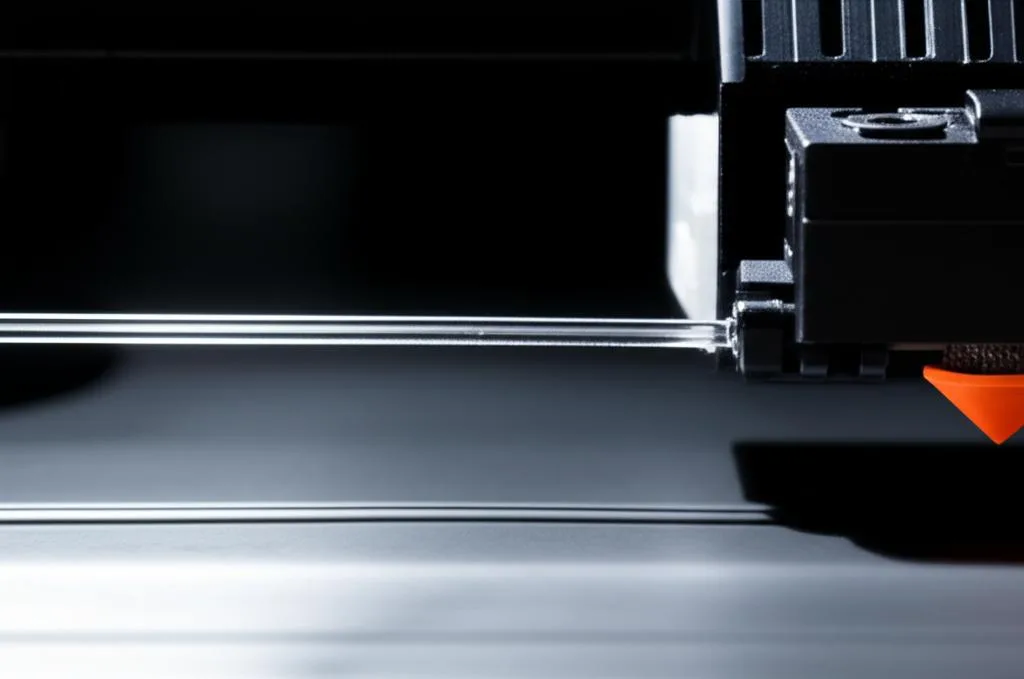
At its core, your 3D printer’s extruder motor pushes filament through the hotend. The e-steps value tells your printer’s firmware how many steps the extruder motor needs to take to push a specific length of filament, typically measured in millimeters. Think of it as the calibration for your filament delivery system. An incorrect e-steps value can lead to two primary issues, both detrimental to print quality:
- Over-extrusion: If your e-steps value is too high, the printer will push more filament than intended. This results in prints that are thicker than designed, exhibit oozing, stringing, blobs, and can lead to nozzle clogs or collisions with the print bed. Surface finish will often appear rough and inconsistent.
- Under-extrusion: Conversely, if your e-steps value is too low, the printer will push less filament than intended. This manifests as weak layers, gaps in walls, poor layer adhesion, and prints that are brittle or appear “airy.” Dimensional accuracy will suffer, and parts may not fit together correctly.
Proper extruder steps calibration ensures that your printer’s commands for filament extrusion translate accurately into physical reality. It’s a foundational step in any initial setup or when diagnosing print quality problems, ensuring that your printer’s mechanical movements are precisely synchronized with its material delivery.
When should you calibrate your e-steps?
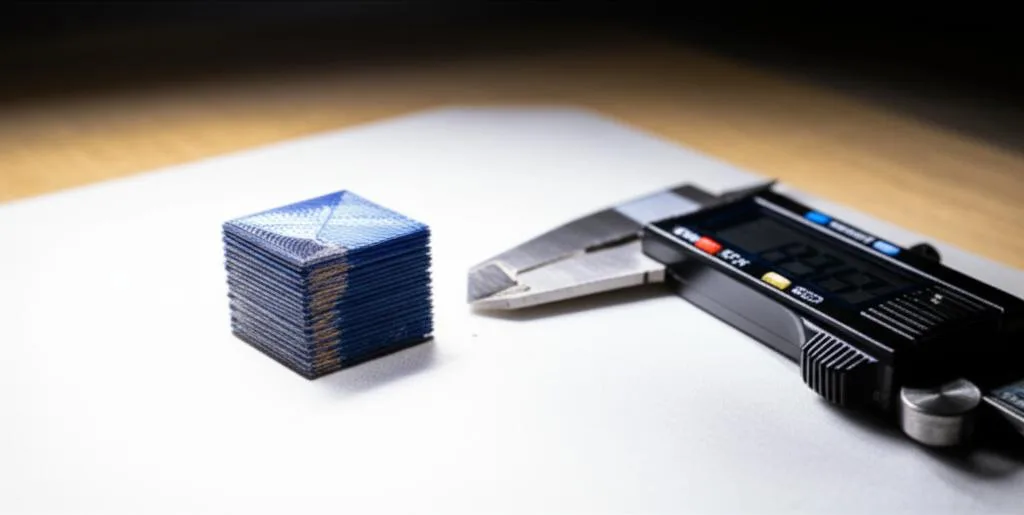
While often overlooked, e-steps calibration isn’t a one-time fix for all printers. Here are the key scenarios where you should consider performing this vital calibration:
- Initial setup: Every new 3D printer, even factory-calibrated ones, can benefit from a personal e-steps calibration. Manufacturing tolerances, even slight variations in stepper motors or extruder gears, can lead to discrepancies.
- Firmware updates: Sometimes, flashing new firmware can reset your printer’s settings to default values, including e-steps. Always check after an update.
- Extruder upgrades or replacements: Changing your extruder assembly – whether it’s a new motor, gears, or an entirely different type of extruder (e.g., from Bowden to direct drive) – will almost certainly require recalibration due to different gear ratios or motor characteristics.
- Persistent print quality issues: If you’re struggling with over-extrusion, under-extrusion, or general inconsistency despite trying other solutions, e-steps are a prime suspect.
- After significant wear and tear: Over time, extruder gears can wear down, or the tension arm spring might weaken, subtly altering filament grip and delivery. A recalibration can compensate for these minor changes.
Tools you’ll need for e-steps calibration
Before diving into the process, gather these simple tools:
- Ruler or digital calipers: For precise measurement of extruded filament. Calipers are highly recommended for accuracy.
- Permanent marker or fine-tipped pen: To mark the filament.
- G-code terminal software: You’ll need a way to send G-code commands to your printer. Popular options include:
- OctoPrint: For Raspberry Pi users.
- Pronterface (Printrun): A standalone desktop application.
- Repetier-Host: Another popular desktop host software.
- Your printer’s display: Some printers allow sending custom G-code or have built-in extrusion test functions, though this is less common for full calibration.
- Filament: The type of filament you typically use is best, as different filaments can have slightly different friction characteristics.
- Small wrench or pliers (optional): To loosen/tighten the hotend nozzle if it’s clogged.
Your step-by-step e-steps calibration process
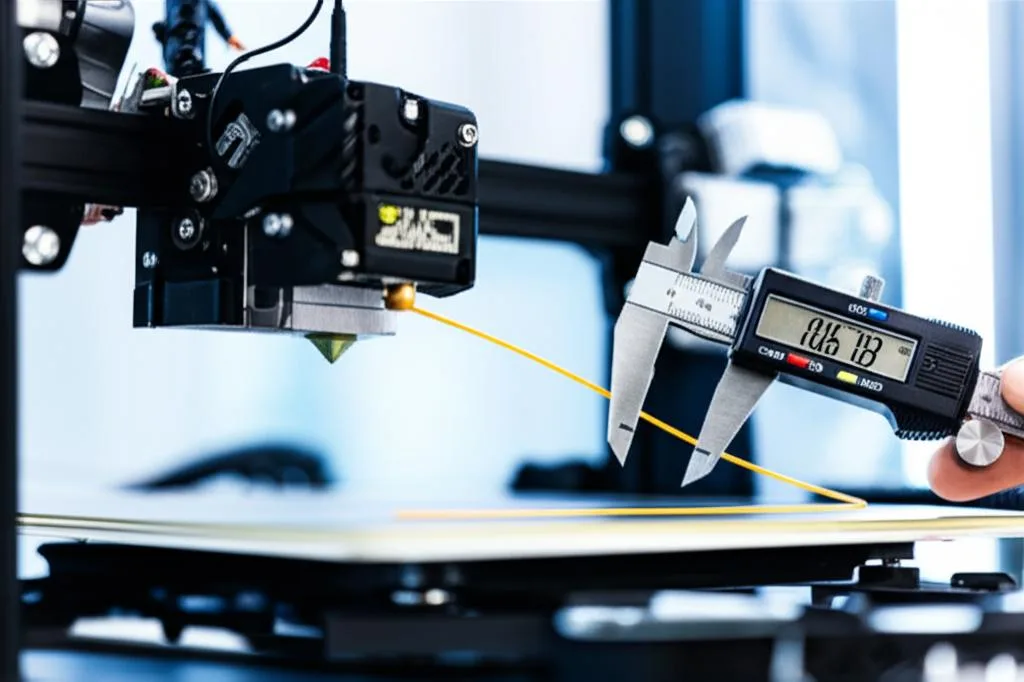
Follow these steps carefully to calibrate your extruder for optimal performance. Precision here pays dividends in print quality.
Step 1: Prepare your printer
- Heat up the hotend: Set your hotend to the typical printing temperature for the filament you’re using (e.g., 200°C for PLA, 240°C for PETG). This is crucial because filament flows differently at various temperatures. If your nozzle is cold, the filament won’t extrude, and you’ll get inaccurate readings.
- Load filament: Ensure filament is loaded and flowing smoothly through the hotend. If you suspect a partial clog, clear it before proceeding. You can manually extrude a few millimeters to confirm.
- Clear the hotend: Make sure there’s no old filament or residue blocking the nozzle. A partially clogged nozzle will restrict flow and lead to incorrect measurements.
Step 2: Measure and mark the filament
- Find a reference point: Identify a fixed point on your extruder assembly, typically where the filament enters the extruder body or where the Bowden tube enters the extruder fitting. This will be your zero point.
- Mark the filament: Using your marker, make a clear mark on the filament exactly 120mm (or 100mm, but 120mm gives a buffer) above your chosen reference point. It’s important to mark a distance slightly longer than you intend to extrude, so you can measure accurately after extrusion.
Step 3: Extrude a known length of filament
- Disable steppers (optional but recommended for some printers): Send the G-code command
M18orM84(depending on your firmware) to disable all steppers. This prevents accidental movement of other axes while you’re working with the extruder. - Send the extrusion command: Connect to your printer via your G-code terminal software (OctoPrint, Pronterface, etc.). Send the following G-code command:
G92 E0This command resets the extruder’s current position to zero. It’s good practice to do this before an extrusion test to ensure accuracy.
G1 E100 F100This command tells your extruder to extrude 100mm of filament at a feed rate of 100mm/minute. The ‘F’ value (feed rate) is important; too fast and the extruder might slip, too slow and it takes forever. 100-200mm/minute is usually a good range for this test.
- Wait for extrusion: Allow the printer to complete the extrusion. Do not touch the filament or extruder during this process.
Step 4: Measure the actual extruded length
- Measure the remaining filament: After the extruder stops, measure the distance from your original reference point to the mark you made on the filament.
- Calculate actual extruded length: Subtract this new measurement from your initial 120mm (or 100mm if you only marked 100mm). For example, if you marked at 120mm and now the mark is 25mm from the reference point, you’ve extruded 120mm – 25mm = 95mm.
Step 5: Calculate your new e-steps value
Now for the math! You’ll need your printer’s current e-steps value. You can usually find this by sending the G-code command:
M503
Look for a line containing M92 Exxx.xx, where xxx.xx is your current e-steps value (e.g., M92 E93.00). Write this down.
Use the following formula to calculate your new e-steps:
New E-steps = (Current E-steps * Desired Extrusion) / Actual Extrusion
Let’s use an example:
- Current E-steps: 93 (from
M503) - Desired Extrusion: 100mm (what you told the printer to extrude)
- Actual Extrusion: 95mm (what you measured)
New E-steps = (93 * 100) / 95 = 9300 / 95 = 97.89
So, your new e-steps value would be approximately 97.89.
Step 6: Update and save the new e-steps value
Once you have your new e-steps value, you need to tell your printer to use it. There are two common ways:
- Send G-code commands:
M92 E97.89(Replace 97.89 with your calculated value)This command sets the new e-steps value. However, this change is usually temporary and will be lost after a power cycle unless you save it.
M500This command saves the current settings (including your new e-steps) to the printer’s EEPROM (Electrically Erasable Programmable Read-Only Memory). This makes the change permanent.
- Update firmware (less common for e-steps, but an option): For some printers, especially those running older firmware or without EEPROM support, you might need to manually edit the
Configuration.hfile in your Marlin firmware (or equivalent for other firmwares), change the#define DEFAULT_AXIS_STEPS_PER_UNIT {X, Y, Z, E}line, recompile, and flash the firmware. This is a more involved process and typically only necessary ifM500doesn’t work or if you prefer managing settings directly in firmware.
Step 7: Verify your calibration
To ensure your calibration was successful, repeat steps 2 through 4 with your new e-steps value. You should now measure very close to your desired 100mm extrusion. If you’re consistently within +/- 1mm, you’re in excellent shape. If there’s still a significant discrepancy, recalculate and re-apply until you achieve the desired accuracy.
Troubleshooting common e-steps calibration issues
Even with a clear guide, you might encounter a few snags. Here’s how to address them:
- Filament slipping or grinding:
- Cause: Extruder tension too low, clogged nozzle, or hotend temperature too low.
- Solution: Increase extruder tension slightly (don’t overtighten). Check for and clear any nozzle clogs. Ensure your hotend is at the correct printing temperature for your filament.
- Inconsistent extrusion measurements:
- Cause: Filament diameter variations, inconsistent filament grip, or a partially clogged nozzle.
- Solution: Measure filament diameter at several points. Ensure your extruder gears are clean and gripping the filament consistently. Double-check for clogs. Repeat the test several times and average the results if small variations persist.
- Hotend clogging during the test:
- Cause: Too low hotend temperature, dirty nozzle, or heat creep.
- Solution: Increase hotend temperature by 5-10°C for the test. Perform a cold pull or replace the nozzle. Ensure your hotend fan is working correctly to prevent heat creep.
- M500 command doesn’t save:
- Cause: Printer firmware doesn’t support EEPROM saving, or EEPROM is disabled.
- Solution: You’ll need to manually edit and recompile your firmware (e.g., Marlin’s
Configuration.hfile) to set the e-steps value permanently. Alternatively, you can add theM92 Exxx.xxcommand to your slicer’s start G-code, though this is less ideal.
Beyond e-steps: Flow rate vs. e-steps
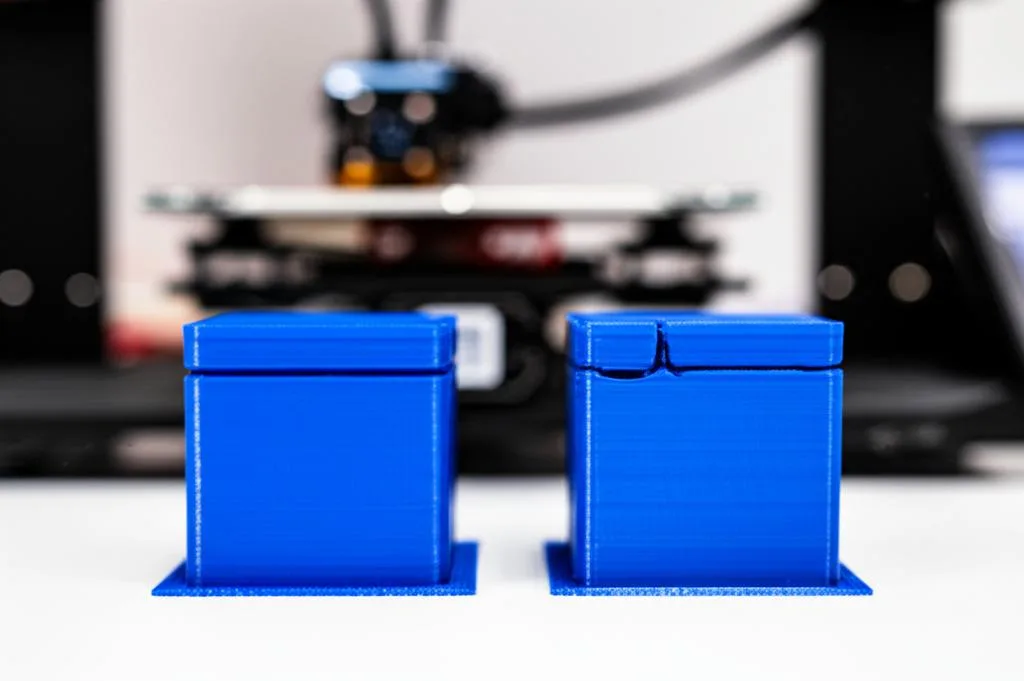
It’s important to understand the distinction between e-steps calibration and flow rate (or extrusion multiplier) settings in your slicer. While both affect the amount of plastic extruded, they serve different purposes:
- E-steps: This is a hardware calibration. It tells your printer how much filament the extruder physically moves per motor step. It should be calibrated once (or after hardware changes) and remain constant for a given extruder.
- Flow rate (Extrusion Multiplier): This is a software setting in your slicer (e.g., Cura, PrusaSlicer). It’s a percentage multiplier applied to the extrusion amount specified by the G-code. Flow rate is typically adjusted per filament type or even per roll of filament to fine-tune the final extrusion volume, compensating for slight variations in filament diameter or material density.
Always calibrate your e-steps first, as it’s the most fundamental mechanical calibration. Only after e-steps are accurate should you fine-tune flow rate in your slicer for specific filaments to achieve perfect surface finish and dimensional accuracy.
Conclusion: The foundation for fantastic prints
E-steps calibration might seem like a small detail, but it’s a cornerstone of successful 3D printing. By ensuring your 3D printer calibration is spot-on for e-steps calibration, you eliminate a major variable that can plague print quality. This meticulous initial setup step directly combats issues like over-extrusion and under-extrusion, paving the way for prints that are dimensionally accurate, strong, and aesthetically pleasing. Take the time to perform this calibration correctly, and you’ll undoubtedly see a noticeable improvement in your 3D printing endeavors. Happy printing!
Frequently asked questions
Do I need to redo e-steps calibration every time I switch filament types?
No. E-steps is a hardware calibration for your extruder motor and gears, not a per-filament setting. Once you calibrate e-steps correctly for your extruder, you should only recalibrate after hardware changes like a new extruder, motor, or firmware update. For different filaments (PLA vs. PETG), adjust the flow rate (extrusion multiplier) in your slicer instead.
What if I can’t save the new e-steps value using the M500 command?
If M500 doesn’t save your new e-steps, your printer’s firmware likely doesn’t support EEPROM saving or has it disabled. In that case, you must manually edit your firmware’s configuration file (e.g., Marlin’s Configuration.h) to permanently set the e-steps value, then recompile and flash it. Alternatively, you can add the M92 Exxx.xx command to your slicer’s start G-code, though this is less reliable.
How accurate does my measurement need to be for a good calibration?
You should aim to be within +/- 1mm of your desired 100mm extrusion after calibration. If your measured actual extrusion is consistently within that range, your e-steps are accurate enough for high-quality prints. Digital calipers are strongly recommended over a ruler for this precision, as even small measurement errors compound into noticeable over- or under-extrusion.