
Every program in this guide is genuinely free to download and use as of September 2026, so the question is not price but license. For 3D printing the short answer is: start in Tinkercad in your browser, move to Onshape or FreeCAD when you need real dimensions, and pick Blender only if you want organic, sculpted shapes. All of them write STL, which is all a slicer needs.
The traps are in the small print. Autodesk Fusion for personal use is limited to non-commercial projects and to people earning under $1,000 a year from their work. Onshape’s free plan makes every document you create visible to the public. SketchUp Free runs only in a browser and is not for commercial use either. This guide lists what each license allows, where each tool runs and what it exports, with the vendor pages those details come from linked at the end.
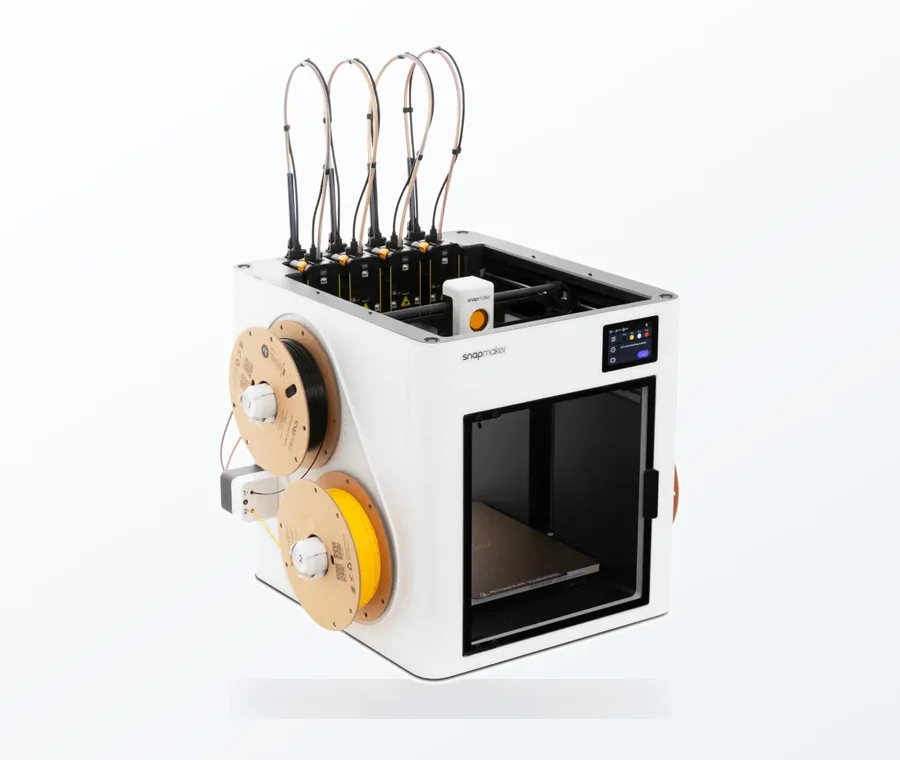
The consumer toolchanger 3D printer: the SnapSwap 4-toolhead system swaps heads in 5 seconds for true multi-color and multi-material printing, with smart calibration and auto filament loading.
- 4 toolheads · 5 s swap
- Up to 500 mm/s · 20,000 mm/s²
- 270 mm cube build volume
- Multi-color & multi-material
Which one should you actually start with
- You have never modeled anything: Tinkercad. Nothing to install, and you can have a printable keyring exported in an afternoon.
- You want functional parts with exact dimensions and don’t mind public files: Onshape’s free plan. Full parametric CAD in the browser, but everything you make is public.
- You want the same thing but private, offline and with no license conditions: FreeCAD.
- You want characters, figurines or anything organic: Blender.
- You are a hobbyist who wants integrated CAD and CAM and qualifies for the personal-use terms: Autodesk Fusion for personal use.
- You would rather type dimensions than drag them: OpenSCAD.
- You are modeling rooms, furniture or buildings: SketchUp Free.
Free 3D modeling software compared
| Tool | Best for | License and limits (2026) | Platform | Exports for printing |
|---|---|---|---|---|
| Tinkercad | First model ever, simple printable parts | Free Autodesk account; browser app for 3D design, electronics and code | Web browser | STL, OBJ |
| Onshape (Free plan) | Precise parametric parts, assemblies | $0, non-commercial use only, unlimited public storage, all documents accessible to the public | Web browser, mobile apps | STL, 3MF, STEP, Parasolid, IGES, OBJ |
| FreeCAD 1.1 | Private parametric CAD with no strings | Open source, LGPL-2.1; no commercial restriction | Windows, macOS, Linux | STL, OBJ, STEP, IGES |
| Blender 5.2 | Sculpting, characters, rendering | Open source, GPL; what you create is your property, commercial work included | Windows, macOS, Linux | STL, OBJ, PLY (plus USD, FBX, Alembic) |
| Autodesk Fusion for personal use | Hobby engineering, CAD plus basic CAM | Free 3-year subscription, personal non-commercial projects only, under $1,000 a year in revenue; limited CAM, limited import/export types, forum support only | Windows, macOS, browser version | STL and other mesh formats, within the limited personal-use export list |
| SketchUp Free | Rooms, furniture, architectural mock-ups | Free subscription, not for commercial use, no support, 10 GB Trimble Connect storage; some features need a paid plan | Web browser | STL |
| OpenSCAD | Parametric parts written as code | Free software, GPL version 2 | Windows, macOS, Linux/UNIX | STL, 3MF, OFF, AMF |
License terms change more often than the software does, so treat the third column as accurate for 2026 and check the vendor page before you build a workflow on it. The links in the Sources section go straight to those pages.
License small print that catches beginners out
Autodesk Fusion for personal use. Autodesk describes it as a limited version with basic functionality, granted as a free three-year subscription to qualifying users. Its special terms say it is for home-based, non-commercial projects only, not for use in primary employment, company environments or commercial training, and that anyone generating more than $1,000 a year in revenue has to move to a paid subscription. The feature list is trimmed too: limited CAM, single-user data management, limited 2D drawings, limited import and export file types, and forum support only.
Onshape’s free plan. This is the one that surprises people. The free tier gives you the same cloud CAD as the paid tiers, but Onshape states plainly that it is for non-commercial use and that all Onshape documents on that plan are accessible to the public. Storage is unlimited because it is public storage. If you are designing a gift, a client part or anything you would rather not publish, that plan is the wrong home for it.
SketchUp Free. Trimble’s help pages confirm the free subscription still exists and covers SketchUp for Web, 10 GB of Trimble Connect storage and the 3D Warehouse, with a note that it is not for commercial use and that support is not available to free users. Some features in the web modeler are reserved for the paid Go, Pro and Studio plans, so confirm the export you need works in your own account before you build a project around it.
The open-source three. Blender, FreeCAD and OpenSCAD have no personal-use clause at all. Blender is released under the GPL, and the Blender Foundation states that what you create with it is your sole property, whether the work is personal or commercial. FreeCAD is LGPL-2.1, OpenSCAD is GPL version 2. Nothing expires, nothing has to be renewed, and no revenue threshold applies.
Browser-based or installed?
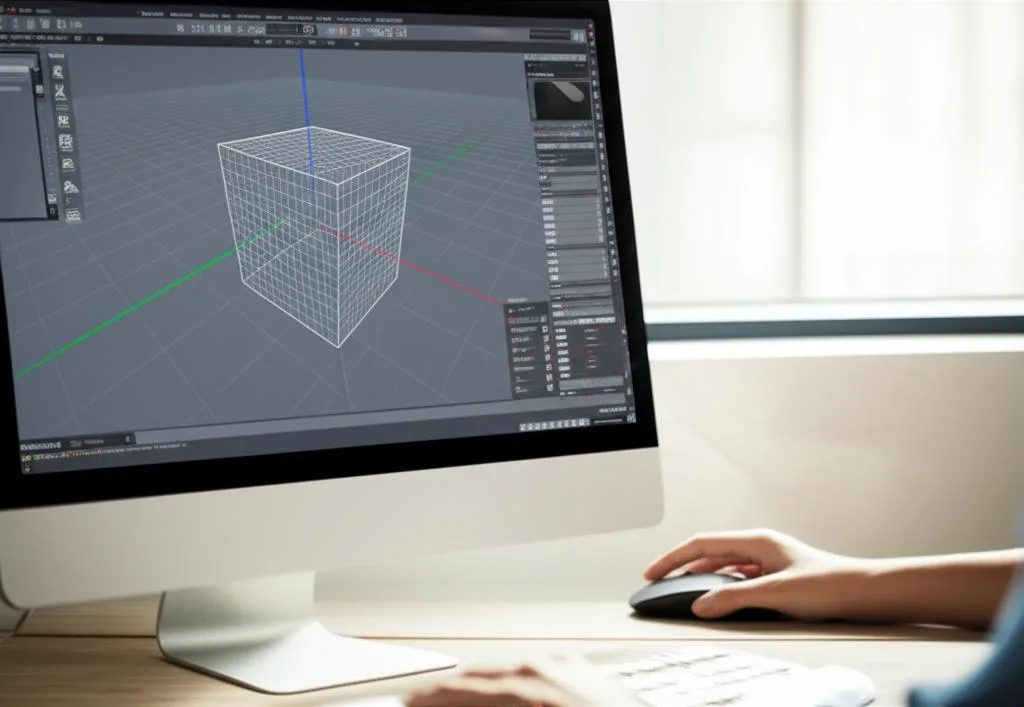
Tinkercad, Onshape and SketchUp Free run entirely in a browser. That makes them the practical choice on a Chromebook, a school laptop or any machine where you cannot install software, and it means no graphics driver troubleshooting. The trade-off is that you need a connection and an account, and your files live on someone else’s server.
Blender, FreeCAD and OpenSCAD are installed applications and each runs on Windows, macOS and Linux. Autodesk Fusion is the odd one: it installs on Windows and macOS only, with a browser version alongside it, and its published system requirements track current operating systems closely, so an old laptop stuck on an unsupported macOS release may not qualify. If your computer is elderly, the browser tools are the safer bet.
Export formats your slicer actually needs
STL is the common denominator: every tool in the table writes it, and every slicer reads it. It stores triangles and nothing else, which is why a model that looked fine on screen can arrive in the slicer with holes or flipped faces.
3MF carries units, colors and multiple objects in one file, and it is becoming the default in slicer projects. Of the free tools here, Onshape and OpenSCAD export it directly. Blender does not ship a 3MF exporter in its standard import and export set, and Tinkercad’s export options are aimed at STL and OBJ. That is not a reason to rule them out: export STL, then let the slicer save the 3MF project.
If you plan to move a design between programs later, note what survives the trip. STL and OBJ carry the finished shape but not the modeling history, so a Tinkercad or Blender export lands in CAD as a single lump of mesh. STEP, which FreeCAD and Onshape both write, keeps solid geometry that CAD software can edit properly. When something does come out broken, the fix is usually mesh repair rather than remodeling: see how to fix non-manifold edges in STL files, and the export and slicing checklist for a first model before you hit print.
Learning curve, honestly
Nobody can put a number on how long a program takes to learn, and any guide that promises “three hours to your first model” is guessing. What can be said is how the tools differ in kind.
- Shape-based (Tinkercad): you combine and subtract primitives. Almost nothing to learn before your first printable object, and a ceiling you will hit quickly on curved or precise parts.
- Parametric CAD (Onshape, FreeCAD, Fusion): you sketch, constrain and extrude, and every step stays editable. The first week is the hard part, because sketch constraints are a new way of thinking; after that, changing a dimension is trivial. The walkthrough on parametric modeling for beginners shows what that editable history buys you.
- Mesh and sculpting (Blender): direct control over geometry, an interface built for a full 3D pipeline, and a long list of concepts before you print anything. If sculpting is what you are after, the comparison of Blender against ZBrushCoreMini for complete novices is a useful second opinion.
- Code-based (OpenSCAD): you describe the model in a script. Painless if you have written any code, awkward if you have not, and hard to beat for a part you want to regenerate in ten sizes.
Tools that look free but aren’t
Newer modelers get recommended in maker forums as if they were free. Plasticity is the one that comes up most: it offers a 30-day free trial, after which an Indie license is $175 and a Studio license $299 as of 2026, sold as a perpetual license for one person. It is a good hard-surface modeler, not a free one. Check the pricing page of anything recommended to you before you invest hours in learning it, and treat “free” and “free trial” as different words.
Common mistakes when picking your first modeler
- Choosing the most powerful tool first. Blender can do everything, which is exactly why it is a poor place to design a bracket. Match the tool to the job: mesh for art, CAD for parts.
- Ignoring the license until you sell something. Fusion’s personal-use terms, Onshape’s free plan and SketchUp Free are all non-commercial. The moment money is involved, the open-source tools are the ones that stay legal.
- Putting private work on a public plan. Onshape’s free documents are public by design, and nothing warns you at the moment you press save.
- Modeling without thinking about the printer. Wall thickness, overhangs and tolerances are decided in the modeler, not the slicer. A tidy first project like a simple toy designed in Tinkercad teaches this faster than any tutorial series.
- Switching programs every week. The navigation and sketching habits transfer, but the muscle memory does not. Finish one real object before you re-evaluate, and keep the handover to the printer simple with a CAD-to-slicer workflow you repeat every time.
Frequently asked questions
Is Fusion 360 still free for personal use in 2026?
Yes. Autodesk Fusion for personal use is still offered as a free three-year subscription for qualifying non-commercial users, and it has to be renewed when the term ends. It is a limited version: reduced CAM, single-user data management, restricted import and export file types and forum-only support. You stop qualifying if you generate more than $1,000 a year from your work or use it in a company environment.
Can I sell prints made with free 3D modeling software?
It depends entirely on the license. Blender, FreeCAD and OpenSCAD place no restriction on commercial work, and Blender’s license page states that what you create is your sole property. Autodesk Fusion for personal use, Onshape’s free plan and SketchUp Free are all non-commercial by their own terms, so selling parts designed in them means moving to a paid plan first.
Which free 3D modeling software works on a Chromebook or an old laptop?
Tinkercad, Onshape and SketchUp Free all run in a browser, so they work on a Chromebook and on machines where you cannot install software. The heavy work happens on the vendor’s servers rather than your graphics card. Blender, FreeCAD and OpenSCAD have to be installed, and Autodesk Fusion needs a current version of Windows or macOS.
Can I move a Tinkercad model into another program later?
Yes, by exporting STL or OBJ and importing that file. What you cannot take with you is the history: the shapes you added and subtracted arrive as one finished mesh, so you cannot go back and change a dimension. If a design is likely to need edits, build it in parametric CAD such as Onshape or FreeCAD from the start.