
In the intricate world of resin printing, achieving truly smooth, flawless surfaces can often feel like chasing a phantom. While the technology promises incredible detail, the reality of digital fabrication sometimes introduces subtle imperfections – tell-tale pixel lines and layer lines that betray the digital origin of our physical objects. For those aiming for a professional finish, these artifacts can be a significant hurdle. Fortunately, modern resin slicers offer powerful tools to combat these issues: anti-aliasing and grayscale settings. Understanding and mastering these features is paramount for unlocking the full potential of your resin printer and delivering prints that truly stand out.
The inherent challenge of digital fabrication in resin printing
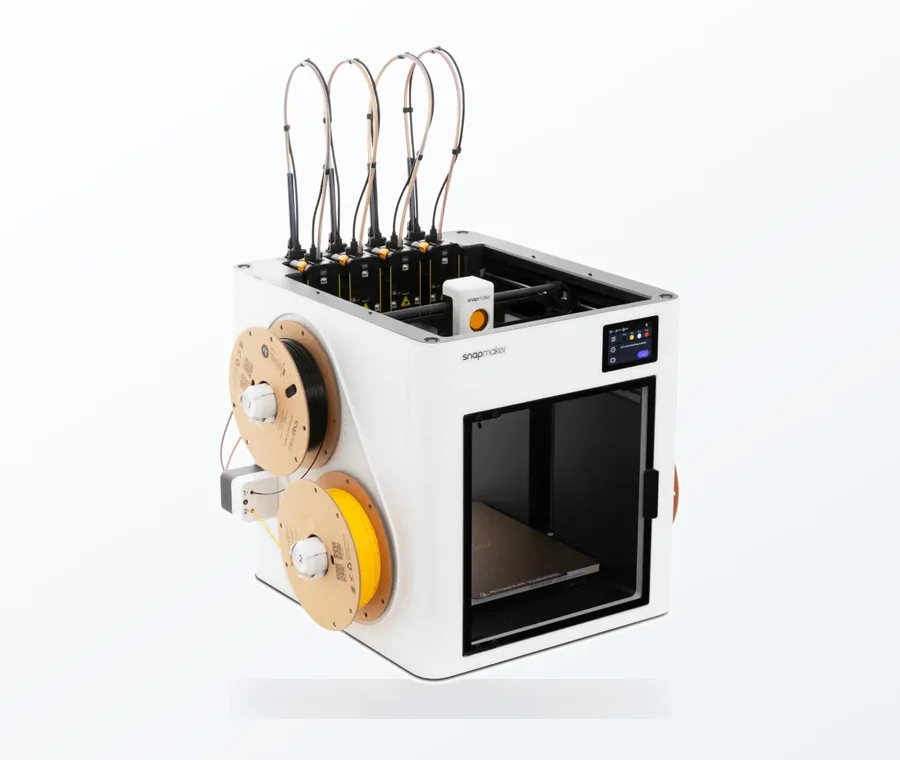
The consumer toolchanger 3D printer: the SnapSwap 4-toolhead system swaps heads in 5 seconds for true multi-color and multi-material printing, with smart calibration and auto filament loading.
- 4 toolheads · 5 s swap
- Up to 500 mm/s · 20,000 mm/s²
- 270 mm cube build volume
- Multi-color & multi-material
Resin 3D printing, particularly SLA (Stereolithography) and DLP (Digital Light Processing) technologies, operates by curing liquid resin layer by layer using UV light. The digital blueprint for each layer is a 2D image composed of pixels. When these pixels are projected onto the resin vat, they cure tiny, discrete units of resin, often referred to as ‘voxels’ (3D pixels). This digital-to-physical translation is inherently prone to producing visible artifacts:
Pixel lines (or ‘voxel lines’): These are horizontal jagged edges or stair-stepping visible on angled surfaces, resulting from the discrete square pixels of the projector or LCD screen. Each pixel has a hard ‘on’ or ‘off’ state, leading to a blocky appearance at the boundaries of features.
Layer lines: While resin printing boasts much finer layer heights than FDM, slight variations in cure depth or resin flow can still result in subtle horizontal lines across the surface of a print, especially noticeable on curved geometries.
The goal of anti-aliasing and grayscale settings is to mitigate these digital fingerprints, making the transition from the digital model to the physical print as seamless as possible.
Demystifying anti-aliasing: Smoothing the jagged edges
Anti-aliasing (AA) is a graphics technique widely used in digital imaging to smooth out jagged edges that appear when diagonal lines or curves are rendered using square pixels. In the context of resin printing, its function is precisely the same: to reduce the visibility of those ‘pixel lines’ or ‘voxel lines’ that plague angled surfaces.
How anti-aliasing works in resin printing
When a slicer applies anti-aliasing, it doesn’t simply turn pixels on or off. Instead, it analyzes the edges of the 3D model within each layer and adjusts the intensity of the UV light projected by the pixels along these boundaries. Rather than a stark on/off transition, AA introduces intermediate shades of gray (or varying UV light intensities) to pixels that are partially covered by the model’s edge. This creates a gradient, effectively blending the edge with its surroundings.
Edge detection: The slicer identifies the pixels that lie on the perimeter of the model’s cross-section for a given layer.
Intensity modulation: For these edge pixels, instead of a full cure (100% UV intensity) or no cure (0% UV intensity), the slicer assigns a partial intensity. A pixel that is, for instance, 50% covered by the model’s edge might receive 50% UV intensity.
Partial curing: This partial intensity results in a partial cure of the resin in that specific voxel. The cured resin at the edge is therefore not a sharp, blocky corner but a slightly tapered, smoother transition.
Impact on print quality and common settings
The primary benefit of anti-aliasing is a noticeable reduction in the stair-stepping effect on diagonal and curved surfaces. Prints appear significantly smoother to the naked eye, mimicking the look of an injection-molded part rather than a 3D-printed one. This is particularly crucial for miniatures, figurines, and models where aesthetic appeal and fine surface finish are paramount.
Slicer settings for anti-aliasing typically include:
AA Level (or Strength): Often expressed as 2x, 4x, 8x, or a percentage. Higher levels mean more aggressive smoothing and more intermediate shades of gray used. While higher levels generally produce smoother results, they can also slightly soften very fine details if overused.
Pixel Width (or Grey Pixel Width): This setting defines how many pixels around an edge will be considered for anti-aliasing. A larger pixel width means the smoothing effect will extend further into the model’s boundary, potentially leading to a more pronounced softening of details but also a very smooth transition.
Exploring grayscale settings: Beyond binary curing
While anti-aliasing primarily addresses horizontal pixelation within a layer, grayscale settings, often intertwined with AA, extend this concept to manage the vertical dimension – the layer lines. Grayscale settings leverage the printer’s ability to project UV light at varying intensities, allowing for more nuanced control over the curing process than a simple on/off switch.
How grayscale settings work
Grayscale settings allow the slicer to generate images for each layer that contain multiple shades of gray, not just black and white. Each shade of gray corresponds to a different UV light intensity, which in turn results in a different depth of cure for the resin. A lighter shade of gray (lower UV intensity) cures the resin less deeply, while a darker shade (higher UV intensity) cures it more deeply. This capability is particularly powerful when applied to the transition between layers.
Modulated cure depth: Instead of curing each layer to a uniform thickness, grayscale allows for a variable cure depth within a single layer. This means that parts of a layer can be cured to, say, 0.04mm, while adjacent parts are cured to 0.05mm, creating a subtle ramp rather than a sharp step.
Smoothing layer transitions: When combined with anti-aliasing, grayscale settings can be used to create smoother transitions not just horizontally but also vertically. For instance, if a feature is gradually emerging from the build plate, the initial layers might be cured with progressively increasing intensities, leading to a smoother incline rather than a series of distinct steps.
Impact on print quality and relationship with anti-aliasing
The judicious application of grayscale settings can significantly reduce the appearance of layer lines, especially on gently sloped or curved surfaces. By creating a more gradual transition between layers, the visible ‘steps’ become less pronounced, leading to an exceptionally smooth overall surface finish. This is a game-changer for models requiring exhibition-quality surfaces.
Grayscale settings and anti-aliasing are often complementary. Anti-aliasing handles the horizontal pixel boundaries, while grayscale, by allowing variable cure depths, can smooth out the vertical steps between layers. Together, they form a powerful duo for achieving truly superior surface quality.
Slicer settings related to grayscale often include:
Grayscale Levels: The number of distinct shades of gray the printer can utilize (e.g., 256 levels). More levels allow for finer control over cure depth.
Transition Layers: This setting determines how many layers are used to smooth a vertical transition. A higher number of transition layers allows for a more gradual and smoother change in cure depth, further reducing the visibility of layer lines.
Practical implementation in resin slicers
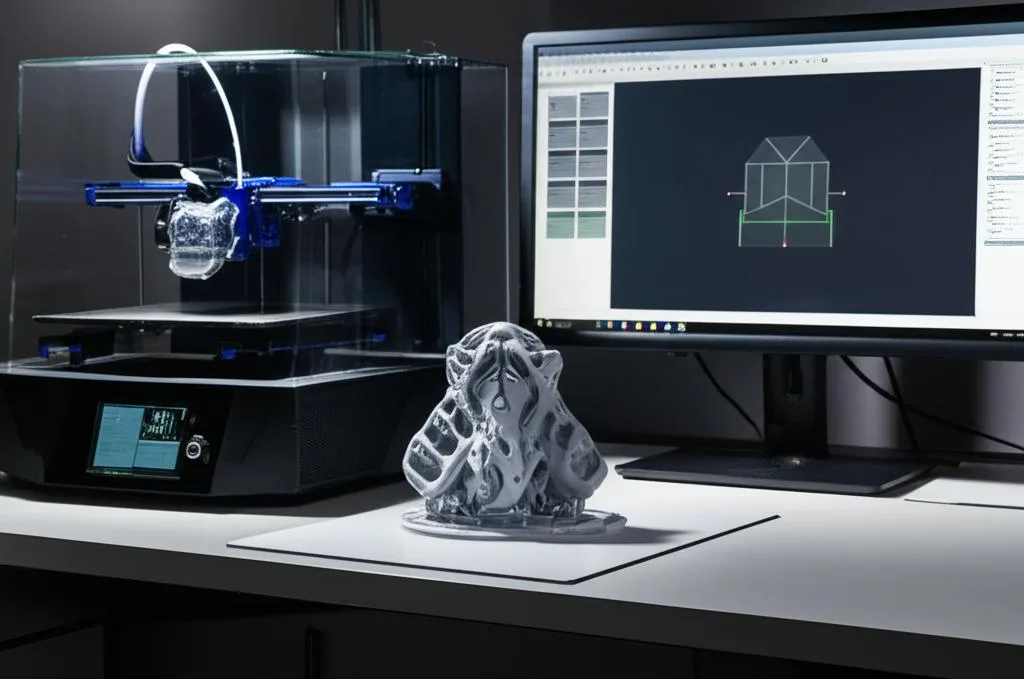
Most popular resin slicers today, such as Chitubox, Lychee Slicer, and PrusaSlicer (for SLA), incorporate anti-aliasing and often grayscale-related settings. While the terminology might vary slightly, the core principles remain consistent.
Adjusting anti-aliasing parameters
Within your chosen slicer, you’ll typically find anti-aliasing options under print settings or advanced settings. You can usually adjust:
Enable/Disable: A simple toggle to turn the feature on or off.
Anti-aliasing Level/Strength: Experiment with values like 2, 4, or 8 (or corresponding percentages). Start with a moderate setting (e.g., 2 or 4) and increase if more smoothing is desired, being mindful of potential detail loss.
Grey Pixel Width: This determines the ‘blur radius’ around the edges. A value of 1 or 2 is common. Higher values will create a wider gradient, which can be beneficial for very large, smooth curves but detrimental to sharp features.
Configuring grayscale and transition layers
Some slicers offer explicit grayscale settings, while others integrate them more subtly into the anti-aliasing controls or layer transition options.
Grayscale/Transition Layer Count: If available, this setting dictates how many layers are used to smooth out vertical steps. For instance, if a feature rises by 0.1mm over 10 layers, and you set transition layers to 3, the slicer will gradually adjust the exposure for those 3 layers to create a ramp.
Exposure Compensation: In some advanced settings, you might be able to fine-tune how different grayscale values translate to exposure times, allowing for very precise control over cure depth.
Considerations for different resins and printers
The optimal anti-aliasing and grayscale settings are not universal. They are highly dependent on several factors:
Resin Type: Different resins have varying sensitivities to UV light and different curing characteristics. A resin that cures very quickly might require lower grayscale intensities or different AA levels to prevent over-curing and detail loss.
Printer Resolution (XY Resolution): Printers with higher native XY resolution (smaller pixels) might require less aggressive anti-aliasing, as their inherent pixelation is already less pronounced.
Desired Detail vs. Smoothness: For models with extremely fine, intricate details, excessive anti-aliasing can lead to a slight blurring of these features. It’s a trade-off that requires careful balancing based on the specific print’s requirements.
The synergy of anti-aliasing and grayscale
When used in conjunction, anti-aliasing and grayscale settings address both the horizontal (pixel-based) and vertical (layer-based) artifacts of resin printing. Anti-aliasing tackles the jagged edges within each layer, while grayscale settings provide the ability to smooth the transitions between layers by varying cure depths. The combined effect is a print with an incredibly smooth, almost seamless surface that rivals injection-molded parts in terms of finish quality. This synergy is particularly beneficial for:
Organic shapes: Figures, sculptures, and anatomical models benefit immensely from the removal of visible pixel and layer lines.
Functional prototypes: Parts that require a smooth surface for aerodynamics, fluid dynamics, or aesthetic presentation.
Mold masters: Creating exceptionally smooth masters for silicone or other types of molding processes, where any surface imperfection would be replicated.
Balancing performance and quality
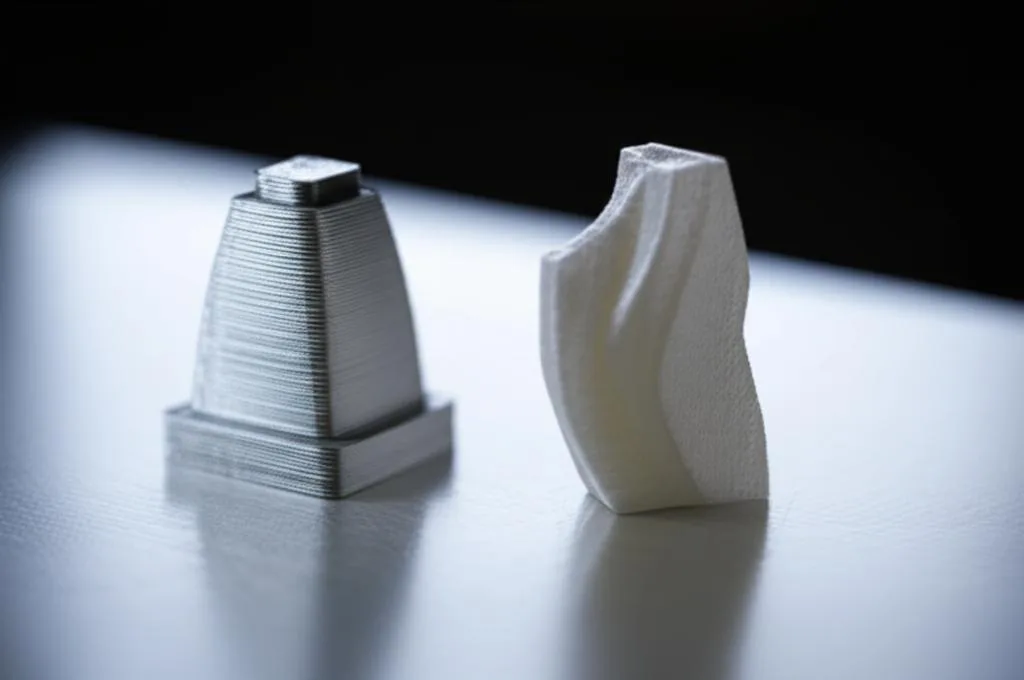
While the benefits of anti-aliasing and grayscale are clear, it’s important to understand the operational implications of these settings. They don’t come without their own set of considerations:
Print time: Implementing grayscale settings, especially with a high number of transition layers, can sometimes increase the overall print time. The printer might need to pause or adjust its UV intensity more frequently, leading to slightly longer exposure cycles per layer or more processing time for the slicer.
Slicer processing load: Generating layers with complex grayscale information and anti-aliased edges requires more computational power from the slicer. This can lead to longer slicing times, especially for very large or intricate models.
File size: Files containing rich grayscale data for each layer can be significantly larger than binary (black and white) layer files. While often manageable, this is a consideration for printers with limited onboard memory or slower data transfer rates.
Detail fidelity vs. smoothness: As mentioned, overly aggressive anti-aliasing can slightly blur very fine details, particularly sharp corners or tiny raised text. It’s a delicate balance to strike between ultimate smoothness and absolute crispness of minute features.
The key is to find the ‘sweet spot’ for your specific projects. Not every print requires maximum anti-aliasing and grayscale. For some functional prototypes, speed might be prioritized over a perfectly smooth finish. For display pieces or masters, investing the extra time and calibration effort is often well worth it.
Troubleshooting and fine-tuning
Calibrating anti-aliasing and grayscale settings effectively often involves a bit of trial and error. Here are some common issues and tips for troubleshooting:
Blurry details: If your fine details (e.g., small text, sharp edges) appear soft or indistinct, your anti-aliasing level or grey pixel width might be too high. Reduce these settings incrementally.
Over-curing/blooming: If parts of your model appear thicker than intended, or small holes are filled in, your grayscale settings (or general exposure times) might be too high. This can happen if the intermediate gray values are still curing too much resin. Adjust exposure times or grayscale compensation settings.
Still seeing pixel/layer lines: If artifacts persist, ensure both anti-aliasing and relevant grayscale/transition layer settings are enabled and set to appropriate levels. Consider increasing the AA level or the number of transition layers, provided it doesn’t negatively impact fine details.
Calibration prints: The best way to fine-tune these settings is to print small calibration models designed to highlight pixelation and layer lines. These allow for rapid iteration and comparison of different settings without wasting a lot of resin or time on large prints.
Conclusion
Anti-aliasing and grayscale settings are not just advanced features; they are essential tools for anyone serious about achieving top-tier surface quality in resin printing. By understanding how these settings manipulate UV light intensity to smooth out digital artifacts, you gain unparalleled control over your print’s final appearance. While they introduce a layer of complexity and require careful calibration, the payoff is immense: prints that transcend the tell-tale signs of 3D printing, boasting surfaces so smooth they often defy their additive manufacturing origins. Experiment, iterate, and unlock a new realm of smooth, high-fidelity resin prints.
Frequently asked questions
Will enabling anti-aliasing or grayscale significantly increase my print time?
Yes, it can. Implementing grayscale settings, especially with a high number of transition layers, may increase overall print time because the printer might need to pause or adjust its UV intensity more frequently per layer. However, the increase is usually modest and often a worthwhile trade-off for a dramatically smoother surface finish.
Why are my fine details like small text or sharp edges coming out blurry after I enabled anti-aliasing?
This usually means your anti-aliasing level or grey pixel width is set too high, causing the smoothing effect to soften crisp features. Reduce these settings incrementally—for example, lowering the AA level from 8 to 4 or the pixel width from 2 to 1—to restore sharpness while still reducing pixel lines.
I still see visible layer lines on my prints even with anti-aliasing turned on. What am I missing?
Anti-aliasing primarily smooths horizontal pixelation within a single layer, not the vertical steps between layers. To reduce visible layer lines, you also need to enable grayscale or transition layer settings in your slicer, which vary the cure depth to create a gradual ramp between layers. If those settings are already on, try increasing the number of transition layers.