In 3D printing, firmware dictates a printer’s performance, speed, and precision. While traditional mainboard firmware solutions have served us well, Klipper offers a revolutionary alternative. This advanced open-source firmware reimagines printer operation, offloading complex computational tasks from your mainboard to a more powerful host controller, typically a Raspberry Pi. The result is a significant leap in print quality, speed, and control. This guide will walk you through migrating your 3D printer to Klipper from scratch, exploring its profound benefits and providing a clear, step-by-step setup process.
Why Klipper? Klipper firmware benefits explained
A retro-styled turntable and add-on speaker system with concrete and wood enclosure options. Currently running on Kickstarter.
Switching to Klipper often stems from a desire to push 3D printing boundaries. Here’s a closer look at the core Klipper firmware benefits that make it a compelling upgrade:
- Enhanced Speed and Precision: By utilizing a powerful host like a Raspberry Pi, Klipper processes commands faster and more accurately than typical 3D printer mainboards. This enables significantly faster 3D printing speeds without sacrificing quality, leading to smoother movements and fewer artifacts.
- Input Shaping: One of Klipper’s standout features, input shaping actively compensates for vibrations (ringing or ghosting) in your printer’s frame. By measuring and counteracting these resonant frequencies, it dramatically improves print quality, especially at higher speeds.
- Pressure Advance: This feature predicts and compensates for pressure build-up in the extruder and hotend, resulting in sharper corners, better extrusion consistency, and reduced stringing and blobs, especially during rapid speed changes.
- Modular and Flexible Configuration: Klipper’s configuration uses a simple text file (
printer.cfg), making it incredibly easy to customize, experiment, and fine-tune every printer aspect without recompiling firmware. This modularity supports a vast array of hardware. - Advanced Control and Web Interface: Klipper integrates seamlessly with web interfaces like Mainsail or Fluidd, offering a rich, intuitive dashboard for remote monitoring, control, and configuration, a level of control far beyond traditional firmware.
- Open Source Community: As open-source firmware, Klipper benefits from a vibrant community constantly developing features, providing support, and sharing configurations.
Understanding Klipper’s architecture and cost considerations

Before diving into the migration, it’s crucial to understand Klipper’s unique architecture and the associated cost structures. Unlike traditional firmware where the printer’s mainboard handles all computations, Klipper splits the workload.
The Klipper architecture
- Host Controller (e.g., Raspberry Pi): This is the brain of the operation. It runs the Klipper host software, processes G-code, performs complex calculations (like input shaping), and sends precise low-level commands to the mainboard.
- Printer Mainboard: The mainboard, running a stripped-down Klipper firmware, acts as a simple execution unit, carrying out the exact commands sent by the host controller. It manages stepper motors, heaters, and sensors.
Cost considerations for Klipper migration
Migrating to Klipper involves an initial investment, which varies based on your existing setup and desired components. While traditional firmware often comes pre-installed with no additional cost, Klipper requires specific hardware:
- Raspberry Pi: This is the primary cost. Models like the Raspberry Pi 3B+, 4, or even a CM4 are commonly used. Prices fluctuate, but expect to spend anywhere from $30-$100+. Alternatives like Orange Pi or other single-board computers can also work.
- MicroSD Card: Essential for the Raspberry Pi’s operating system (e.g., 8GB or 16GB, Class 10). Minimal cost ($5-$15).
- Power Supply for Raspberry Pi: A dedicated, stable power supply is crucial for reliable operation ($10-$20).
- Cables and Connectors: A USB cable to connect the Pi to your printer’s mainboard, and potentially additional wiring for an ADXL345 accelerometer for input shaping ($5-$20).
- ADXL345 Accelerometer (Optional but Recommended): For precise input shaping calibration, this small sensor is highly recommended ($10-$25).
- Mainboard Compatibility: Most modern 32-bit mainboards are compatible, but some older 8-bit boards might be more challenging. In rare cases, an upgrade to a more compatible mainboard might be considered, adding significant cost.
When comparing costs, consider long-term benefits. The initial Raspberry Pi investment for Klipper can be offset by reduced print times (more output), fewer quality-related print failures, and the satisfaction of a finely tuned machine. While traditional firmware has no direct “upgrade cost,” its speed and quality limitations can indirectly lead to wasted material and time.
Klipper setup guide: A step-by-step migration from scratch
This Klipper setup guide will walk you through the process. Ensure you have all necessary hardware before starting.
Step 1: Preparing the Raspberry Pi with Klipper host software
- Choose your OS: Several pre-configured operating systems simplify Klipper installation. Popular choices include:
- MainsailOS: Includes Klipper, Moonraker (Klipper API), and Mainsail web interface.
- FluiddPi: Similar to MainsailOS, but with the Fluidd web interface.
- OctoPi (with Klipper plugin): If you already use OctoPrint, you can install Klipper alongside it.
For new users, MainsailOS or FluiddPi are highly recommended as they are purpose-built for Klipper.
- Download the OS image: Visit the respective project’s GitHub or website and download the latest image file.
- Flash the SD card: Use an imaging tool like Balena Etcher or Raspberry Pi Imager to write the downloaded image to your MicroSD card. Select the correct image and your SD card carefully.
- Configure Wi-Fi (if needed): Before ejecting the SD card, you might need to configure Wi-Fi. For MainsailOS/FluiddPi, after flashing, eject and reinsert the SD card. A new partition named ‘boot’ will appear. Edit the
mainsail-wpa-supplicant.txt(or similar) file, uncommenting and filling in your Wi-Fi SSID and password. Save and eject.
Step 2: Connecting to the Raspberry Pi and initial setup
- Power on: Insert the prepared SD card into your Raspberry Pi and power it on.
- Find the IP address: Your Pi should connect to your network. You can find its IP address through your router’s administration page, a network scanner app (e.g., Fing), or by connecting a monitor/keyboard to the Pi and typing
hostname -I. - Access the web interface: Open a web browser on your computer and navigate to
http://[Your_Pi_IP_Address]. You should see the Mainsail or Fluidd interface. - SSH Access: For command-line operations, you’ll need an SSH client (e.g., PuTTY on Windows, Terminal on macOS/Linux). Connect using
ssh pi@[Your_Pi_IP_Address]. The default password israspberry. Change this immediately for security:passwd.
Step 3: Flashing Klipper to your 3D printer mainboard
This step involves compiling a Klipper firmware tailored for your specific mainboard and flashing it. The process can vary slightly depending on your mainboard.
- Connect the Pi to your printer: Use a USB cable to connect your Raspberry Pi to your 3D printer’s mainboard.
- SSH into your Pi: Open your SSH client and connect.
- Navigate to Klipper directory:
cd klipper/ - Configure Klipper firmware: Run
make menuconfig. This will open a text-based menu. You’ll need to select:- Your microcontroller architecture (e.g., STM32, ATmega).
- Your microcontroller model (e.g., STM32F401, ATmega2560).
- The bootloader offset (if applicable, check your mainboard’s documentation).
- The communication interface (usually USB).
Save and exit.
- Compile the firmware: Run
make. This will compile the Klipper firmware (klipper.bin) in theklipper/out/directory. - Flash the firmware: This is the most variable part.
- SD Card Flashing (common for STM32 boards): Copy
klipper.binto a blank, FAT32 formatted SD card. Insert it into your printer’s mainboard SD slot and power on. The board should automatically flash. Renameklipper.bintofirmware.bin(or similar, check your board’s specific requirement) for the flash to occur. - DFU/USB Flashing (for some boards): Requires specific tools and drivers. Consult your mainboard’s documentation.
- Direct Flashing (e.g., AVR boards): Using
make flashcommand directly from the Pi.
After flashing, power cycle your printer.
- SD Card Flashing (common for STM32 boards): Copy
Step 4: Configuring Klipper with printer.cfg
The printer.cfg file is where you define every aspect of your printer. Klipper comes with example configurations for many popular printers, which are an excellent starting point.
- Find your MCU ID: In your web interface (Mainsail/Fluidd), go to the “Machine” or “Configuration” tab. You’ll see a section for your MCU. Copy the long serial ID (e.g.,
/dev/serial/by-id/usb-Klipper_stm32g0b1xx_...). - Create your printer.cfg:
- Access your Pi via SSH or the web interface’s file manager.
- Navigate to the Klipper configuration directory (usually
/home/pi/klipper_config/or/home/pi/printer_data/config/). - Create a new file named
printer.cfg. - Start with an example configuration for your printer model (if available) or a generic one. You can find examples in the Klipper GitHub repository (
klipper/config/). Copy and paste the relevant sections.
- Edit
printer.cfg:[mcu]section: Paste your MCU ID here:serial: /dev/serial/by-id/usb-Klipper_stm32g0b1xx_...- Stepper motors: Configure your X, Y, Z, and E (extruder) steppers, including steps per mm, endstop pins, motor directions, and max speeds.
- Heaters and thermistors: Define your hotend and heated bed, their sensor types, and PID settings.
- Endstops: Define the pins for your X, Y, and Z endstops.
- Bed dimensions: Set your printer’s physical bed size.
This step requires careful attention to your printer’s specific hardware and pinouts. Consult your mainboard’s schematic or existing firmware configuration.
- Save and restart Klipper: After making changes, save
printer.cfg. In Mainsail/Fluidd, click “Restart Klipper” or “Firmware Restart.” Klipper will attempt to connect to your printer. If there are errors, they will appear in the console.
Step 5: Calibrating your printer
Once Klipper is running, calibration is key to achieving optimal print quality.
- PID Tuning: Tune your hotend and heated bed PID settings. Use commands like
PID_CALIBRATE HEATER=extruder TARGET=200andPID_CALIBRATE HEATER=heater_bed TARGET=60. Save results withSAVE_CONFIG. - Z-Offset: Accurately set your Z-offset for perfect first layers. Use a Z-probe (if applicable) and a test print, adjusting with
PROBE_CALIBRATEor manually. Save withSAVE_CONFIG. - Bed Mesh Leveling (if applicable): If you have an auto-bed leveling probe, set up a bed mesh. In
printer.cfg, enable the[bed_mesh]section and define probe points. RunBED_MESH_CALIBRATE. Save withSAVE_CONFIG.
Step 6: Implementing input shaping and pressure advance for faster 3D printing
These features are where Klipper truly shines for faster 3D printing and quality.
- Input Shaping Configuration:
- Install ADXL345 (if using): Connect the ADXL345 accelerometer to your Raspberry Pi (via SPI or I2C) or directly to a compatible mainboard. Configure it in
printer.cfg. - Run Resonance Test: Mount the accelerometer firmly to your print head. In SSH, run the Klipper resonance test script (e.g.,
~/klipper/scripts/calibrate_shaper.py). This will move your print head and measure vibrations. - Analyze Results and Apply: The script will output recommended input shaper settings (e.g.,
mainsail_shaperorfluidd_shaper). Add these to yourprinter.cfgunder the[input_shaper]section. Save withSAVE_CONFIG.
- Install ADXL345 (if using): Connect the ADXL345 accelerometer to your Raspberry Pi (via SPI or I2C) or directly to a compatible mainboard. Configure it in
- Pressure Advance Configuration:
- Print a test tower: Klipper’s documentation provides g-code for a pressure advance test print. This tower has distinct sections printed at varying pressure advance values.
- Determine optimal value: Examine the tower for sharpest corners and consistent extrusion. Identify the value that looks best.
- Add to
printer.cfg: Addpressure_advance: [your_value]to your extruder section ([extruder]). Save withSAVE_CONFIG.
Step 7: Testing and fine-tuning
With Klipper configured and calibrated, it’s time to test.
- First Prints: Start with small, simple test prints to verify basic functionality. Monitor for any issues.
- Observe and Adjust: Pay close attention to print quality, layer adhesion, and surface finish. Use the web interface to fine-tune settings on the fly.
- Explore Macros: Klipper allows for powerful custom macros in your
printer.cfg. These can automate complex sequences, like custom start/end g-code, filament changes, or advanced calibration routines.
Beyond the basics: Advanced Klipper features
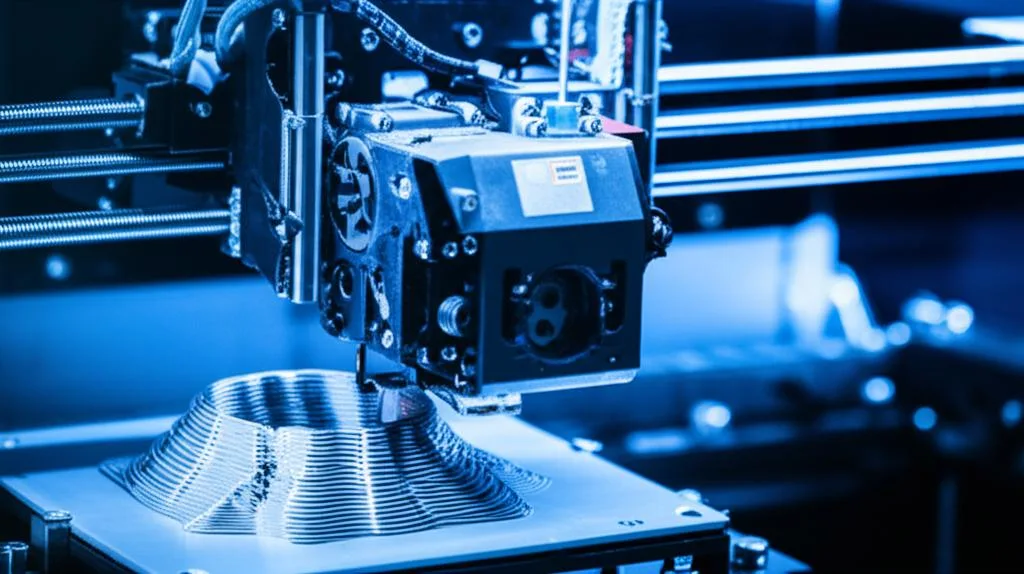
Klipper’s flexibility extends far beyond the core setup. You can integrate webcams for remote monitoring, add custom display support, implement advanced temperature control, or even set up multiple extruders with ease. The community resources and extensive documentation are invaluable for exploring these possibilities.
Migrating to Klipper firmware is a journey that transforms your 3D printing experience. While it requires an initial investment in hardware and a learning curve, the Klipper firmware benefits—from achieving faster 3D printing speeds with superior quality thanks to features like input shaping and pressure advance, to unparalleled control and customization—are well worth the effort. By following this comprehensive Klipper setup guide, you’ll unlock the full potential of your 3D printer, empowering you to create more precise, higher-quality prints in less time.
Frequently asked questions
What is the minimum total cost to migrate to Klipper if I already own a compatible 32-bit mainboard?
The minimum cost is roughly $50-$140. You need a host computer like a Raspberry Pi 3B+ or 4 ($30-$100), a MicroSD card ($5-$15), a dedicated Pi power supply ($10-$20), and a USB cable ($5). An ADXL345 accelerometer for input shaping calibration is strongly recommended and adds $10-$25.
Can I keep my existing OctoPrint setup when switching to Klipper, or must I use Mainsail or Fluidd?
Yes, you can keep OctoPrint. You can install Klipper alongside OctoPrint on an OctoPi setup using a Klipper plugin, though MainsailOS and FluiddPi are purpose-built for Klipper and recommended for new users. Klipper’s architecture works with any web interface that can communicate via Moonraker, its API layer.
What happens if I flash Klipper to my mainboard and the printer stops responding?
If the printer becomes unresponsive, the firmware flash likely has incorrect configuration settings (wrong microcontroller model, bootloader offset, or communication interface). You can recover the board by re-flashing stock firmware using the same SD card method or DFU procedure, then carefully re-check your Klipper make menuconfig selections against your mainboard’s documentation before attempting another flash.