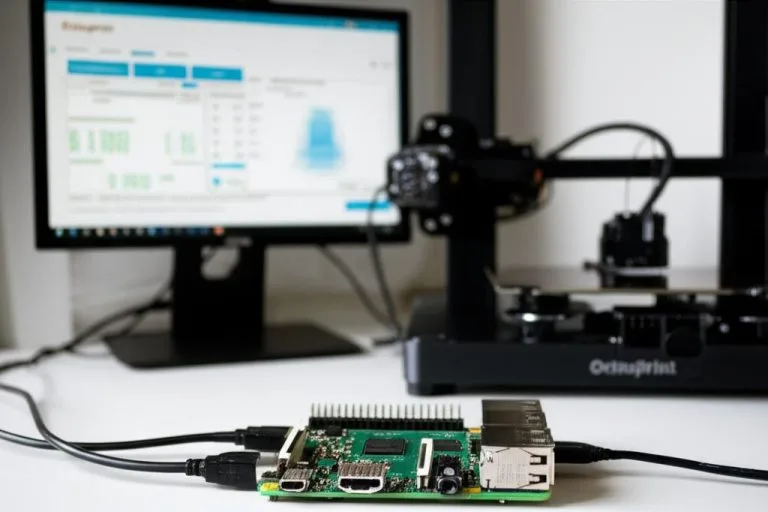

Klipper is 3D printer firmware that splits the work between two computers: a Linux host, usually a Raspberry Pi, runs the motion planning and reads your configuration file, while the printer’s own mainboard runs a small Klipper program that just executes timed step and heater commands. Migrating from Marlin therefore means four jobs: install Klipper, Moonraker and a web interface (Mainsail or Fluidd) on the host, compile Klipper for your board’s microcontroller with the bootloader and connection settings listed in Klipper’s example config for that board, flash it (on most 32-bit boards by copying a .bin file to the SD card), and write a printer.cfg that describes your machine.
You keep your existing mainboard in most cases; the extra hardware is the host computer and a good USB cable. The switch is reversible: Klipper’s FAQ says nothing special is needed on the firmware side to leave, you simply flash the other firmware. Before you start, save your Marlin settings, because Klipper has no EEPROM and every value lives in printer.cfg. This guide covers the hardware, backup, installation, flashing, the first printer.cfg, the checks Klipper’s documentation asks you to run, and the Marlin habits that change. Commands come from the Klipper documentation linked at the end.
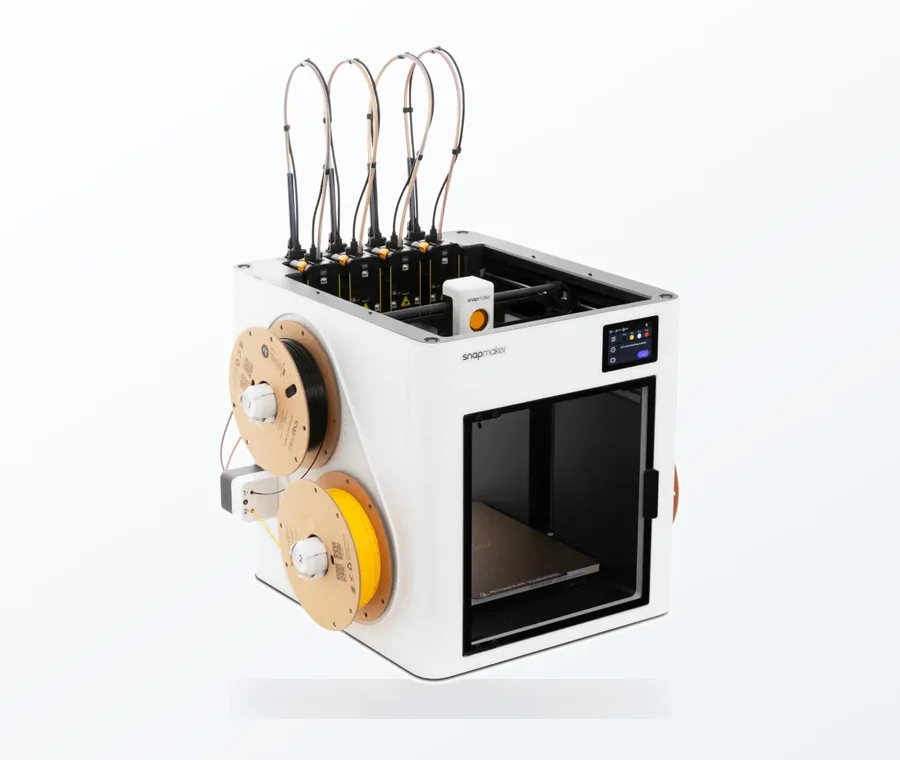
The consumer toolchanger 3D printer: the SnapSwap 4-toolhead system swaps heads in 5 seconds for true multi-color and multi-material printing, with smart calibration and auto filament loading.
- 4 toolheads · 5 s swap
- Up to 500 mm/s · 20,000 mm/s²
- 270 mm cube build volume
- Multi-color & multi-material
Marlin to Klipper in eight steps
- Back up Marlin: run
M503and keep a copy of Configuration.h if you built the firmware. - Flash a host OS (MainsailOS, or Raspberry Pi OS Lite plus KIAUH) and connect over SSH.
- Find the example config for your printer or board in Klipper’s
config/directory and read its header comments. - Run
make menuconfigwith those settings, thenmake. - Flash the board using the method the config header describes.
- Copy the example to printer.cfg and set
[mcu] serial:fromls /dev/serial/by-id/*. - Work through Klipper’s config checks: temperatures, M112, heaters, endstops, motors, extruder, PID.
- Calibrate probe Z-offset, rotation_distance, pressure advance and input shaping, then update your slicer start G-code.
Hardware you need for Klipper
| Item | Requirement | Notes |
|---|---|---|
| Host computer | Raspberry Pi Zero 2 W, 3, 4 or 5 recommended by Klipper | Pi 1, 2 and Zero (first generation) run it but lack the processing power to run it well; other SBCs and x86 PCs work if you can handle Linux setup. The host needs double-precision floating point hardware. |
| Printer mainboard | A microcontroller Klipper supports | Klipper ships example configs for many stock and aftermarket boards, including 8-bit AVR boards |
| USB cable | Good quality, secure plugs | The FAQ names a poor cable as a cause of communication errors |
| microSD card | For the host OS | A reliable, reputable card; a second card may be needed to flash the board |
| Accelerometer (optional) | ADXL345 or similar | Only needed for measured input shaping |
Klipper’s feature page gives an idea of why an old board is not a dealbreaker: it reports over 175K steps per second even on older 8-bit controllers and several million on recent ones. If you are thinking about a new board anyway, our guide to choosing a mainboard compares the common options.
Back up your Marlin settings first
Once Klipper is on the board, the Marlin values stored in its EEPROM are gone from view, so collect them now. M503 prints all runtime-configurable settings, including steps per unit (M92), PID values and probe offset. If you compiled Marlin yourself, keep Configuration.h and Configuration_adv.h; on Marlin 2.0.9.3 or later, M503 C can save the embedded configuration ZIP to the SD card if that feature was enabled in the build. Photograph the wiring and label anything you changed from stock.
Steps per millimeter do not carry over directly. Klipper uses rotation_distance, the distance an axis moves per full motor rotation, and its documentation gives the conversion: rotation_distance = full_steps_per_rotation × microsteps ÷ steps_per_mm. Typical results are 40 for a GT2 belt on a 20-tooth pulley and 8 for a T8 lead screw, which is exactly what Klipper’s Ender 3 V2 example config uses for X/Y and Z. PID values and Z-offset are easier to re-measure than to copy.
Install Klipper, Moonraker and Mainsail or Fluidd
The simplest route is a prebuilt image. Klipper’s installation guide points to MainsailOS, which bundles Klipper, Moonraker (the API server) and the Mainsail web interface, for Raspberry Pi and some Orange Pi boards. The alternative is to start from a base image such as Raspberry Pi OS Lite and run KIAUH (Klipper Installation And Update Helper). Klipper does not recommend desktop OS variants.
With Raspberry Pi OS Lite flashed, SSH and Wi-Fi configured in the imager, KIAUH’s documented install is:
sudo apt-get update && sudo apt-get install git -ycd ~ && git clone https://github.com/dw-0/kiauh.git./kiauh/kiauh.sh
From its menu, install Klipper, Moonraker and one web interface. Mainsail and Fluidd do the same job; our comparison of Mainsail and Fluidd helps you pick. When it finishes, the interface opens at the Pi’s IP address in a browser.
Compile and flash Klipper for your board
Klipper’s config directory contains files starting with printer- for complete printers and generic- for control boards. The comments at the top of the matching file tell you what to select in make menuconfig: microcontroller, bootloader offset and communication interface. Then build with cd ~/klipper/, make menuconfig, make; the firmware lands in out/klipper.bin. Do not guess the bootloader offset from forum posts; it differs even between boards from the same maker.
| Example config | menuconfig settings (from the file header) | How to flash |
|---|---|---|
| Creality Ender 3 V2 (2020, stock board) | STM32F103, 28KiB bootloader, serial on USART1 PA10/PA9 | Copy out/klipper.bin to an SD card and power on; the filename must end in .bin and must not match the last file flashed |
| BIGTREETECH SKR Mini E3 V3.0 | STM32G0B1, 8KiB bootloader, USB | make flash does not work; copy the file as firmware.bin to the SD card and restart |
| BIGTREETECH Octopus (non-Pro) | STM32F446 or STM32F429: check which chip your board has | See the header; do not use this config on an Octopus Pro v1.1, which the file warns could enable a heater |
| AVR boards (ATmega) | Per the printer file | sudo service klipper stop, make flash FLASH_DEVICE=/dev/serial/by-id/…, sudo service klipper start |
Boards that flash from the SD card often have flash-loop protection: they either want a new filename each time or rename the file to firmware.cur after a successful flash. A renamed file is a quick sign the update worked. If a board refuses to boot afterwards, re-check the menuconfig choices against the header before flashing again, and flash a known-good firmware file if you need the printer back in the meantime.
Write your first printer.cfg
- Copy the example for your printer or board into the config folder, using the Mainsail/Fluidd editor or SSH, and name it printer.cfg.
- Find the serial port with
ls /dev/serial/by-id/*. Klipper’s FAQ notes this name is stable, so use it in the config rather than/dev/ttyACM0. - Set it under
[mcu]asserial: /dev/serial/by-id/…. - Adjust the machine values from your Marlin backup:
position_endstopandposition_maxper axis,rotation_distance, thermistorsensor_type, probe offsets. On a generic board config, pin names must match your wiring. - Restart from the console and send
status. If the config has an error, the message usually points to the section and option involved, which makes typos easy to find.
First checks and calibrations after flashing
Klipper’s config check document asks you to verify the basics before printing, in this order:
- Temperatures read plausibly and are not climbing on their own.
- M112 puts the printer into shutdown;
FIRMWARE_RESTARTrecovers. - Heaters: set the extruder to 50 and confirm it rises within 30 seconds, then turn it off; repeat for the bed.
- Enable pin:
M84, then check every axis moves freely by hand. - Endstops:
QUERY_ENDSTOPSshows “open”, and “TRIGGERED” when you press each switch. - Motors:
STEPPER_BUZZ STEPPER=stepper_x(and each other stepper) moves the axis one millimeter back and forth ten times; then home withG28. - Extruder: heat to printing temperature and check it feeds in the right direction.
- PID:
PID_CALIBRATE HEATER=extruder TARGET=170andPID_CALIBRATE HEATER=heater_bed TARGET=60, thenSAVE_CONFIG.
With a probe, run PROBE_CALIBRATE, do the paper test, ACCEPT and SAVE_CONFIG. PROBE_ACCURACY probes ten times; Klipper treats a range above 25 microns (0.025 mm) as not accurate enough for bed leveling. Then calibrate the extruder’s rotation_distance, tune pressure advance, and measure resonances for input shaping if you have an accelerometer.
Marlin habits that change in Klipper
| In Marlin | In Klipper |
|---|---|
| Change Configuration.h, recompile, reflash | Edit printer.cfg and restart; reflash only for Klipper updates or a new board |
M500 saves to EEPROM | No EEPROM; SAVE_CONFIG overwrites printer.cfg with calibration results and restarts |
M92 steps per mm | rotation_distance (plus gear_ratio for geared extruders) |
M303 PID autotune | PID_CALIBRATE |
M119 endstop status | QUERY_ENDSTOPS |
G29 in start G-code | BED_MESH_CALIBRATE, or a gcode_macro named G29 |
| Linear Advance | pressure_advance in [extruder] |
M593 input shaping | [input_shaper], measured with an accelerometer or tuned from a test print |
Klipper’s G-code reference states it supports the standard commands that common slicers and OctoPrint send, not every Marlin command, and suggests gcode_macro sections for less common ones. Check your slicer’s start and end G-code after the switch; a common setup is a PRINT_START macro that the slicer calls with the bed and nozzle temperatures.
Troubleshooting a new Klipper install
| Symptom | Likely cause | Fix |
|---|---|---|
| Klipper cannot connect to the MCU | Wrong serial path, wrong communication interface in menuconfig, poor USB cable | Re-run ls /dev/serial/by-id/*; compare menuconfig with the config header; swap the cable |
| Board still runs Marlin after “flashing” | Same filename as last time, or wrong file name for that board | Use the name the config header gives; look for a renamed firmware.cur |
| X/Y fine, Z screeches when homing | Z speed copied from Marlin is too high for the motor | Klipper’s FAQ: verify the stepper config, then lower max_z_velocity |
| Axis moves the wrong way | Direction pin polarity | Add or remove ! in front of that stepper’s dir_pin |
| Temperature reads wrong or heater error | Wrong sensor_type or pin | Match the thermistor to your Marlin backup; check wiring |
| Klipper refuses to start with an option error | Typo or option in the wrong section | Read the error message and fix the option it points to |
Is it worth leaving Marlin?
Marlin is not standing still: it has had ZV input shaping through M593 since version 2.1.2, and Linear Advance for extrusion pressure. If your printer prints well and you do not want a second computer to maintain, staying on Marlin is a reasonable choice; our guide to flashing Marlin covers updating it. Klipper is worth the move if you want to change settings without recompiling, run several microcontrollers (for example a CAN toolhead board) from one config, use macros, or get more step rate out of an older board.
Frequently asked questions
Can I keep my printer’s mainboard when switching to Klipper?
Usually yes. Klipper runs on the stock boards of many printers and on most aftermarket boards, and its config directory has example files for them. You add a host computer, such as a Raspberry Pi Zero 2 W, 3, 4 or 5, and connect it to the board with a good USB cable or the serial link the example config specifies.
How do I go back to Marlin after installing Klipper?
Flash Marlin the same way you would on any board. Klipper’s FAQ says nothing special needs to happen on the firmware side; you just follow the flashing directions for the new firmware. Keep your Marlin backup and a known-good firmware file for your board before you start.
Do I need an accelerometer to use input shaping in Klipper?
No. An accelerometer such as the ADXL345 measures resonances directly and is the more precise route, but Klipper also supports tuning input shaping from a printed test. You can start printing without either and add input shaping later.
Can I use OctoPrint with Klipper instead of Mainsail or Fluidd?
Yes. Klipper supports the G-code that OctoPrint sends, and the KIAUH installer lists OctoPrint among the components it can install. Mainsail and Fluidd are designed specifically for Klipper and talk to it through Moonraker, its API server.