
Poor layer adhesion is a frustrating yet common hurdle in the world of 3D printing. It manifests as weak prints, visible layer lines, or even complete delamination, turning what should be a robust object into a brittle failure. Tackling this issue requires a systematic approach, understanding the interplay of various factors from your printer’s settings to the very environment it operates in. This guide delves deep into the root causes of poor layer adhesion, offering a structured analysis to help you diagnose and resolve these persistent problems, ultimately leading to stronger, more reliable 3D prints.
Understanding the critical role of layer adhesion in 3D printing
The world’s first desktop full-color 3D & UV printer. Back the Kickstarter campaign with a refundable $50 deposit for VIP pricing.
At its core, 3D printing relies on the principle of depositing successive layers of material, each bonding securely to the one beneath it. When this bonding process is compromised, the structural integrity of the entire print is jeopardized. Understanding the mechanics of good adhesion is the first step towards achieving it consistently.
What is layer adhesion and why does it matter?
Layer adhesion refers to the strength of the bond between individual layers of filament in a 3D print. Ideally, each new layer should melt into and fuse with the previous one, creating a homogenous, strong object. When this fusion is incomplete, the layers remain distinct and weakly connected, leading to a host of problems.
- Structural integrity and 3D print strength: The most significant consequence of poor layer adhesion is a drastic reduction in the overall strength of the printed part. Parts designed to withstand stress or carry loads will fail prematurely, often splitting along layer lines under minimal force. This compromises the functional performance of the print.
- Aesthetics and surface finish: Visible gaps, rough textures, or uneven surfaces between layers detract significantly from the visual appeal of a print. For models where appearance is crucial, poor adhesion can render them unusable.
- Functional performance: Beyond mere strength, poor adhesion can lead to issues like water or air leakage in prints designed to be watertight or airtight, or prevent moving parts from functioning smoothly due to dimensional inaccuracies caused by delamination.
Common culprits behind poor layer adhesion
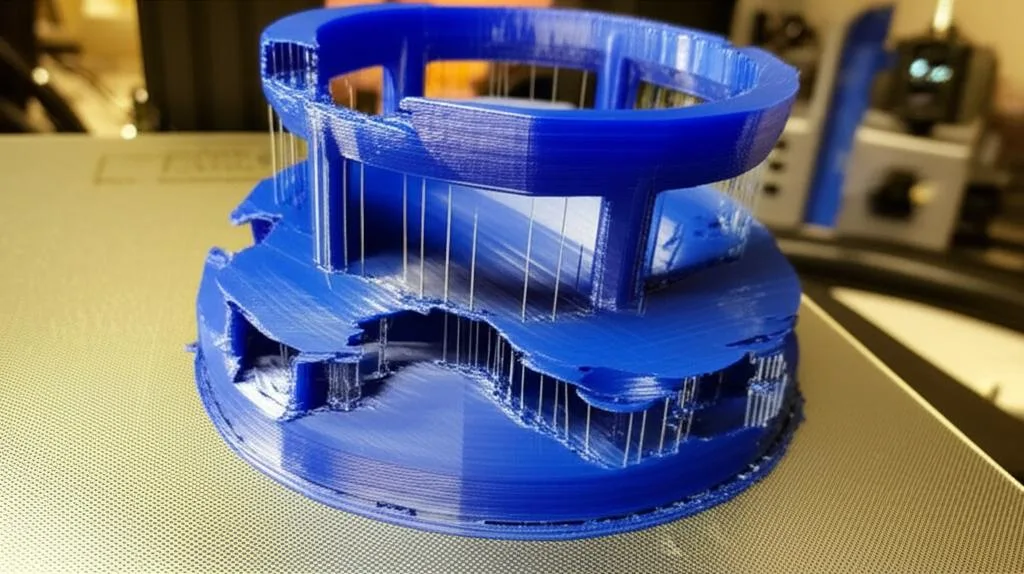
Addressing poor layer adhesion effectively requires a methodical approach, examining various potential causes. These often include incorrect temperature settings, extrusion inconsistencies, improper cooling, and even the quality and type of filament used. By systematically evaluating each factor, you can pinpoint the specific issues affecting your prints.
Temperature optimization: A cornerstone of strong bonds
Temperature plays a pivotal role in 3D printing, influencing everything from filament flow to layer bonding. Maintaining optimal temperatures for both the extruder and the print bed is crucial for achieving robust layer adhesion. Too low a temperature can prevent proper fusion, while excessively high temperatures can lead to other print defects.
Extruder temperature: The melting point sweet spot
The extruder (or nozzle) temperature dictates how well the filament melts and flows. Each material has an ideal temperature range where it achieves optimal viscosity for extrusion and effective bonding with the previous layer. Printing below this range means the filament isn’t sufficiently molten to fuse properly.
- Symptoms of incorrect extruder temperature: Weak layers that easily peel apart, rough or matte surface finish despite good settings, under-extrusion, and difficulty extruding filament.
- Troubleshooting steps for extruder temperature:
- Consult filament manufacturer’s recommendations: Start with the suggested temperature range provided by your filament manufacturer.
- Print a temperature tower: This calibration print allows you to test various temperatures in a single print, revealing the optimal setting for your specific filament and printer combination.
- Increase incrementally: If layers are weak, try increasing the nozzle temperature in 5°C increments, reprinting a small test piece each time until adhesion improves without introducing other issues like stringing or excessive oozing.
- Monitor actual temperature: Ensure your printer’s thermistor is accurate. Discrepancies between displayed and actual temperatures can lead to misdiagnosis.
Heated bed temperature: Foundation for stability
While often associated with first-layer adhesion and preventing warping, the heated bed also indirectly contributes to overall layer adhesion. A warmer environment around the print, especially for materials prone to shrinking like ABS, helps maintain the temperature of the lower layers, reducing thermal stress and promoting better bonding throughout the print. For materials like PLA, a heated bed helps ensure the first layer sticks well, which is foundational for all subsequent layers.
- Symptoms of incorrect bed temperature: Warping, parts detaching from the bed (especially corners), and in some cases, contributing to general layer separation in taller prints, particularly with materials like ABS or ASA.
- Troubleshooting steps for bed temperature:
- Match material requirements: Use the bed temperature recommended for your specific filament. PLA often uses 50-60°C, PETG 70-80°C, and ABS 90-110°C.
- Consider ambient conditions: In a cold room, you might need a slightly higher bed temperature to compensate for heat loss.
- Ensure even heating: Check that your heated bed heats uniformly across its surface. Cold spots can cause localized adhesion issues.
Ambient temperature and enclosure considerations
The surrounding air temperature can significantly impact layer adhesion, especially for materials with high thermal expansion coefficients like ABS, ASA, and even some PETGs. Rapid cooling of newly deposited layers due to cold drafts can cause them to shrink unevenly, pulling away from the layer below and leading to layer separation.
- Impact on specific materials: Materials like ABS and ASA are highly susceptible to thermal shock and benefit greatly from a stable, warm environment provided by an enclosure. PLA is less sensitive but can still experience issues in very cold or drafty conditions.
- Strategies for environmental control:
- Use an enclosure: A simple cardboard box or a dedicated printer enclosure can dramatically stabilize the internal temperature, reducing drafts and maintaining a consistent thermal environment.
- Avoid drafts: Position your printer away from open windows, air conditioning vents, or active doorways.
- Pre-heat the enclosure: For some materials, allowing the enclosure to warm up for 15-30 minutes before printing can be beneficial.
Achieving optimal temperature optimization involves a careful balance of extruder, bed, and ambient temperatures, tailored to your specific material and printer setup. This holistic approach is fundamental to preventing poor layer adhesion and enhancing 3D print strength.
Extrusion calibration: Ensuring consistent material flow
Even with perfect temperatures, if your printer isn’t extruding the correct amount of material, layer adhesion will suffer. Under-extrusion, clogs, or incorrect flow rates can all lead to insufficient material being laid down, preventing proper fusion between layers.
Under-extrusion: The silent strength killer
Under-extrusion occurs when the printer pushes less filament than intended. This results in thinner lines, gaps between perimeters, and ultimately, weak layers that have insufficient material to bond effectively. It’s a prime contributor to poor layer adhesion and reduced 3D print strength.
- Identifying under-extrusion: Visible gaps between infill lines and perimeters, rough or pitted top surfaces, translucent walls, and layers that easily separate with minimal force.
- Calibrating E-steps and flow rate:
- E-steps calibration: This involves telling your printer how many steps its extruder motor needs to take to push a specific length of filament. An inaccurate E-step value is a common cause of consistent under- or over-extrusion. This is usually done by marking a length of filament, extruding a set amount, and measuring the actual extruded length.
- Flow rate (or extrusion multiplier) adjustment: After E-steps are calibrated, the flow rate in your slicer allows for fine-tuning the amount of plastic extruded. Print a single-wall cube and measure its wall thickness. Adjust the flow rate until the actual wall thickness matches your slicer’s line width setting.
Clogged or worn nozzles: Obstacles to smooth flow
A partially clogged nozzle restricts filament flow, leading to under-extrusion. Over time, nozzles can also wear down, especially when printing abrasive materials, leading to an enlarged or irregularly shaped orifice that affects extrusion consistency.
- Detecting nozzle issues: Inconsistent extrusion, sudden reduction in flow, filament curling up as it exits the nozzle, clicking sounds from the extruder motor (indicating it’s struggling to push filament).
- Maintenance and replacement:
- Cold pull (Atomic Pull): A common method to clear partial clogs by heating the nozzle, pushing filament through, cooling it slightly, and then quickly pulling the filament out to extract debris.
- Nozzle cleaning needles: Fine needles can be used to clear blockages from the nozzle orifice.
- Nozzle replacement: If a nozzle is severely clogged, worn, or damaged, replacing it is often the most straightforward solution. Consider hardened steel nozzles for abrasive filaments.
Retraction settings: Balancing stringing and adhesion
Retraction is the process where the extruder motor briefly pulls the filament back into the nozzle during non-printing moves to prevent oozing and stringing. While essential, overly aggressive retraction settings (too high distance or speed) can lead to issues.
- How retraction affects layer bonding: Excessive retraction can create air bubbles or gaps within the nozzle, leading to momentary under-extrusion at the start of a new line, which can weaken layer bonds.
- Optimizing retraction distance and speed:
- Start with recommended settings: Consult your printer’s or filament’s recommended retraction settings.
- Print retraction towers: These calibration prints help you find the optimal balance between preventing stringing and ensuring consistent extrusion.
- Reduce gradually: If you suspect retraction is causing under-extrusion at layer starts, try reducing the retraction distance or speed incrementally.
Thorough extrusion calibration is paramount. Ensuring that your printer consistently lays down the correct amount of material is a critical step in overcoming poor layer adhesion and achieving strong, reliable parts.
Part cooling settings: A double-edged sword
Part cooling, managed by your printer’s fan, helps solidify extruded plastic quickly, which is beneficial for bridging, overhangs, and fine details. However, excessive or improperly timed cooling can be a primary cause of layer separation, especially for materials that need more time to bond.
Overcooling: The primary cause of layer separation
When newly deposited layers cool too rapidly, they don’t have enough time to thermally fuse with the layer below. The plastic hardens prematurely, resulting in a weak, brittle bond rather than a strong, molten connection. This is particularly problematic for materials like ABS, ASA, and even PETG, which prefer a slower cooling rate.
- Impact on inter-layer bonding: Rapid cooling causes the plastic to shrink and solidify before it can properly meld with the previous layer, leading to distinct, easily separable layers.
- Adjusting fan speed for different layers:
- First layers: For most materials, it’s common practice to turn the part cooling fan off or set it to a very low speed (0-20%) for the first 5-10 layers. This allows the initial layers to stay warm and adhere well to the bed and to each other.
- Subsequent layers: Gradually increase the fan speed after the initial layers. For PLA, 80-100% fan speed is typical. For PETG, 20-50% is often sufficient. For ABS/ASA, fan speed should be kept very low (0-10%) or off entirely, especially if using an enclosure.
- Consider minimum layer time: Many slicers have a ‘minimum layer time’ setting. If a layer prints too quickly, the fan might be operating at full speed for too short a period, or the layer might not have enough time to cool even with high fan speed, leading to deformation. Conversely, if the layer takes too long, overcooling can occur if the fan is too high.
Insufficient cooling: When details suffer
While overcooling is often the culprit for poor layer adhesion, insufficient cooling can also cause issues, particularly with overhangs, bridges, and very fine details. Without adequate cooling, these features can sag or deform before solidifying, leading to a messy print, though this is less directly related to overall layer strength.
- Balancing cooling for overhangs and bridges: If you notice sagging or poor quality on these features, a slight increase in fan speed might be necessary, but always monitor for signs of reduced layer adhesion. Some slicers allow for adaptive fan speed based on print features.
Careful management of part cooling settings is a delicate balancing act. Understanding your material’s thermal properties and adjusting fan speeds accordingly is crucial for preventing layer separation and ensuring robust 3D print strength.
Print speed and its influence on bonding
The speed at which your printer lays down filament also impacts the time available for a new layer to melt into the previous one. Printing too fast can exacerbate layer adhesion problems.
- Too fast: Not enough time to fuse: If the print head moves too quickly, the molten plastic is deposited and immediately moved away from the heat source. This leaves less time for the newly extruded material to transfer heat to the layer below and properly bond before it solidifies. The result is a weaker mechanical bond rather than a true thermal fusion.
- Optimizing print speed for material and nozzle size:
- Start with moderate speeds: Begin with the recommended speed for your filament and printer. For a 0.4mm nozzle, speeds between 40-60mm/s are common starting points for perimeters.
- Reduce speed for critical layers: Consider reducing print speed for the first few layers to ensure maximum adhesion. Some slicers allow you to set different speeds for different parts of the print (e.g., outer perimeters, inner perimeters, infill).
- Larger nozzles, slower speeds: When using larger nozzles (e.g., 0.6mm or 0.8mm), you’re extruding more material per second, which often requires a slower print speed to ensure proper melting and bonding.
- Material considerations: Some materials, like certain engineering filaments, benefit from slower speeds to allow for better inter-layer bonding.
Material properties and filament quality
The filament itself can be a significant factor in poor layer adhesion. Its inherent properties, how it’s stored, and its overall quality can all contribute to printing challenges.
Many 3D printing filaments, particularly PETG, Nylon, PVA, and some PLA blends, are hygroscopic, meaning they readily absorb moisture from the air. Wet filament can lead to a host of print quality issues, including dramatically reduced layer adhesion.
- Symptoms of wet filament: Popping or sizzling sounds from the nozzle during printing (steam escaping), excessive stringing, inconsistent extrusion, bubbles or voids in the extruded line, and significantly weaker layer bonds.
- Proper filament storage and drying:
- Airtight containers: Store filament in sealed containers or bags with desiccant packets (silica gel) when not in use.
- Filament dryer: For wet filament, a dedicated filament dryer or a food dehydrator can be used to remove moisture. Follow recommended temperatures and durations for your specific material.
- Print directly from dry box: For highly hygroscopic materials, printing directly from a dry box can maintain optimal filament conditions throughout the print.
Filament type and compatibility
Different filament types have distinct properties that influence their adhesion characteristics. What works perfectly for PLA might be detrimental for ABS or Nylon.
- Understanding material-specific requirements: Always research the ideal printing parameters (temperatures, cooling, bed adhesion methods) for the specific material you are using. For example, some flexible filaments require very slow speeds and direct drive extruders for best results.
- Brand consistency and quality control: Not all filaments are created equal. Inconsistent filament diameter, presence of impurities, or poor manufacturing tolerances can lead to erratic extrusion and, consequently, poor layer adhesion. Investing in reputable filament brands can often mitigate these issues.
First layer adhesion: The domino effect
The first layer is arguably the most critical. If it doesn’t adhere properly to the print bed and to itself, subsequent layers will struggle to build upon a stable foundation, leading to a cascade of problems, including poor layer adhesion throughout the print.
Bed leveling and Z-offset calibration: Absolute essentials
A perfectly level bed and a correctly calibrated Z-offset ensure that the first layer is laid down with the ideal amount of ‘squish’ – enough pressure to adhere to the bed and spread slightly, but not so much that it restricts extrusion or scrapes the nozzle.
- Manual vs. automatic bed leveling:
- Manual: Requires careful adjustment of bed screws, often using a piece of paper as a feeler gauge. It’s precise but needs regular attention.
- Automatic (ABL): Uses a probe to map the bed’s surface and compensate for irregularities. While convenient, ABL still requires a good initial manual level and correct Z-offset calibration.
- Fine-tuning Z-offset for optimal squish: The Z-offset defines the exact distance between the nozzle and the print surface after homing. A value that is too high will result in the filament being ‘drawn’ into the air, creating a round, poorly adhered line. A value that is too low will cause the nozzle to scrape the bed, preventing extrusion or creating very thin, translucent lines. The ideal Z-offset creates a slightly flattened, opaque line that firmly adheres to the bed.
Print surface preparation: Beyond just clean
The surface on which you print plays a crucial role in the first layer’s success. Different materials and surfaces require different preparation techniques.
- Adhesive aids (glue stick, hairspray, PEI sheets):
- Glue stick (PVA-based): Effective for PLA, PETG, and sometimes ABS on glass beds. Provides a temporary tack and helps release prints when cooled.
- Hairspray (unscented, strong hold): Works well for similar materials on glass, creating a fine, even adhesive layer.
- PEI sheets: A popular, durable print surface that offers excellent adhesion for a wide range of materials when heated, often without additional adhesives.
- Specialized adhesion sheets/liquids: Products like Magigoo or BuildTak offer specific adhesion properties for various filaments.
- Surface cleanliness and maintenance: Grease, oils from fingerprints, or residual filament can severely impair adhesion. Regularly clean your print surface with isopropyl alcohol (IPA) or soap and water, depending on the surface type. Avoid touching the print area directly.
Systematic diagnosis and troubleshooting for poor layer adhesion
When faced with poor layer adhesion, a haphazard approach can be counterproductive. A systematic diagnosis, combining visual inspection with targeted testing, is key to efficiently identifying and resolving the underlying issues.
Visual cues and common symptoms
Your 3D print often tells a story about what went wrong. Learning to interpret these visual cues can significantly speed up the troubleshooting process.
- Delamination and splitting: The most obvious sign. Layers visibly separate, often along horizontal lines, indicating a fundamental failure in inter-layer bonding. This is a direct manifestation of layer separation.
- Gaps between lines: If you see distinct gaps between the lines of filament that make up a layer, or between perimeters and infill, it’s a strong indicator of under-extrusion.
- Rough or inconsistent surfaces: A textured or uneven surface, especially on top layers, can point to under-extrusion, incorrect Z-offset, or inconsistent filament flow.
- Weak parts (3D print strength): If your print feels brittle or snaps easily along layer lines, even if visually acceptable, it suggests poor internal bonding and reduced 3D print strength.
The iterative testing approach
Trying to fix everything at once is a recipe for frustration. Instead, adopt an iterative approach, changing one variable at a time and observing the results.
- Isolate variables: Based on your visual diagnosis, identify the most likely culprit (e.g., temperature, extrusion, cooling). Focus on one primary area first.
- Make small, incremental changes: Don’t make drastic adjustments. For example, if adjusting temperature, change it by 5°C at a time. If adjusting flow, change by 1-2%.
- Document your findings: Keep a log of the changes you make, the settings used, and the observed outcome. This will help you track progress and revert to previous settings if a change makes things worse.
Utilizing calibration prints
Specialized calibration prints are invaluable tools for diagnosing specific issues without wasting a lot of filament on large, failed prints.
- Temperature towers: As mentioned, these help find the optimal printing temperature for a specific filament.
- Flow rate calibration cubes: A single-wall cube allows you to measure actual wall thickness and calibrate your flow rate precisely. This is crucial for accurate extrusion calibration.
- Adhesion test prints: Small, simple models designed to stress layer bonds or first-layer adhesion, allowing for quick iteration and testing of changes.
Advanced considerations for robust layer adhesion
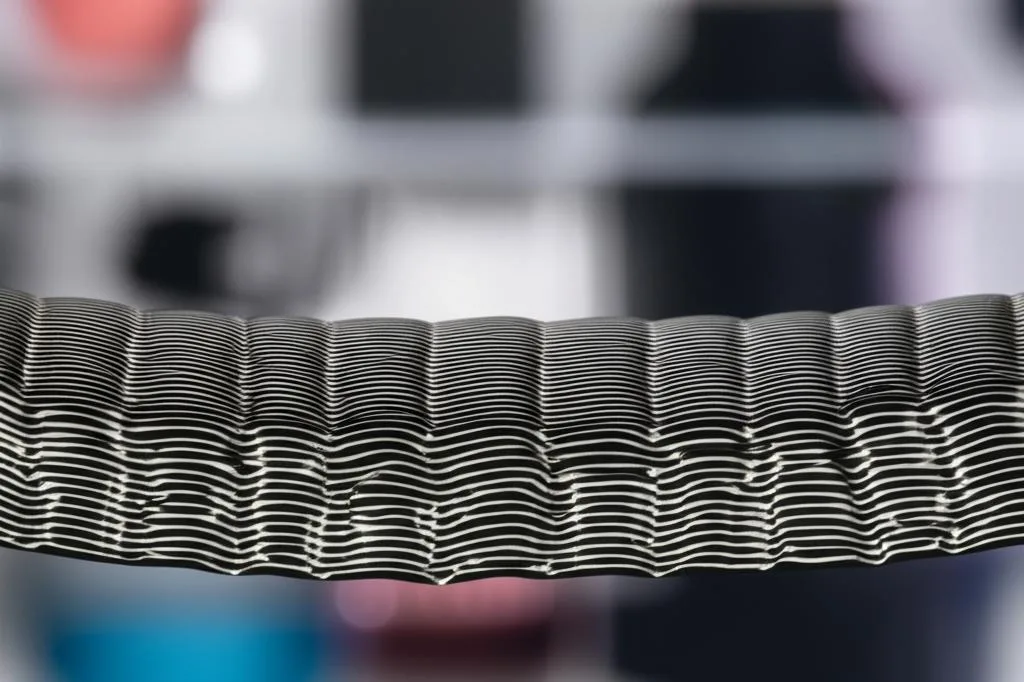
Once you’ve addressed the fundamental issues, there are more advanced slicer settings and post-processing techniques that can further enhance layer adhesion and overall print quality.
Slicer settings beyond the basics
Your slicer offers a wealth of settings that can be fine-tuned to improve layer adhesion. Experimenting with these, once basic calibration is complete, can yield significant improvements.
- Line width and extrusion multiplier:
- Line width: Increasing the line width slightly beyond the nozzle diameter (e.g., 0.45mm for a 0.4mm nozzle) can cause the lines to squish together more, promoting better adhesion.
- Extrusion multiplier: This is essentially the same as flow rate. A slight increase (e.g., from 1.0 to 1.02) can ensure slightly more material is extruded, filling any tiny gaps and improving bonding. Be careful not to over-extrude, which can lead to elephant’s foot or dimensional inaccuracies.
- Infill overlap percentage: This setting determines how much the infill lines overlap with the perimeters. A higher overlap percentage (e.g., 20-30%) ensures a stronger bond between the infill and the outer walls, contributing to overall 3D print strength.
- Minimum layer time: This setting dictates the minimum amount of time a layer is allowed to take to print. If a layer is very small and would normally print quickly, the printer will slow down or pause (often by moving the print head away temporarily) to ensure the layer has enough time to cool before the next one is deposited. This helps prevent heat accumulation and deformation, which can indirectly affect subsequent layer adhesion. However, setting it too high can lead to overcooling and layer separation.
Post-processing techniques for enhanced strength
For certain applications or materials, post-processing can be used to further improve the strength and homogeneity of 3D printed parts.
- Annealing for specific materials (e.g., PLA, PETG, ABS): Annealing involves heating a printed part to a temperature below its melting point for a sustained period and then slowly cooling it. This process can relieve internal stresses, improve crystallinity, and significantly enhance the mechanical properties, including layer adhesion, of materials like PLA, PETG, and ABS. It typically results in stronger, stiffer parts, though it can also cause some shrinkage and deformation, so it’s best done on parts where dimensional accuracy isn’t hyper-critical or where shrinkage can be accounted for.
- Vapor smoothing (e.g., ABS): While primarily for aesthetics, vapor smoothing (e.g., with acetone for ABS) can also fuse the outer layers of a print, effectively eliminating visible layer lines and creating a more homogeneous surface. This can contribute to surface strength, though its impact on internal layer adhesion is limited.
The importance of documentation and learning
As you troubleshoot and optimize, maintain a detailed log of your printer settings, filament types, and print outcomes. This personal knowledge base will be invaluable for future prints, helping you quickly recall successful configurations and avoid repeating past mistakes. The 3D printing community is also a vast resource; sharing your experiences and learning from others can provide insights and solutions you might not discover on your own.
Conclusion: Mastering the art of perfect layer adhesion
Achieving perfect layer adhesion in your 3D prints is not a matter of luck but rather a result of understanding and meticulously controlling various interacting parameters. From precise extrusion calibration and meticulous temperature optimization to thoughtful adjustments of part cooling settings and careful filament management, each element plays a critical role. By adopting a systematic troubleshooting approach, recognizing the symptoms of poor layer adhesion and layer separation, and making incremental, documented changes, you can transform brittle failures into robust, functional objects. The journey to consistent 3D print strength is one of continuous learning and refinement, but with this guide, you are well-equipped to overcome these challenges and elevate the quality of your 3D printed creations.
Frequently asked questions
What is the fastest way to test if a filament is wet and causing weak layer adhesion?
Listen for popping or sizzling sounds from the nozzle during printing, which indicates steam from moisture. You can also inspect the extruded line for bubbles or voids. If you hear these sounds or see these defects alongside weak layers, drying the filament in a dedicated dryer or food dehydrator is the recommended fix.
Can I fix a print that has already delaminated during the print, or do I have to start over?
Once layers have visibly split or separated, the structural integrity is already compromised, and the print is generally a failure. However, you can sometimes pause the print and carefully apply a thin layer of superglue or epoxy to the crack before resuming, though this is a temporary salvage and not a reliable fix. The article recommends systematic troubleshooting of temperatures, extrusion, and cooling to prevent the issue on the next attempt.
Does using a larger nozzle like 0.6mm or 0.8mm automatically improve layer adhesion compared to a standard 0.4mm nozzle?
Not automatically—it depends on print speed. A larger nozzle extrudes more material per second, which can create thicker, stronger bonds, but only if you reduce print speed to allow proper melting and bonding time. The article states that larger nozzles often require slower speeds to ensure good fusion, so simply swapping nozzles without adjusting speed can still result in weak adhesion.