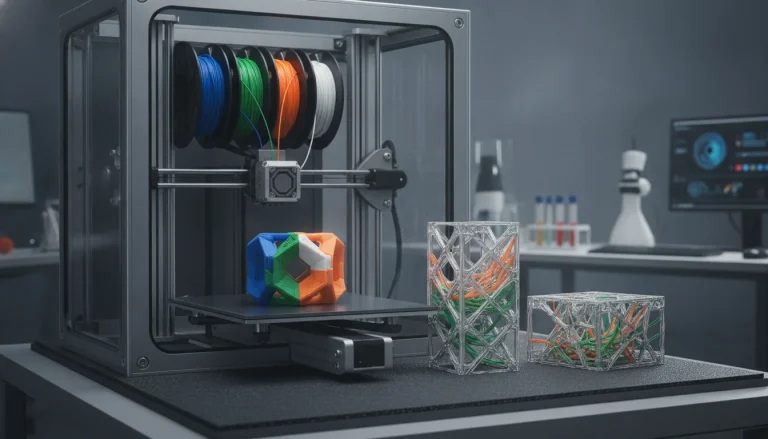
Dual extrusion 3D printers open up a world of possibilities, from creating intricate two-color 3D print designs to incorporating different materials within a single object. However, unlocking this potential hinges on one critical factor: precise dual extrusion calibration. Without it, you’ll likely encounter unsightly misalignments, inconsistent layers, and frustrating print failures. This comprehensive guide will walk you through the essential steps to achieve impeccable print quality, ensuring your multi-material setup performs flawlessly.
Understanding the core challenge: Extruder alignment
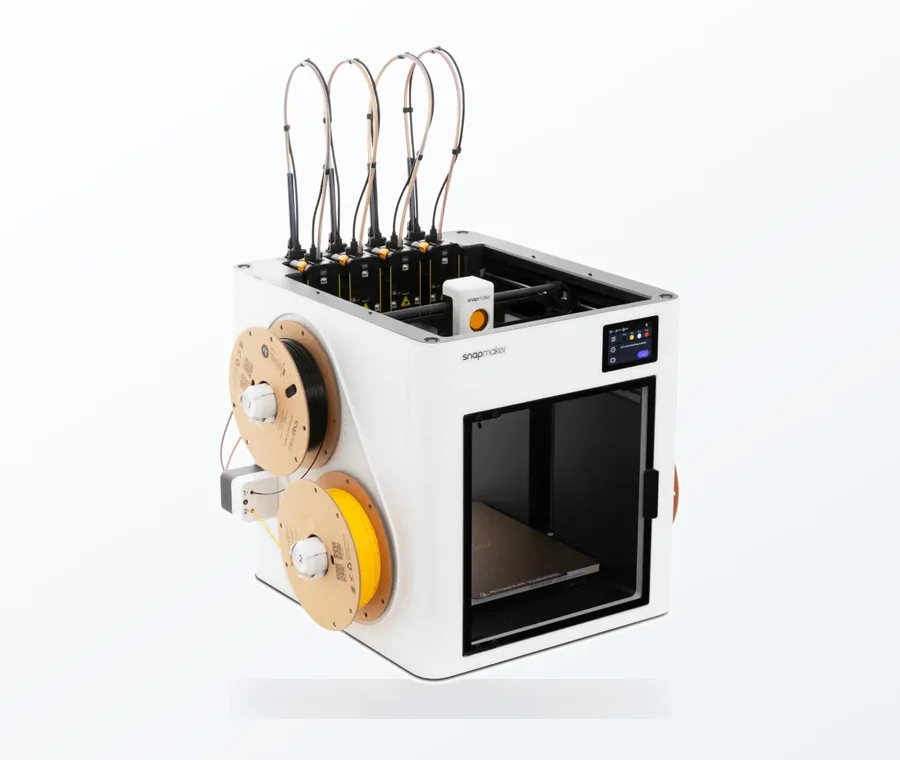
The consumer toolchanger 3D printer: the SnapSwap 4-toolhead system swaps heads in 5 seconds for true multi-color and multi-material printing, with smart calibration and auto filament loading.
- 4 toolheads · 5 s swap
- Up to 500 mm/s · 20,000 mm/s²
- 270 mm cube build volume
- Multi-color & multi-material
The primary hurdle in dual extrusion is ensuring that both nozzles work in perfect harmony. This involves aligning them precisely in all three dimensions (X, Y, and Z) and ensuring consistent material flow. Any discrepancy, however minor, will manifest as visible defects in your print. While the concept might seem daunting, breaking it down into manageable steps makes the process straightforward.
Pre-calibration checklist: Setting the stage for success
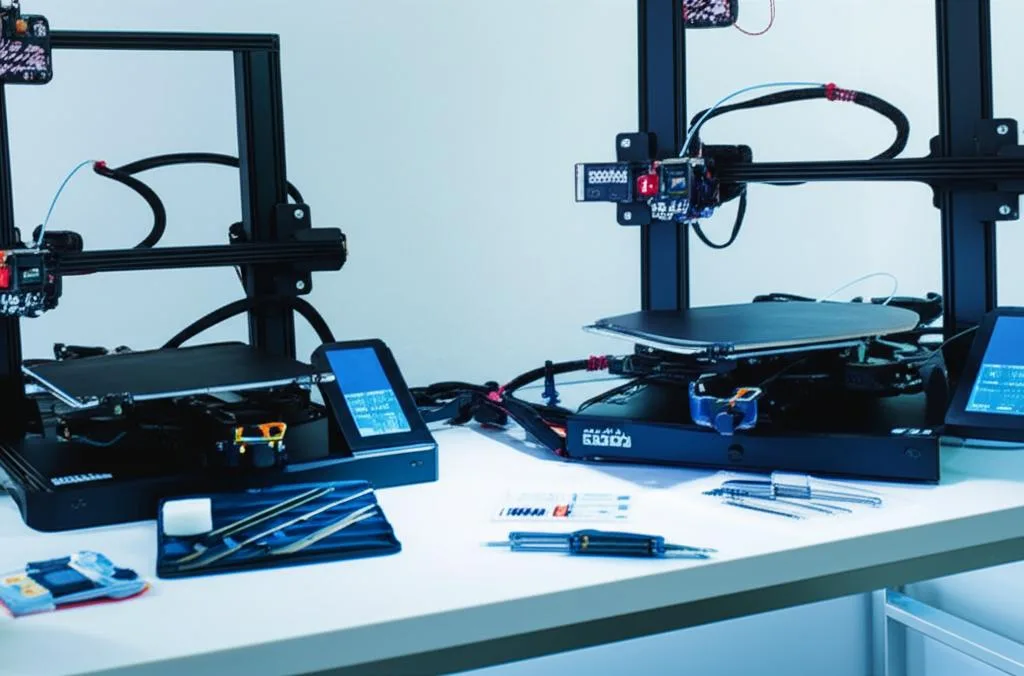
Before you dive into adjusting offsets and fine-tuning settings, a little preparation goes a long way. Skipping these foundational steps can lead to endless frustration and inaccurate calibration results.
- Firmware verification: Ensure your printer’s firmware (e.g., Marlin, Klipper) is up-to-date and correctly configured for dual extrusion. Many firmwares require specific settings enabled for multi-material printing.
- Hardware integrity: Check that both hotends are securely mounted, and there’s no wobble. Inspect the nozzles for any clogs or wear. Ensure your Bowden tubes (if applicable) are properly seated and that extruder gears are clean and gripping the filament effectively.
- Filament loading: Load your chosen filaments into both extruders. For calibration, it’s often beneficial to use two distinctly contrasting colors to make misalignments more apparent.
- Basic slicer profile: Set up a basic profile in your preferred slicer (e.g., PrusaSlicer, Cura). Define both extruders, set their respective temperatures (if different filaments are used), and ensure the bed adhesion settings are appropriate for your material. This is your initial multi-material setup.
Step-by-step calibration process
Patience is a virtue when it comes to calibration. You’ll likely need to iterate on these steps, making small adjustments and re-testing until you achieve perfection.
A. Calibrating X and Y offsets (lateral alignment)
The X and Y offsets define the horizontal distance between the tips of your two nozzles. Incorrect offsets are the most common cause of visible lines or gaps where colors should meet.
- Design or download a test print: Use a dedicated dual extrusion calibration model. These typically feature simple geometric shapes (squares, lines, crosses) that are designed to be printed by alternating extruders. Look for models where one extruder prints an outer perimeter and the other fills the inner section, or where two distinct shapes are meant to align perfectly side-by-side.
- Slice the model: In your slicer, assign the different parts of the model to Extruder 1 and Extruder 2. Ensure your slicer settings include a prime tower or wipe tower to purge old filament and stabilize pressure before each color change. This is crucial for clean transitions and overall print quality.
- Print and observe: Start the print. As it progresses, pay close attention to the areas where the two colors meet.
- Measure deviations: Once the print is complete, carefully examine the test piece. If the colors don’t align perfectly, measure the exact displacement in both the X and Y directions. For example, if Extruder 2’s print is 0.2mm to the right of Extruder 1’s, and 0.1mm too high.
- Adjust slicer settings (or firmware): Navigate to your printer settings in the slicer (often under ‘Printer Settings’ or ‘Extruders’). You’ll find fields for ‘X offset’ and ‘Y offset’ for your second extruder (or subsequent extruders).
- If Extruder 2 printed 0.2mm too far right, you need to tell the printer to shift Extruder 2’s start point 0.2mm to the left. So, if your current X offset is 0, set it to -0.2 (or subtract 0.2 from the current value).
- If Extruder 2 printed 0.1mm too high (on the Y-axis), you need to tell the printer to shift Extruder 2’s start point 0.1mm down. So, if your current Y offset is 0, set it to -0.1 (or subtract 0.1 from the current value).
- Iterate: Save your changes and print the calibration model again. Repeat this process of printing, observing, measuring, and adjusting until the alignment is spot-on. It might take a few tries, but precision here pays dividends for your two-color 3D print quality.
B. Calibrating Z offset (vertical alignment)
The Z offset ensures both nozzles are at the exact same height relative to the print bed. If one nozzle is higher than the other, it can lead to under-extrusion, poor layer adhesion, or even scratching the print surface.
- Prepare for measurement: Heat both nozzles to their printing temperature. Lower the hotends close to the print bed, as if starting a print.
- Method 1: Feeler gauge/paper method: Use a feeler gauge or a piece of standard printer paper (around 0.1mm thick). Move Extruder 1 to the center of the bed and adjust its Z-height until the paper just barely slides between the nozzle and the bed with slight friction.
- Switch and compare: Move Extruder 2 to the exact same spot (or as close as possible without hitting anything). Test the gap with the paper.
- Adjust Z offset: If there’s a difference, you’ll need to adjust the Z offset for Extruder 2 in your slicer settings (or firmware, if your printer allows direct Z offset adjustment per extruder).
- If Extruder 2 is higher, you need to set a negative Z offset value to lower it.
- If Extruder 2 is lower, you need to set a positive Z offset value to raise it.
- Method 2: Thin line test print: Create a simple G-code file that prints a very thin, single-layer line or rectangle, first with Extruder 1, then immediately with Extruder 2, with the lines overlapping or touching. Observe how well the layers adhere and if there are any gaps or squishing where they meet.
- Iterate: Make small adjustments (e.g., 0.02mm or 0.05mm at a time) and re-print until both extruders lay down perfect, consistent lines. This is crucial for seamless multi-material setup integration.
C. Calibrating extrusion multiplier / flow
Even if your E-steps (extruder steps per millimeter) are calibrated for each extruder, different filament types, colors, or brands can have slightly different volumetric flow rates. Calibrating the extrusion multiplier (sometimes called flow rate) ensures consistent material output from both nozzles.
- Print single-wall cubes: Slice and print two identical single-wall cubes (e.g., 20x20x20mm with a 0.4mm wall thickness), one using Extruder 1 and the other using Extruder 2. Ensure infill is set to 0.
- Measure wall thickness: Once printed and cooled, use calipers to measure the actual wall thickness of each cube.
- Calculate new multiplier:
- New Multiplier = (Desired Wall Thickness / Measured Wall Thickness) * Current Multiplier
- For example, if your desired thickness was 0.4mm and you measured 0.42mm, and your current multiplier is 1.0 (100%), your new multiplier would be (0.4 / 0.42) * 1.0 = 0.952.
- Adjust in slicer: Apply the calculated multiplier to the respective extruder in your slicer settings.
- Repeat and refine: Print the cubes again with the new settings. Continue to fine-tune until both extruders produce walls that are consistently close to your desired thickness. This step significantly impacts overall print quality.
D. Managing retraction settings
Retraction is vital for preventing stringing and oozing, especially when one extruder is parked while the other is printing. Oozing can lead to blobs on your print or filament drying in the nozzle.
- Print retraction test towers: Use a dedicated retraction test model designed to highlight stringing. Print one with each extruder individually first, then a combined one.
- Adjust retraction distance and speed: In your slicer, modify the retraction distance and speed for each extruder. Start with the manufacturer’s recommended settings and adjust incrementally. Longer distances or faster speeds can reduce stringing but may lead to clogs if excessive.
- Utilize prime towers and ooze shields:
- Prime Tower: A small sacrificial tower printed next to your main object. Before each tool change, the inactive nozzle purges a small amount of filament into the prime tower, ensuring consistent flow when it resumes printing on the main object. This is essential for a clean two-color 3D print.
- Ooze Shield: A single-wall perimeter printed around your object. The inactive nozzle will travel along this shield, wiping off any oozing filament before returning to the main print.
- Experiment: Different filament types (e.g., PETG is prone to stringing) will require different retraction settings. Be prepared to experiment to find the optimal balance for your specific multi-material setup.
Advanced considerations and troubleshooting
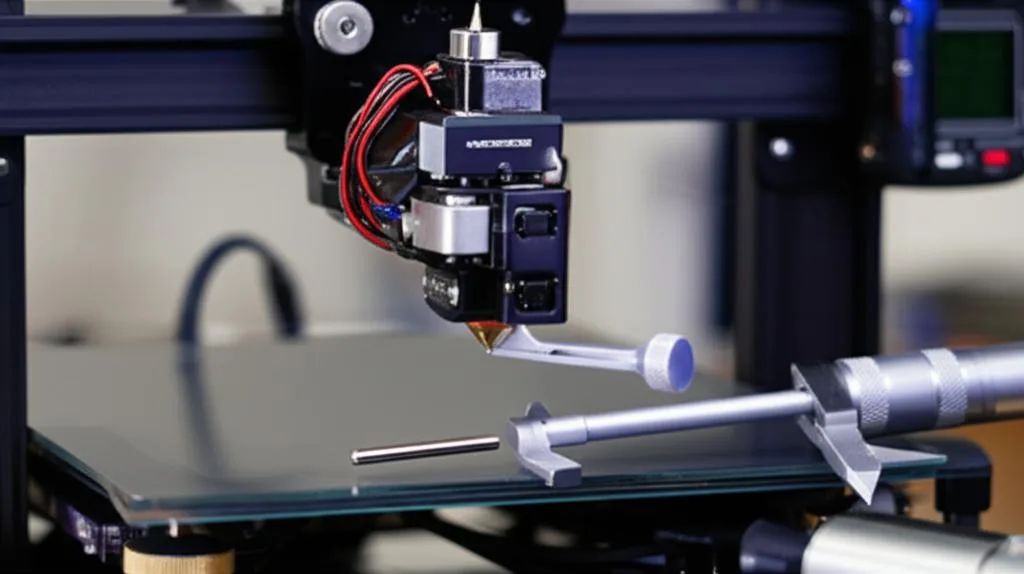
Even after meticulous calibration, some challenges might persist. Understanding these nuances can help you troubleshoot effectively.
- Filament compatibility: Not all filaments play well together. Printing PLA and ABS in the same object can be tricky due to vastly different temperature requirements and adhesion properties. Ensure your chosen materials are compatible before attempting complex multi-material prints.
- Temperature differences: When using different materials, their optimal printing temperatures will vary. Your slicer should allow you to set distinct temperatures for each extruder. Be mindful of heat creep from a hot nozzle affecting a cooler, inactive one.
- Firmware vs. slicer adjustments: Most modern slicers allow you to define extruder offsets. However, some advanced users prefer to hardcode these into the printer’s firmware (e.g., using M206 or M501 commands in Marlin). Firmware adjustments are more permanent and apply regardless of the slicer, while slicer settings offer more flexibility for different profiles. Understand which method your printer and workflow support best.
- Nozzle wear: Over time, nozzles wear down, especially with abrasive filaments. This can subtly change their effective length or diameter, throwing off your calibration. Regular inspection and replacement are good practice to maintain print quality.
- Bed leveling: While not strictly dual extrusion specific, an impeccably level bed is paramount. Any inconsistencies will be magnified when attempting to align two nozzles perfectly.
- Rushing the process: Attempting to calibrate too quickly, making large adjustments, or not repeating test prints sufficiently are common pitfalls. Take your time, make small, calculated changes, and re-test diligently.
Maintaining calibration and ongoing success
Calibration isn’t a one-and-done deal. To ensure consistent print quality from your dual extrusion setup, consider these ongoing practices:
- Regular checks: Periodically print a small alignment test object, especially after moving the printer, performing maintenance, or changing hotend components.
- Filament consistency: Stick to reputable filament brands and try to use consistent batches if possible. Variations in filament diameter or composition can subtly affect flow rates and require minor flow multiplier adjustments.
- Environmental factors: Extreme temperature fluctuations or drafts in your printing environment can affect print adhesion and overall stability, indirectly impacting the perceived quality of your multi-material prints.
Mastering dual extrusion calibration is arguably the most critical step to unlocking the full potential of your two-color 3D print capabilities. It demands patience, precision, and a methodical approach. By diligently following these steps and understanding the underlying principles, you’ll be well on your way to producing stunning, flawless multi-material prints that truly stand out. Happy printing!
Frequently asked questions
Can I calibrate dual extruders using just the slicer, or do I need to edit the printer firmware?
Most modern slicers like PrusaSlicer and Cura allow you to define X, Y, and Z offsets for each extruder directly in the printer settings, which is the recommended starting point for most users. Firmware adjustments (using M206 or M501 commands in Marlin) are more permanent and apply regardless of the slicer profile, offering less flexibility for different filament or nozzle combinations.
Why do my two colors still show a visible gap or overlap even after I carefully measured and set the X and Y offsets?
A visible gap or overlap after setting offsets often points to an incorrect extrusion multiplier (flow rate) on one or both extruders, rather than a pure alignment issue. Print a single-wall cube from each extruder and measure the wall thickness with calipers; if the actual thickness deviates from the slicer’s target, recalculate the multiplier using the formula provided in the article to balance material output.
Do I need a prime tower or ooze shield for every dual-color print, or can I skip them?
A prime tower is strongly recommended for most dual-color prints because it purges the inactive nozzle of degraded or oozed filament before it resumes printing on the main object, preventing color contamination and blobs. An ooze shield is an optional extra that helps wipe off oozing filament during nozzle travel; you can often skip it if your retraction settings are well-tuned and you are using a prime tower, but both become essential for clean transitions in high-quality two-color prints.