In the intricate world of 3D printing and computer-aided design (CAD), the journey from a digital concept to a tangible object is often fraught with subtle, yet critical, challenges. Among the most common hurdles are mesh errors – imperfections in the digital geometry that can render a seemingly perfect 3D model unprintable. These errors, if left unaddressed, can lead to failed prints, wasted material, and significant frustration. While the goal is always a flawless 3D model, the path to achieving it involves understanding various repair solutions, each with its own cost structure, feature set, and learning curve. This article delves into a comprehensive pre-print checklist, objectively comparing different approaches and tools for 3D model repair, empowering you to make informed decisions for your specific needs without endorsing any single ‘best’ or ‘cheapest’ option.
Understanding common mesh errors
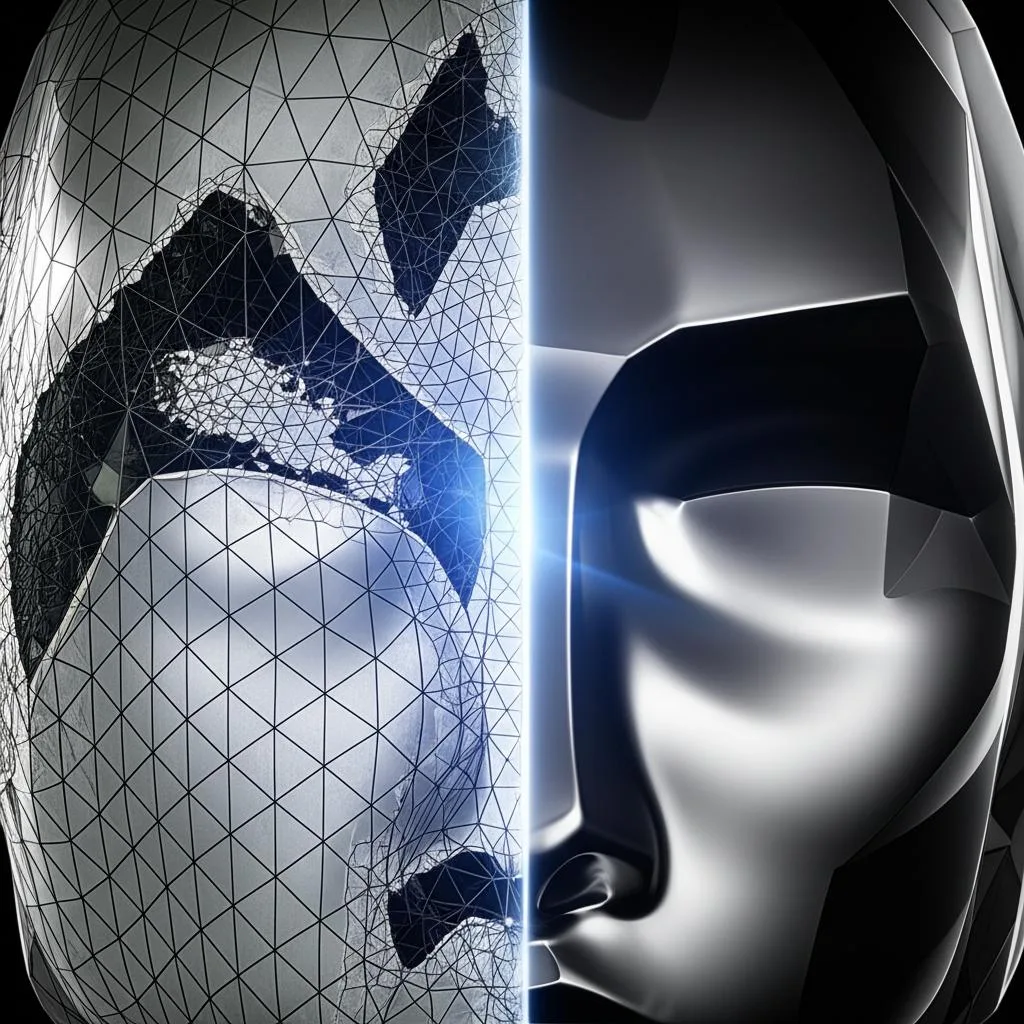
Before diving into solutions, it’s crucial to grasp the nature of the problems. Mesh errors are fundamentally issues with how the triangular or polygonal faces of your 3D model connect and orient themselves. They prevent a model from being ‘watertight’ – a critical characteristic for successful 3D printing. Common types of 3D printing errors stemming from mesh problems include:
- Non-manifold edges: Edges connected to more than two faces, or edges connected to only one face (a dangling edge). This creates ambiguity for the slicer.
- Inverted normals: The ‘inside’ and ‘outside’ of a face are flipped, confusing the printer about which direction to build.
- Holes: Gaps in the mesh, leaving the model open and not watertight.
- Self-intersections: Parts of the model’s geometry pass through other parts, creating overlapping volumes.
- Isolated shells: Disconnected parts of the model that float independently without being physically attached to the main body.
- Thin walls: Sections of the model that are too thin to be reliably printed by the chosen technology, often leading to breaks or missing features.
The pre-print checklist: comparing repair approaches
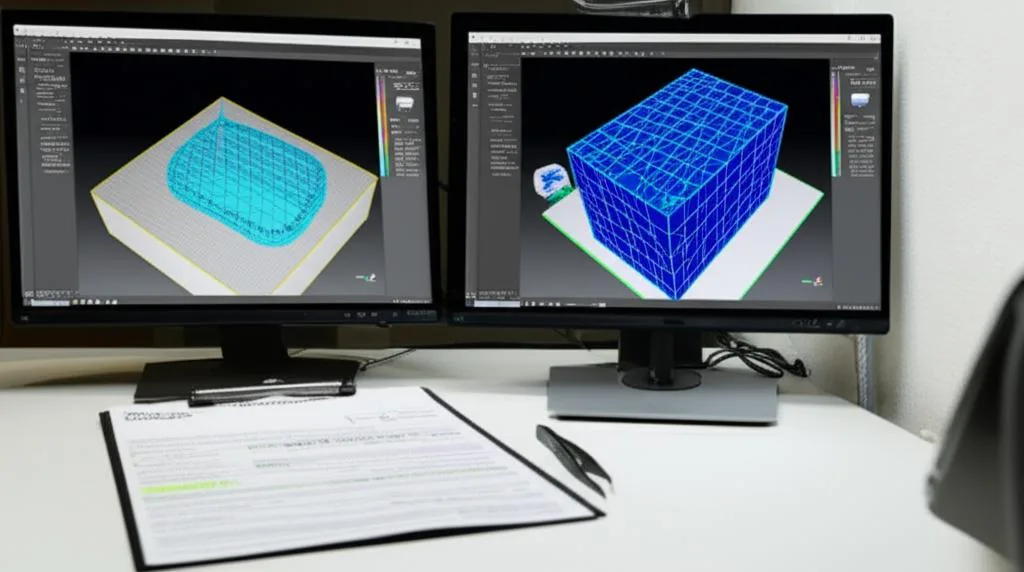
A structured approach to identifying and fixing these issues is paramount. Here, we compare various solution categories for each step, focusing on their capabilities, required investment (time, expertise, financial), and typical use cases.
Step 1: Initial inspection and diagnosis
The first step in effective CAD troubleshooting is to accurately diagnose the problem. Different tools offer varying levels of detail and automation for this crucial phase.
- Manual CAD software (e.g., SolidWorks, Fusion 360, Rhino): These powerful design tools offer some diagnostic capabilities, often through analysis modes that can highlight open edges or non-manifold geometry. The ‘cost’ here is primarily in user expertise and time; identifying subtle errors can be a meticulous, manual process, requiring a deep understanding of the software and mesh topology. While the software itself might be part of an existing design workflow, the dedicated time for detailed mesh analysis can be substantial.
- Slicer software (e.g., PrusaSlicer, Cura, Simplify3D): Most modern slicers incorporate basic mesh integrity checks. They will often warn you about non-watertight models or show visual cues like highlighted areas. These tools are typically free or included with the slicer purchase, offering an immediate, low-cost initial check. However, their diagnostic capabilities are usually limited to high-level issues, and they provide minimal direct repair options.
- Dedicated mesh repair software (e.g., Autodesk Meshmixer, Blender, Netfabb): This category offers the most robust diagnostic tools. Software like Meshmixer (free) provides detailed inspectors that can pinpoint exact locations of non-manifold edges, holes, and inverted normals. Blender (free, open-source) has powerful analysis tools within its editing modes. Commercial solutions like Netfabb (paid license) offer highly automated and comprehensive analysis, often with one-click reports. The ‘cost’ for free tools is a steeper learning curve and potentially more manual interaction, whereas commercial software incurs licensing fees but provides advanced automation and efficiency, especially for complex or frequent repairs.
Step 2: Addressing non-manifold geometry and inverted normals
These errors are fundamental structural flaws that can prevent slicing altogether. Repair methods range from precise manual intervention to automated algorithms.
- Manual correction in CAD/modeling software: For simple cases, non-manifold edges can sometimes be resolved by carefully editing the underlying geometry in your original CAD software. This approach offers maximum control and precision but is exceedingly time-consuming and challenging for complex models. The ‘cost’ is almost entirely in skilled labor and time.
- Automated tools in mesh repair software: This is where dedicated repair software truly shines. Tools like Meshmixer, Blender (with appropriate add-ons), and Netfabb feature automated ‘make manifold’ or ‘fix normals’ functions. These algorithms attempt to resolve ambiguities by adding or deleting faces, or flipping normal directions. Free tools may require more user oversight or iterative application, while commercial solutions often boast more sophisticated algorithms that can handle complex scenarios with greater success and less manual intervention, justifying their licensing ‘cost’ for professional users.
- Online repair services (e.g., MakePrintable, Microsoft 3D Tools): These web-based services allow users to upload models for automated repair. They are convenient for occasional fixes without investing in software or learning complex tools. The ‘cost’ is typically per-fix or a subscription fee, offering a good balance of automation and accessibility for users who don’t frequently encounter complex mesh issues.
Step 3: Sealing holes and ensuring a watertight model
A watertight model is one that completely encloses a volume without any gaps. Holes are a common impediment to this.
- Manual patching in CAD/modeling software: For minor holes, designers can manually create new faces or surfaces to bridge the gaps. This method provides meticulous control over the new geometry but is incredibly labor-intensive for numerous or complex holes. The ‘cost’ is primarily in the extensive time commitment and the designer’s proficiency.
- Automated hole-filling in mesh repair software: Software like Meshmixer, Blender, and Netfabb offer automated hole-filling capabilities. These tools can detect open boundaries and generate new geometry to seal them, often with options for different fill types (flat, smooth, etc.). Free tools may offer basic fills, while professional software often provides more intelligent algorithms that preserve surface curvature and minimize artifacts, making them a more efficient, albeit financially costlier, option for complex geometries.
- Cloud-based repair services: Similar to fixing non-manifold issues, online services can also automatically detect and fill holes. This offloads the computational burden and eliminates the need for specific software knowledge, making it a ‘cost-effective’ solution in terms of time and direct software investment, though service fees apply.
Step 4: Resolving self-intersections and overlapping geometry
Self-intersections can cause unpredictable slicing behavior, leading to voids or incorrect infill. Resolving them often requires sophisticated geometric operations.
- Boolean operations (CAD software): In CAD environments, designers might attempt to use Boolean union or difference operations to merge or subtract overlapping volumes. While powerful, these operations can be prone to failure or introduce new errors if the input geometry is already flawed. The ‘cost’ is in the expertise required to execute them correctly and the potential for iterative trial-and-error.
- Advanced repair algorithms (professional software): Commercial mesh repair software like Netfabb excels at automatically detecting and resolving self-intersections. These tools often employ robust algorithms to ‘clean’ the mesh, removing internal overlaps and ensuring a clean exterior surface. While the financial ‘cost’ of these licenses is higher, the efficiency and reliability they offer for complex, problematic models can be invaluable, significantly reducing manual effort and potential print failures.
- Manual mesh editing: In free tools like Blender, manual resolution of self-intersections involves selecting and deleting problematic faces, then carefully rebuilding the mesh. This is arguably the most time-consuming and skill-intensive method, making its ‘cost’ in terms of labor extremely high, suitable primarily for highly customized repairs or learning purposes.
Step 5: Checking for isolated shells and thin walls
These issues, while not strictly ‘errors’ in the same sense as non-manifold geometry, are critical for printability.
- Visual inspection and measurement tools: For isolated shells, a careful visual inspection in any 3D viewer can often reveal disconnected parts. For thin walls, using basic measurement tools within CAD or modeling software can provide approximate thicknesses. This approach is ‘free’ in terms of software but heavily reliant on user diligence and can be imprecise for complex geometries.
- Analysis tools in professional software: Dedicated mesh repair and analysis software, particularly commercial solutions, often includes advanced features for detecting isolated shells and performing detailed thickness analysis. These tools can highlight areas below a specified minimum wall thickness, providing precise feedback. The ‘cost’ is tied to the software license, but the automation and accuracy can save significant time and material by preventing prints with structural weaknesses.
- Slicer software warnings: Many slicers will issue warnings or even remove isolated shells automatically. Some also have basic thin wall detection. These are convenient, ‘free’ checks, but may not be as thorough or customizable as dedicated analysis tools, potentially missing subtle issues that could still lead to print failure.
Considerations when choosing a repair solution
The optimal approach to mesh errors and 3D model repair is rarely one-size-fits-all. Your decision will likely hinge on a balance of several factors:
- Cost vs. Capability: Free and open-source tools like Meshmixer or Blender offer powerful capabilities without direct financial outlay, but often demand a greater investment in learning time and manual effort. Commercial software, while requiring licensing fees, typically provides more automated, robust, and efficient repair algorithms, often saving significant time in professional environments.
- Time vs. Automation: If you frequently deal with complex mesh errors, investing in highly automated professional software might be more ‘cost-effective’ in the long run by reducing manual labor hours. For occasional, simpler fixes, a manual approach with free tools or a pay-per-use online service might be preferable.
- Learning Curve: Some advanced mesh repair tools have steep learning curves. Consider your team’s existing skill set and the resources available for training. The ‘cost’ here is not monetary but in human capital development.
- Scalability and Integration: For operations handling a high volume of models, solutions that integrate well with existing CAD workflows or offer batch processing capabilities (often found in commercial packages) can be highly advantageous, streamlining the entire pre-print checklist process.
Ultimately, a successful 3D printing errors mitigation strategy involves a judicious selection of tools and techniques tailored to your specific project demands, budget, and expertise. By objectively comparing the features and ‘cost structures’ – encompassing not just financial outlay but also time, effort, and skill – of various CAD troubleshooting solutions, you can confidently navigate the complexities of mesh errors and ensure your 3D models are truly print-ready.
Frequently asked questions
Can I fix all common mesh errors directly inside my slicer software?
Most slicers like PrusaSlicer or Cura will warn you about non-watertight models, but their diagnostic and repair capabilities are limited to high-level issues. They cannot fix complex problems like self-intersections, inverted normals, or isolated shells in detail. For thorough repair, you will still need dedicated mesh repair software or manual CAD editing.
Which approach is most cost-effective for a hobbyist who only occasionally encounters mesh errors?
Free and open-source tools like Autodesk Meshmixer or Blender offer powerful diagnostic and repair capabilities without direct financial outlay. While they have a steeper learning curve, they are the most cost-effective solution for occasional use. An online pay-per-use repair service is another good alternative if you prefer to avoid learning complex software.
Is a model with a thin wall technically a mesh error that makes it unprintable?
Thin walls are not a strict mesh error like a hole or non-manifold edge; they are a design flaw that affects printability. A model can be perfectly watertight with no geometric errors but still fail to print if sections are too thin for your chosen nozzle or layer height. Dedicated analysis tools in professional software can highlight these areas, and slicer software may also issue warnings about them.