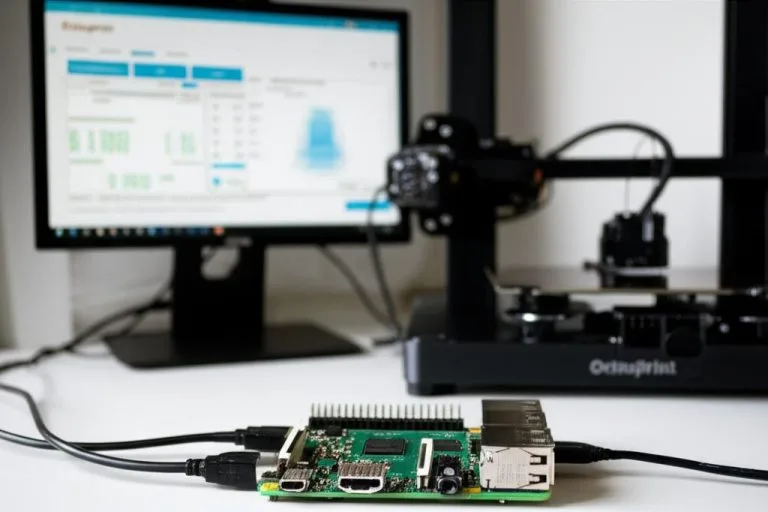
In the exhilarating world of 3D printing, the pursuit of both pristine print quality and blazing speeds has long been a delicate balancing act. Historically, pushing a printer to its limits often resulted in a frustrating array of artifacts: ghosting, ringing, and unsightly surface imperfections that betrayed the machine’s underlying mechanical vibrations. Enter Klipper, a formidable firmware that has revolutionized how we approach 3D printing performance. At the heart of its capabilities, particularly for high-speed 3D printing, lies a sophisticated feature known as Klipper input shaping.
Input shaping is not merely a setting; it’s a fundamental shift in how your printer compensates for its inherent mechanical resonances. By intelligently pre-processing the motion commands, Klipper actively dampens these vibrations before they can manifest as visible flaws on your prints. This comprehensive guide will demystify Klipper input shaping, walking you through the essential steps to implement, test, and fine-tune this powerful feature, ultimately enabling you to achieve unparalleled Klipper print quality at speeds you once only dreamed of.
Understanding the science behind input shaping
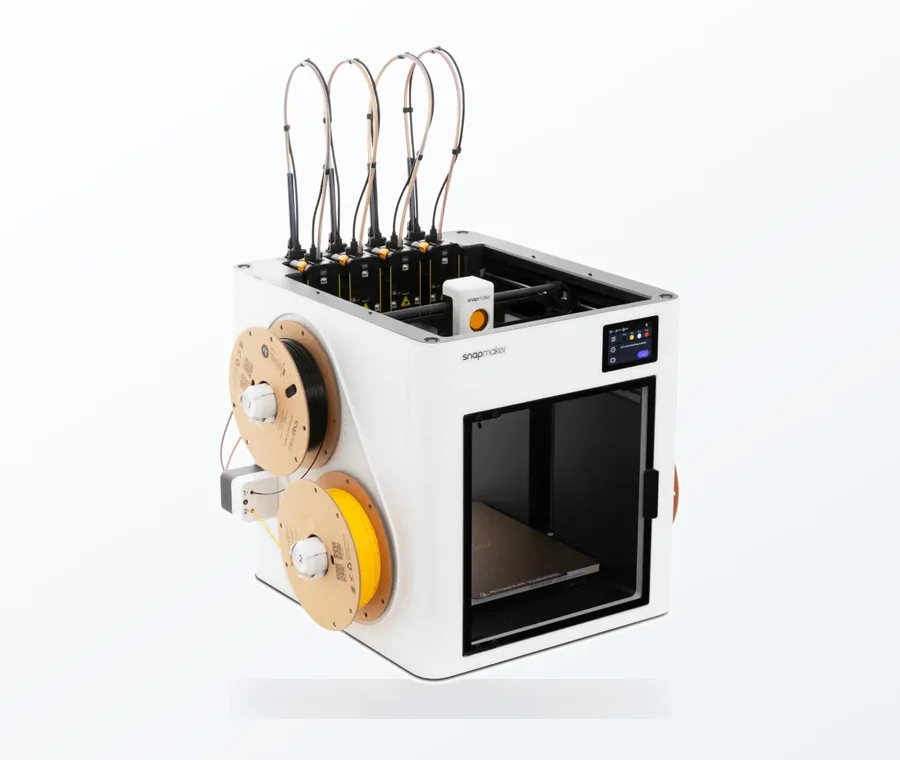
The consumer toolchanger 3D printer: the SnapSwap 4-toolhead system swaps heads in 5 seconds for true multi-color and multi-material printing, with smart calibration and auto filament loading.
- 4 toolheads · 5 s swap
- Up to 500 mm/s · 20,000 mm/s²
- 270 mm cube build volume
- Multi-color & multi-material
Before diving into the practical steps, it’s crucial to grasp the ‘why’ behind input shaping. Every 3D printer, regardless of its build quality, possesses natural resonant frequencies. These are specific frequencies at which its components (frame, gantry, print bed) tend to vibrate with greater amplitude when subjected to external forces, such as the rapid accelerations and decelerations of the print head.
The nemesis of high-speed 3D printing: resonances
When your printer’s motors rapidly change direction or speed, they impart forces that can excite these resonant frequencies. This excitation leads to:
- Ghosting (or ringing): Visible ripples or echoes of features (like corners or text) that appear adjacent to the actual feature on the print surface. This is a classic symptom of vibrations in the X and Y axes.
- Salmon skin: A subtle, wavy pattern often seen on flat surfaces, particularly noticeable under certain lighting conditions. While sometimes related to stepper motor drivers, it can also be exacerbated by resonance issues.
The faster you print, and the higher your acceleration settings, the more pronounced these artifacts become. Traditional firmware often requires you to compromise: either print slowly for quality or print fast and accept imperfections. Klipper, with its advanced architecture, offers a third path.
How input shaping combats vibrations
Input shaping works on a principle of pre-compensation. Imagine a bell: if you strike it once, it rings. If you strike it again, precisely as the first ring is about to die down, you can either amplify or cancel the sound. Input shaping applies a similar concept to your printer’s motion.
It adds carefully timed, small, opposing movements to the acceleration commands sent to the motors. These added movements are designed to cancel out the natural vibrations of the printer’s components. By doing so, the printer’s motion effectively ‘settles’ faster, reducing the time it spends oscillating after a rapid movement. This leads to:
- Significantly reduced ghosting and ringing.
- Smoother print surfaces, even at high speeds.
- The ability to dramatically increase Klipper acceleration and print speeds without sacrificing Klipper print quality.
This intelligent vibration compensation is what makes high-speed 3D printing truly viable with Klipper.
Prerequisites for Klipper input shaping
Before embarking on the calibration journey, ensure you have the following in place:
1. Klipper installed and configured
This guide assumes you already have a working Klipper installation on your 3D printer. If not, you’ll need to set up Klipper and get your basic printer configuration (steppers, heaters, thermistors, endstops) functional first. Resources for initial Klipper setup are widely available online.
2. An accelerometer (ADXL345)
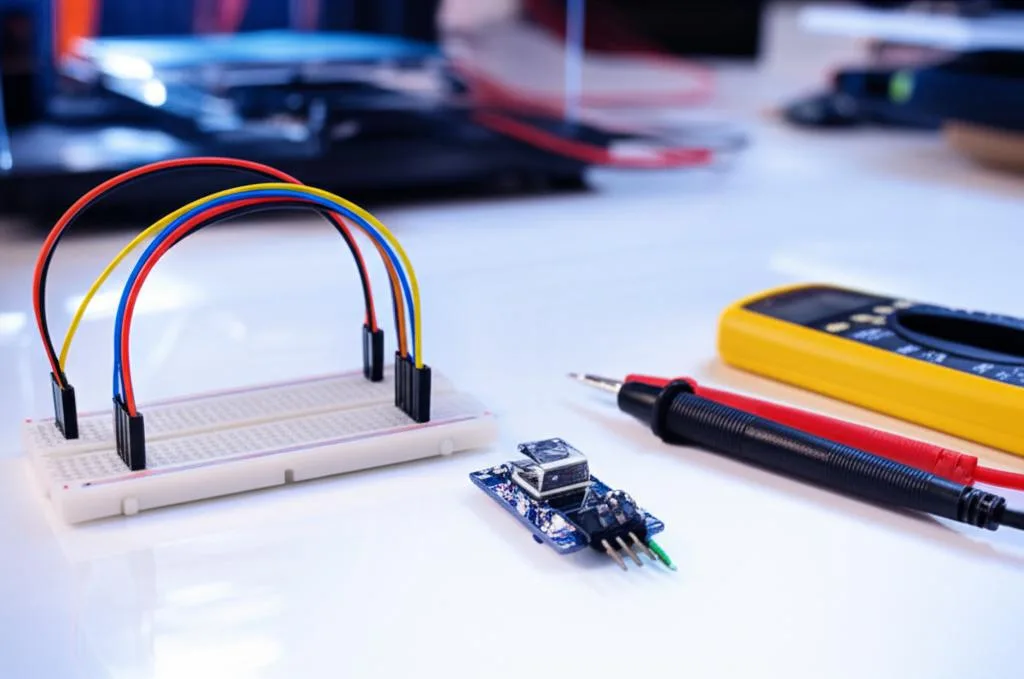
This is the cornerstone of Klipper input shaping. An ADXL345 accelerometer is a small, inexpensive sensor that measures acceleration along its X, Y, and Z axes. Klipper uses this device to precisely measure your printer’s resonant frequencies. You’ll typically find these sensors on small breakout boards.
3. Mounting the accelerometer
The accelerometer needs to be securely mounted to the print head (extruder assembly) for accurate measurements. It’s crucial that the accelerometer is rigidly attached and doesn’t wobble or flex during testing, as this can introduce false readings. Many 3D printer designs have specific mounting points or printable adapters for the ADXL345. Ensure its orientation is known (which axis is X, Y, Z relative to the printer).
4. Wiring the accelerometer
The ADXL345 communicates via SPI (Serial Peripheral Interface). You’ll need to connect it to your Klipper host (e.g., Raspberry Pi) or directly to your printer’s MCU if it supports SPI. Common connections are:
- VCC: 3.3V or 5V (check your specific ADXL345 board).
- GND: Ground.
- SCL (SCK): SPI Clock.
- SDA (MOSI): SPI Data In.
- SDO (MISO): SPI Data Out.
- CS (Chip Select): A general-purpose input/output (GPIO) pin on your host/MCU.
Consult your ADXL345 breakout board’s pinout and your Klipper host/MCU’s documentation for exact wiring diagrams. A common setup involves connecting it to the Raspberry Pi’s SPI pins.
5. Basic Klipper configuration for the accelerometer
Once wired, you need to tell Klipper about the accelerometer. Add the following sections to your printer.cfg file:
[adxl345]
cs_pin: PA15 # Replace with your actual CS pin
spi_speed: 2000000 # Typical value, adjust if needed
# Optional: If you connect directly to Raspberry Pi GPIOs
# spi_bus: spidev0.0 # For Raspberry Pi SPI bus 0, device 0

[resonance_tester]
accel_chip: adxl345
probe_points: 100,100,20 # Adjust X, Y, Z to a safe, central point on your bed
# accel_chip_x: adxl345 # Use if you have separate accelerometers for X and Y
# accel_chip_y: adxl345 # Use if you have separate accelerometers for X and Y
Important: The cs_pin is critical. If you’re using a Raspberry Pi’s standard SPI, the spi_bus parameter might be needed instead of cs_pin, or both if using a specific device on the bus. Double-check the Klipper documentation for your specific setup.
Step-by-step guide: Implementing Klipper input shaping
With the prerequisites met, you’re ready to measure your printer’s resonances and apply input shaping.
Step 1: Preparing your Klipper configuration for the accelerometer
You’ve already added the basic [adxl345] and [resonance_tester] sections. Now, let’s refine them slightly. The probe_points defines where the printer will position the print head during the resonance test. Choose a point near the center of your build plate, ensuring there’s enough clearance for the nozzle.
If your accelerometer isn’t mounted perfectly aligned with your printer’s axes, you might need to adjust the axes_map. For instance, if the ADXL345’s X-axis aligns with your printer’s Y-axis, and its Y-axis aligns with your printer’s X-axis but inverted, you’d use:
[adxl345]
# ... other settings
axes_map: -y,x,z
The default is x,y,z. You can test this by using the ACCELEROMETER_QUERY command in the Klipper console and manually moving the print head to see which axis responds. Save and restart Klipper after any changes.
Step 2: Performing the resonance test
This is where your printer gets to shake a leg! Connect to your Klipper instance via SSH or a web interface (like Mainsail or Fluidd). Open the console.
Testing X-axis resonances:
- Ensure your printer bed is clear.
- Home your printer:
G28 - Start the X-axis resonance test:
TEST_RESONANCES AXIS=X
Your printer will move rapidly back and forth along the X-axis, typically making a distinct buzzing sound. The accelerometer will record the vibrations. This process usually takes a few minutes.
Testing Y-axis resonances:
- Once the X-axis test completes, initiate the Y-axis test:
TEST_RESONANCES AXIS=Y
Similarly, the printer will move along the Y-axis. After both tests are complete, Klipper will have generated two CSV files: /tmp/resonances_x.csv and /tmp/resonances_y.csv. These files contain the raw frequency data measured by the accelerometer.
Step 3: Analyzing the results and choosing an input shaper
The raw CSV files aren’t directly useful for humans. We need to process them using a Python script provided by Klipper.
Transferring the resonance data:
You’ll need to transfer these files from your Klipper host (e.g., Raspberry Pi) to your local computer. You can use an SCP client (like WinSCP on Windows or scp command on Linux/macOS) or simply download them via your Mainsail/Fluidd interface if it supports file browsing.
Running the calibration script:
On your local computer, navigate to your Klipper installation directory (where you cloned the Klipper repository) and find the klipper/scripts/calibrate_shaper.py file. You’ll need Python 3 installed on your local machine, along with numpy and matplotlib libraries (install with pip install numpy matplotlib).
Run the script for each axis:
python3 calibrate_shaper.py /path/to/resonances_x.csv -o shaper_calibrate_x.png
python3 calibrate_shaper.py /path/to/resonances_y.csv -o shaper_calibrate_y.png
The -o flag saves the output as a PNG image. You can also add -f 200 to set a frequency limit for the graph, which can make it easier to read if you have very high frequencies. The script will output recommended shaper types and frequencies to your console, and generate a graph.
Interpreting the graphs and recommendations:
The generated PNG graphs are crucial. They show:
- Vibration Magnitude vs. Frequency: Peaks on this graph indicate your printer’s resonant frequencies. The taller the peak, the stronger the resonance.
- Shaper Performance: The script plots different input shaper types (ZV, ZVD, MZV, EI, etc.) and shows how effectively they reduce vibrations across various frequencies.
- Recommended Shaper and Frequency: The script will suggest an optimal shaper type (e.g.,
MZV) and its corresponding frequency (e.g.,55.2 Hz) for each axis. It also provides a maximum acceleration value that the chosen shaper can handle without introducing significant ringing.
Choosing an Input Shaper:
- ZV (Zero Vibration): Simple, effective for a single dominant resonance peak.
- ZVD (Zero Vibration and Derivative): More robust, handles a wider range of frequencies, slightly longer input command.
- MZV (Modified Zero Vibration): Good balance, often a solid choice.
- EI (Extra-Insensitive): Designed for systems with varying frequencies, more complex.
- 2HUMP_EI, 3HUMP_EI: For systems with multiple distinct resonance peaks.
The script usually does a good job of recommending the best option. Pay close attention to the suggested max_accel. This is the maximum acceleration Klipper believes you can use with that shaper without reintroducing ringing. It’s often significantly higher than your default acceleration.
Step 4: Applying input shaping to your Klipper configuration
Now, take the recommended shaper types and frequencies from the script’s output and add them to your printer.cfg. You’ll create a new [input_shaper] section (if it doesn’t exist) or modify an existing one.
[input_shaper]
shaper_type_x: MZV # Replace with your recommended shaper type for X
shaper_freq_x: 55.2 # Replace with your recommended frequency for X
shaper_type_y: EI # Replace with your recommended shaper type for Y
shaper_freq_y: 48.7 # Replace with your recommended frequency for Y
# shaper_damping_ratio: 0.1 # Optional, typically left at default (0.1) unless specific issues arise
Additionally, you’ll want to adjust your printer’s acceleration limits based on the script’s recommendations. Look for the [printer] section or a separate [stepper_x] / [stepper_y] section and update:
[printer]
max_velocity: 300 # Adjust as desired, often higher with input shaping
max_accel: 5000 # Use the LOWER of the two recommended max_accel values (X or Y)
max_accel_to_decel: 2500 # Typically half of max_accel, or slightly less
If the script recommended max_accel values of, say, 8000 for X and 6000 for Y, you should set your global max_accel to 6000. You can also set axis-specific accelerations if needed, but a global setting is usually sufficient to start.
Save your printer.cfg and restart Klipper.
Step 5: Verifying and fine-tuning
The proof is in the pudding, or rather, in the print.
Test prints:
- Resonance tower: Print a simple tower (e.g., 20x20x50mm) with sharp corners. You can even modify G-code to increase acceleration mid-print to see the effects.
- Benchy: A classic torture test. Pay close attention to the bow and stern for ringing.
- Speed tests: Print something at your new, higher accelerations and velocities.
Visual inspection:
Carefully examine your test prints. Look for:
- Reduced ghosting/ringing: Are the echoes of sharp features significantly diminished or gone?
- Smoother surfaces: Do flat walls appear cleaner and more consistent?
- Overall quality: Is the print quality maintained or improved at higher speeds?
Adjusting if needed:
While the script’s recommendations are generally excellent, minor visual imperfections might persist. You can make subtle adjustments:
- Slightly tweak
shaper_freq_x/y: If you still see very faint ghosting, try adjusting the frequency by 0.5-1.0 Hz up or down from the recommended value. Do this incrementally and test after each change. - Consider a different shaper type: If your prints still exhibit significant issues, re-examine your resonance graphs. Perhaps there were multiple peaks, and a 2HUMP_EI or 3HUMP_EI shaper would be more appropriate, even if not initially recommended as the absolute ‘best’ by the script.
- Increase
max_accelcautiously: If your prints look perfect, you can try increasing yourmax_accelslightly beyond the script’s recommendation, but do so in small increments (e.g., 500 mm/s²) and re-test. There’s a point of diminishing returns, and pushing too far will reintroduce artifacts.
Remember, fine-tuning is an iterative process. Be patient and methodical.
Advanced considerations and troubleshooting
Dealing with multiple resonance peaks
Sometimes, your resonance graphs will show more than one significant peak. The calibrate_shaper.py script tries to find the best single shaper. However, if you have two very prominent, distinct peaks, you might consider using multi-hump shapers like 2HUMP_EI or 3HUMP_EI. These are designed to compensate for multiple frequencies simultaneously. The script will often suggest these if appropriate, but understanding their purpose can guide your manual choice if the initial recommendation isn’t perfect.
Impact of accelerometer mounting
The accuracy of your resonance measurements heavily depends on how and where the ADXL345 is mounted. A loose mount, a mount made of flexible material, or one that vibrates independently of the print head will lead to inaccurate readings. Ensure your mount is rigid and as close to the nozzle as possible. If you suspect issues, try remounting or redesigning your accelerometer holder.
Printer stability and mechanical integrity
Input shaping is a software solution, but it cannot entirely fix fundamental mechanical problems. If your printer has:
- Loose belts or pulleys.
- Wobbly gantry or bed.
- Excessive play in linear rails or wheels.
- An unstable frame.
…then input shaping will only go so far. Address these mechanical issues first. Tighten belts, check eccentric nuts, ensure everything is square and rigid. A mechanically sound printer provides the best foundation for input shaping to work its magic.
Understanding shaper_damping_ratio
The shaper_damping_ratio parameter (defaulting to 0.1) influences how aggressively the shaper dampens vibrations. A higher value makes the shaper more aggressive but can also slightly increase print time due to longer input commands. Generally, the default is suitable, but in cases of very stubborn, high-frequency resonances, a slight increase (e.g., to 0.2) might be explored. Be cautious, as too high a value can introduce other artifacts.
When input shaping isn’t enough
If, after careful calibration, you still see significant ghosting, it’s time to re-evaluate your mechanical setup. Input shaping is incredibly effective, but it’s not magic. It can’t compensate for:
- Under-tensioned belts: Leading to backlash and imprecise movement.
- Loose hotend: Causing the nozzle to wobble independently.
- Excessive weight on the print head: Increasing inertia and making vibrations harder to control.
- Poor stepper motor tuning: Though less common with modern drivers, misconfigured microstepping or current can cause issues.
Always ensure your printer is mechanically sound before expecting input shaping to solve all your problems.
Optimizing for high-speed 3D printing
While Klipper input shaping is a game-changer for speed and quality, it’s part of a larger ecosystem of Klipper features that work in synergy. To truly unlock the potential of high-speed 3D printing, consider integrating these other optimizations:
Pressure advance
Pressure advance (or Linear Advance in Marlin) compensates for the pressure buildup in the hotend’s melt zone. Without it, you get over-extrusion at the start of a line and under-extrusion at the end, leading to blobby corners and inconsistent line widths. Calibrating pressure advance is crucial for sharp corners and consistent extrusion, especially at high speeds where rapid changes in flow rate are common.
Flow calibration
Accurate flow rate (extrusion multiplier) ensures that the correct amount of plastic is deposited. Calibrate your flow rate for each filament type to avoid over or under-extrusion, which can mask other quality issues or lead to weak prints.
Mechanical integrity revisited
We’ve touched on this, but it bears repeating: the faster you go, the more critical mechanical integrity becomes. Regularly inspect and maintain your printer’s motion system:
- Belt tension: Belts should be tight but not overtightened, with no visible slack.
- Pulleys and idlers: Ensure they are securely fastened and spin freely.
- Linear motion components: Check for smooth movement and absence of play in linear rails, wheels, or rods.
- Frame rigidity: A sturdy frame minimizes overall printer vibration.
Cooling performance
At higher speeds, plastic is laid down faster, requiring more aggressive cooling to solidify properly before the next layer. Ensure your part cooling fan is adequate and directed effectively. Poor cooling can lead to warping, drooping, and loss of detail, even if your motion system is perfect.
Firmware and hardware synergy
Klipper’s design, offloading computationally intensive tasks to a more powerful host (like a Raspberry Pi), allows for precise and rapid control signals to the MCU. This fundamental architecture, combined with features like input shaping and pressure advance, creates a highly optimized environment for pushing the boundaries of consumer 3D printing. It’s a testament to how software and automation can dramatically enhance hardware performance.
Conclusion
Klipper input shaping stands as a monumental achievement in the realm of 3D printing firmware. By intelligently combating the insidious effects of mechanical resonances, it liberates your printer from the age-old dilemma of choosing between speed and quality. This step-by-step guide has provided you with the knowledge and tools to effectively implement and fine-tune this transformative feature, allowing you to unlock unprecedented levels of Klipper print quality and confidently embrace the era of high-speed 3D printing.
The journey to perfect prints is continuous, but with input shaping as a cornerstone of your Klipper configuration, you are now equipped to tackle even the most demanding print challenges. Experiment, observe, and enjoy the satisfaction of watching your printer produce immaculate objects at speeds you once thought impossible. Happy printing!
Frequently asked questions
Do I have to use an ADXL345 accelerometer, or can I estimate the resonance frequencies manually?
An ADXL345 accelerometer is strongly recommended for accurate results. While you could theoretically guess resonance frequencies and shaper types, the sensor provides precise measurements of your specific printer’s mechanical behavior. Manual estimates are unreliable because resonances vary with belt tension, frame rigidity, print head weight, and other factors, often leading to ineffective or counterproductive input shaping settings.
Will input shaping fix all ghosting and ringing if my printer has loose belts or a wobbly gantry?
No. Input shaping is a software compensation that cancels predictable vibrations, but it cannot correct fundamental mechanical problems like loose belts, wobbly gantries, or excessive play in linear motion components. These issues introduce backlash and inconsistent motion that input shaping cannot counteract. Always tighten belts, check eccentric nuts, and ensure your printer’s frame is rigid before relying on input shaping for quality improvements.
What should I do if my test prints still show faint ghosting after following the calibration script’s recommendations?
First, try adjusting the shaper frequency for the affected axis by ±0.5–1.0 Hz from the script’s recommended value, testing after each change. If ghosting persists, re-examine your resonance graphs for multiple distinct peaks—you may need a multi-hump shaper like 2HUMP_EI or 3HUMP_EI instead of the script’s initial recommendation. Finally, verify your accelerometer mount is rigid and check for any mechanical looseness that might have been missed during initial setup.