
Achieving truly perfect 3D prints often feels like an elusive goal, especially when dealing with subtle yet frustrating imperfections like ghosting and ringing. These artifacts can mar an otherwise excellent print, leaving behind faint echoes or ripples on the surface that detract significantly from its aesthetic appeal and overall print quality. While often confused, ghosting and ringing are distinct phenomena that point to underlying issues with your 3D printer’s mechanical stability or its motion control settings. This comprehensive guide will delve deep into understanding these issues, providing a step-by-step approach to diagnosing and resolving them through meticulous slicer settings adjustments and precise printer calibration, ultimately leading you towards a pristine surface finish.
Understanding ghosting and ringing: the culprits of imperfect surfaces

The world’s first desktop full-color 3D & UV printer. Back the Kickstarter campaign with a refundable $50 deposit for VIP pricing.
Before we can banish these print quality villains, it’s crucial to understand what they are and why they appear. Both ghosting and ringing manifest as unwanted patterns on the vertical surfaces of your prints, particularly noticeable around sharp corners, embossed text, or sudden changes in geometry.
What is ghosting?
Ghosting, also known as ‘echoing’ or ‘ripple effect,’ typically appears as faint, repeated patterns or shadows of features that are actually on the print. Imagine a raised letter on your model; ghosting would be a faint, barely perceptible duplicate of that letter appearing slightly offset from the original. It’s most commonly seen after a sudden change in direction or speed, particularly when the print head accelerates or decelerates rapidly.
- Appearance: Faint, parallel lines or ‘ghost’ images of features.
- Cause: Primarily caused by vibrations and inertia in the printer’s moving parts (print head, bed) that continue to resonate after a change in motion, causing the nozzle to momentarily deflect from its intended path.
- Location: Often visible near sharp corners or edges, extending away from the direction of travel.
What is ringing?
Ringing, sometimes referred to as ‘VFA’ (Vibration Frequency Artifacts) or ‘salmon skin’ (though salmon skin is a different issue related to stepper motor drivers), presents as more pronounced, consistent wave-like patterns or ripples on the print surface. Unlike ghosting, ringing tends to be more uniform and can appear across larger sections of a print, not just localized to feature changes.
- Appearance: Distinct, often evenly spaced, wave-like patterns or lines.
- Cause: Generally attributed to mechanical resonance within the printer’s frame or components, often exacerbated by high print speeds and rapid movements. It’s a symptom of the printer’s structure vibrating at its natural frequency.
- Location: Can appear more globally on surfaces, often in repeating patterns.
While their causes are slightly different, the solutions often overlap, focusing on reducing vibrations and optimizing motion control.
Diagnosing ghosting and ringing: identifying the culprits
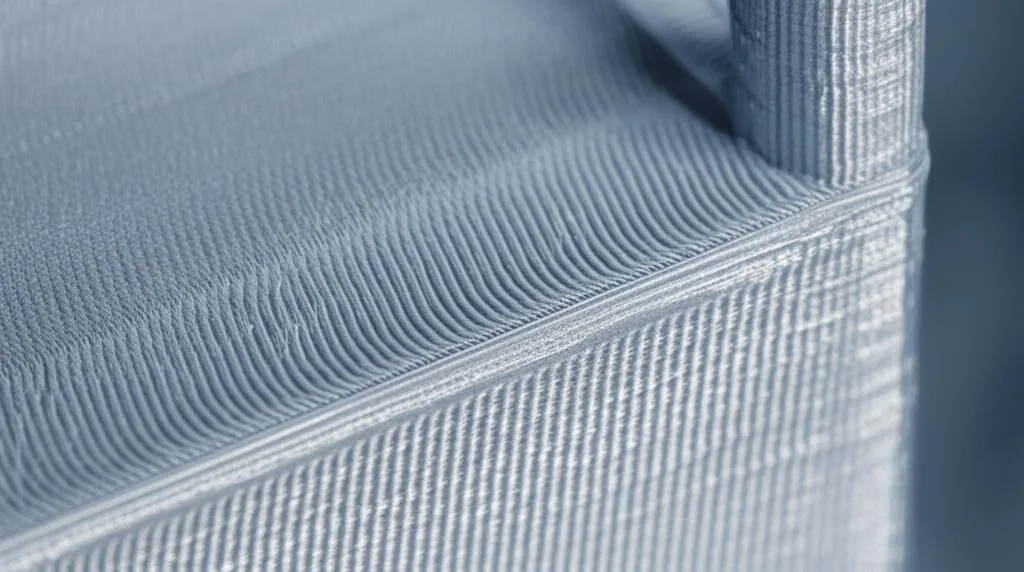
Effective troubleshooting begins with accurate diagnosis. Before diving into settings, it’s helpful to confirm you’re dealing with ghosting or ringing and to get a baseline for your improvements.
Printing a diagnostic test model
The best way to observe these artifacts is by printing a dedicated test model. Look for models specifically designed to highlight ghosting and ringing, often featuring sharp corners, varying wall thicknesses, or embossed text. A simple cube with text on its sides or a calibration tower with distinct features will suffice.
Key observations during diagnosis:
- Directionality: Do the artifacts appear more prominently on walls parallel or perpendicular to a specific axis (X or Y)? This can help pinpoint which axis’s mechanics might be the primary issue.
- Consistency: Are the ripples evenly spaced (more indicative of ringing) or more like faint echoes of features (more indicative of ghosting)?
- Severity: How pronounced are the artifacts? This will help you gauge the impact of your adjustments.
Advanced slicer settings: fine-tuning motion control
Your slicer acts as the brain of your 3D printer, translating your model into precise movements. Optimizing these slicer settings is often the first and most impactful step in mitigating ghosting and ringing.
1. Acceleration control: the speed ramp
Acceleration defines how quickly your print head (or print bed, depending on your printer’s kinematics) can speed up or slow down. High acceleration values mean rapid changes in velocity, which can induce significant inertia and vibrations, leading directly to ghosting.
- What it does: Controls the rate at which the printer’s moving parts gain or lose speed.
- Impact on artifacts: High acceleration leads to sharper, more sudden movements, increasing the likelihood of ghosting and ringing.
- Adjustment strategy: Gradually reduce acceleration values. Most slicers allow you to set general acceleration, as well as specific values for perimeters, infill, and travel.
- Typical range (mm/s²): For most FDM printers, a good starting point for perimeters is often between 500-1500 mm/s². Some high-end, rigid machines can handle higher. Experiment by decreasing in increments of 100-200.
- Where to find it:
- Consideration: Lowering acceleration will increase print time, so it’s a balance between speed and surface finish.
2. Jerk or junction deviation: managing instantaneous speed changes
Jerk (or more accurately, Junction Deviation in modern firmware like Marlin 2.x and Klipper) dictates the maximum instantaneous change in velocity allowed when the print head changes direction. Essentially, it controls how ‘sharp’ a corner the printer can take without coming to a complete stop.
- What it does: Defines the maximum allowable instantaneous velocity change.
- Impact on artifacts: High jerk values mean abrupt changes in direction, which can cause significant mechanical shock and vibrations, leading to both ghosting and ringing, especially at corners.
- Adjustment strategy: Reduce jerk values. Junction Deviation is often preferred as it’s a more physically accurate model of cornering dynamics.
- Typical range (mm/s) for Jerk: Start around 8-10 mm/s and decrease in increments of 1-2 mm/s. For Junction Deviation (mm), a common range is 0.02-0.08.
- Where to find it:
- Consideration: Too low jerk/junction deviation can lead to blobbing at corners as the printer slows down excessively.
3. Print speed: the obvious, but not always primary, factor
While high print speeds can certainly exacerbate ghosting and ringing, simply reducing your overall print speed isn’t always the most efficient or effective solution. It’s often a combination of speed with acceleration and jerk that causes the problem.
- What it does: Controls the overall velocity of the print head during extrusion.
- Impact on artifacts: Faster speeds mean more kinetic energy, leading to greater vibrations and inertia issues if acceleration and jerk are not tuned.
- Adjustment strategy: If adjusting acceleration and jerk doesn’t fully resolve the issue, try reducing your outer perimeter speed specifically. The outer walls are where these artifacts are most visible.
- Typical range (mm/s): For outer perimeters, try speeds between 30-60 mm/s.
- Where to find it:
4. Other slicer settings for subtle improvements
- Outer Wall Wipe Distance: A small wipe distance can help smooth out corners, potentially masking minor ghosting.
- Infill Pattern and Density: A denser infill or a sturdier pattern (like cubic or gyroid) can add rigidity to your print, potentially dampening vibrations.
- Flow/Extrusion Multiplier: While not directly related to ghosting/ringing, ensuring correct flow helps prevent over-extrusion, which can create its own surface imperfections that might be confused with ghosting.
Printer calibration: mechanical stability is paramount
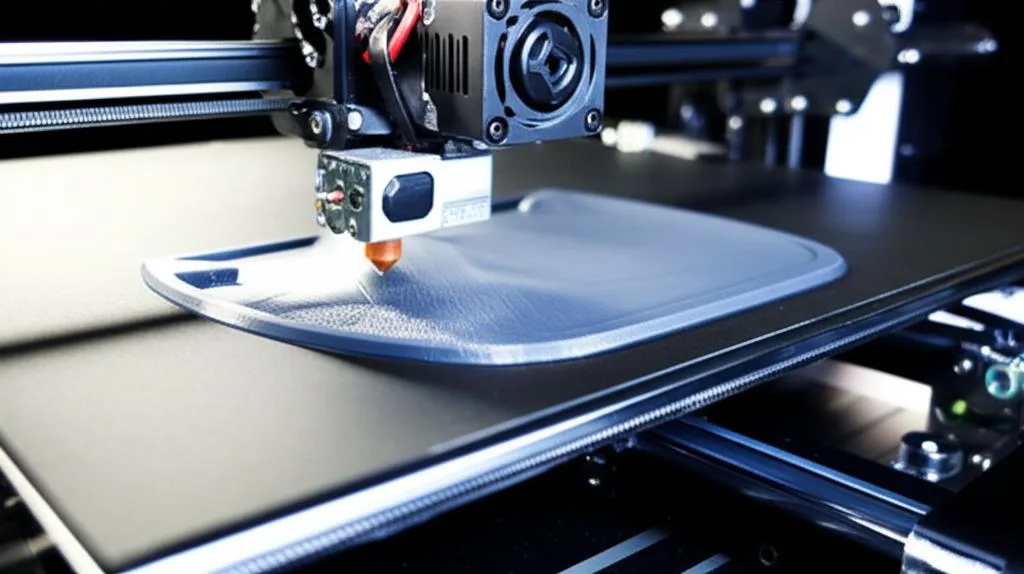
Even with perfectly tuned slicer settings, a mechanically unstable printer will struggle to produce flawless prints. Printer calibration focuses on ensuring all moving parts are tight, smooth, and free from excessive play. This is often where the most significant gains in surface finish are made.
1. Belt tensioning: the backbone of motion
Loose or overly tight belts are a primary cause of both ghosting and ringing. Belts that are too loose will introduce backlash and slop, leading to inaccurate movements. Belts that are too tight can cause excessive wear on motors and bearings, and also induce vibrations.
- Check for:
- Adjustment: Locate the belt tensioners (often on the X and Y axes) and adjust them until the belts are firm but not overly taut. They should feel like a tight rubber band, with minimal deflection when pressed.
- Tip: Ensure both X and Y belts have similar tension for consistent motion.
2. Frame rigidity: a solid foundation
A wobbly or non-rigid printer frame is a recipe for vibrations and ringing. Every movement of the print head or bed will cause the entire structure to resonate.
- Check for:
- Adjustment: Tighten all frame bolts. For printers with extruded aluminum frames, ensure the corner brackets are secure. Consider adding external braces or reinforcements if your printer design allows for it and exhibits significant flex.
3. Gantry and hotend stability: minimizing play
Any play or wobble in the print head (hotend assembly) or the gantry it rides on will directly translate to inaccuracies on your print surface.
- Check for:
- Adjustment:
4. Print bed stability: a firm foundation for your print
Just like the hotend, the print bed’s stability is crucial, especially on bedslinger-style (i3-type) printers where the bed moves along the Y-axis.
- Check for:
- Adjustment:
5. Vibration dampening: isolating your printer
Even a perfectly calibrated printer can transmit vibrations to its surroundings, or pick them up. Isolating your printer can help reduce resonant frequencies.
- Solutions:
Step-by-step troubleshooting guide: a methodical approach
Tackling ghosting and ringing requires a systematic approach. Resist the urge to change multiple settings at once, as this makes it impossible to identify which adjustment had an effect.
- Initial mechanical inspection:
- Before printing anything, perform a thorough check of all mechanical components: belt tension, frame rigidity, hotend/gantry stability, and bed stability. Tighten anything loose.
- Print a diagnostic test model:
- Slice and print a dedicated ghosting/ringing test model with your current, baseline settings. Observe the artifacts carefully. Note their direction, severity, and appearance.
- Adjust slicer settings (one at a time):
- Start with acceleration: Reduce your overall and perimeter acceleration values in small increments (e.g., 100-200 mm/s²). Print the test model after each significant change. Observe the improvement.
- Then jerk/junction deviation: Once you’ve found a good acceleration value, start adjusting jerk/junction deviation downwards (e.g., 1-2 mm/s for jerk, 0.01-0.02 for junction deviation). Print and observe.
- Finally, print speed: If artifacts persist, consider slightly reducing your outer perimeter speed. Remember, this is usually a last resort for print quality over speed.
- Re-evaluate mechanical calibration:
- If slicer adjustments yield only minor improvements, revisit your mechanical calibration. Perhaps a belt wasn’t quite tight enough, or a screw came loose during printing.
- Consider vibration dampening solutions if you haven’t already.
- Iterate and refine:
- Troubleshooting is an iterative process. Make a change, print, observe, and repeat. Keep detailed notes of your settings and the resulting surface finish.
Beyond the basics: advanced firmware features
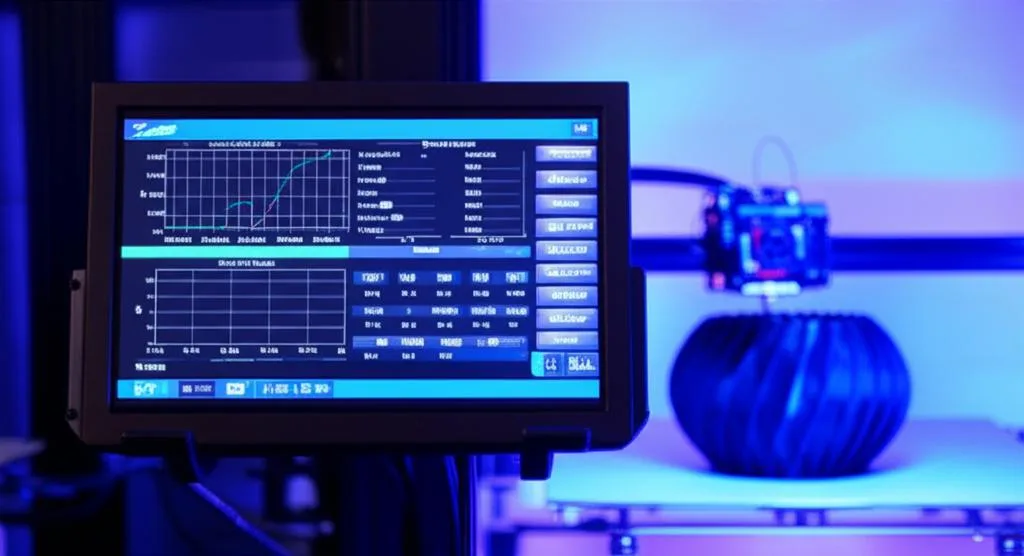
For those running advanced firmware like Klipper or Marlin 2.x, there are even more sophisticated tools to combat vibrations.
- Input Shaping: This feature actively compensates for resonances in your printer by applying a counter-motion. It requires an accelerometer to measure your printer’s resonant frequencies accurately. When properly configured, Input Shaping can dramatically reduce ringing and ghosting, often allowing for much higher print speeds without sacrificing print quality.
- Pressure Advance (Klipper) / Linear Advance (Marlin): While primarily aimed at improving corner definition and reducing blobbing, these features can indirectly contribute to a cleaner surface finish by ensuring consistent extrusion, which reduces the chance of nozzle deflection during sudden changes in motion.
Conclusion: the pursuit of perfection
Eliminating ghosting and ringing is a journey that combines meticulous slicer settings adjustments with diligent printer calibration. There’s no single magic bullet, but rather a holistic approach that addresses both the software instructions and the physical execution. By systematically diagnosing issues, fine-tuning your acceleration and jerk settings, and ensuring your printer’s mechanical components are in top condition, you’ll be well on your way to achieving that coveted, flawless surface finish. Remember, patience and a methodical approach are your best tools in the continuous pursuit of perfect print quality.
Frequently asked questions
Will reducing acceleration or jerk settings significantly increase my print time?
Yes, lowering acceleration and jerk values will increase print time, especially on prints with many direction changes, corners, or detailed features. The trade-off is a smoother surface finish with less ghosting and ringing. A typical reduction from 1500 mm/s² to 500 mm/s² on perimeters might add 20-40% to total print time, but often yields dramatic visual improvements without needing to reduce overall print speed.
Is it safe to add vibration dampening feet or a concrete slab under my printer?
Yes, placing your printer on a heavy, stable surface like a concrete paver or a thick rubber mat can absorb vibrations and reduce ringing. Ensure the surface is level and the printer has adequate ventilation. Do not block any cooling fans or electronics vents, and avoid soft surfaces like foam that could introduce wobble or instability rather than dampening it.
Should I adjust acceleration and jerk in the slicer or directly in the printer firmware?
Adjusting acceleration and jerk in the slicer is usually the safest starting point because changes apply only to that specific print profile and are easy to revert. Firmware-level changes affect all prints globally and can lead to unexpected behavior if not carefully noted. Start with slicer adjustments, then if you need finer control or are using advanced features like Input Shaping, move to firmware tuning.