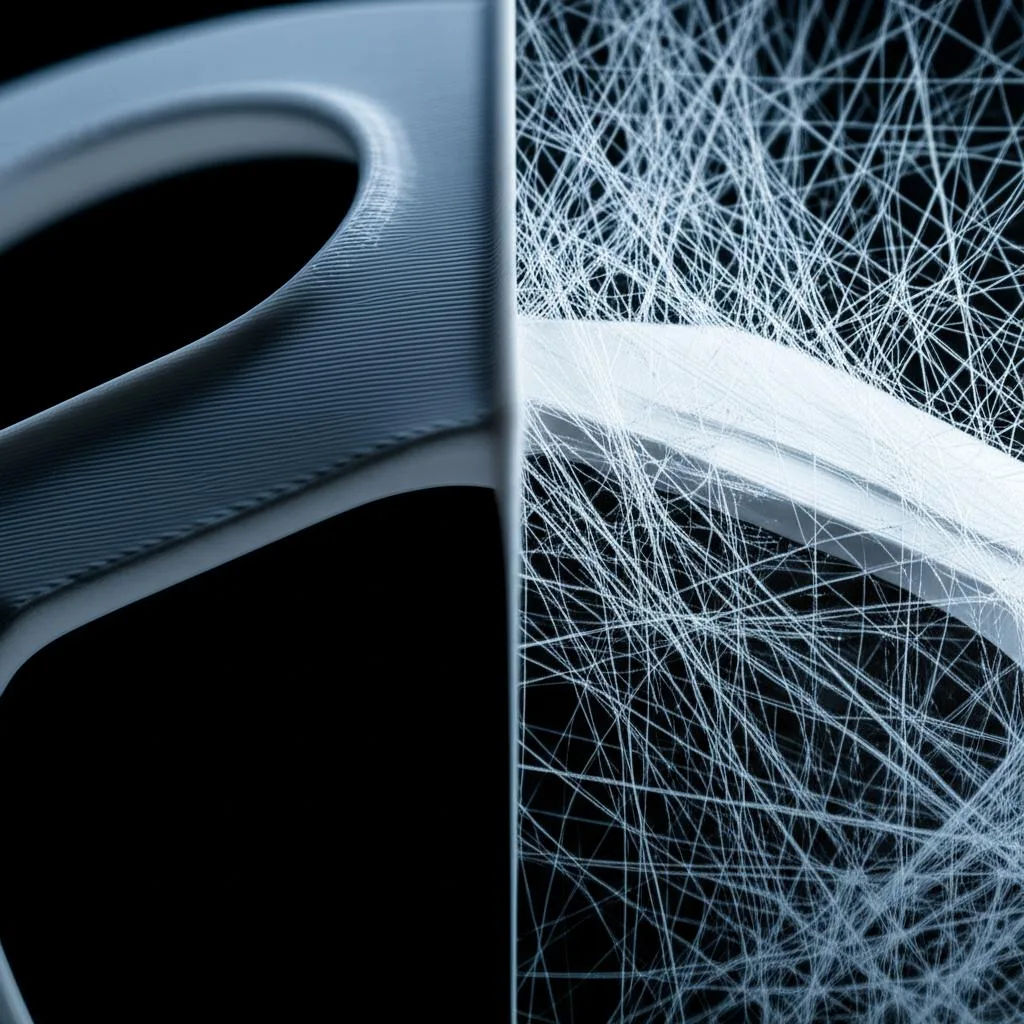
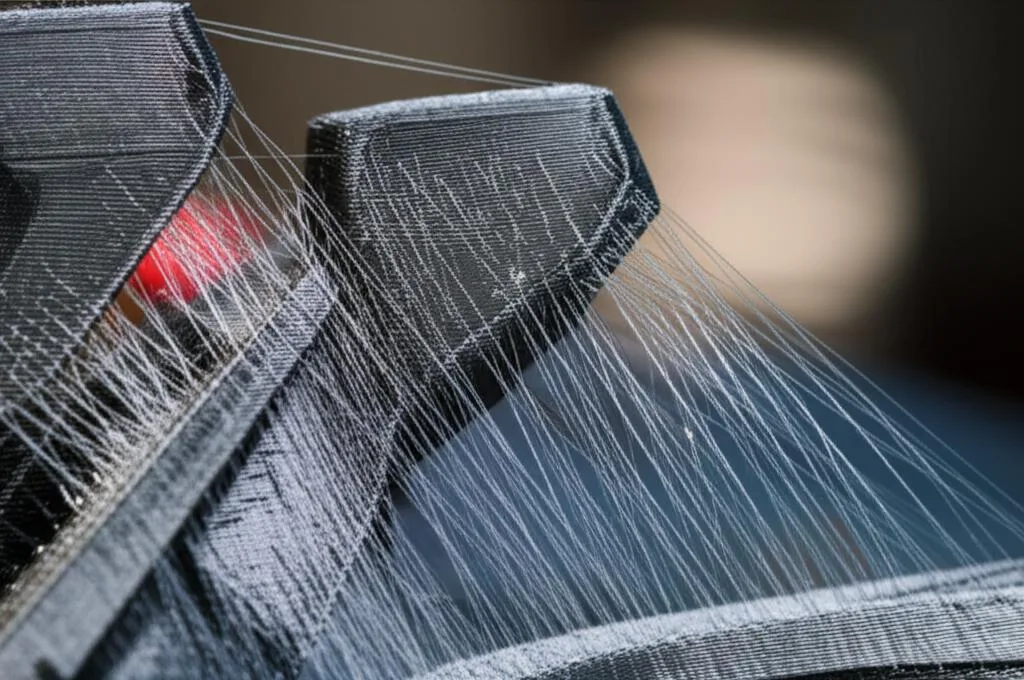
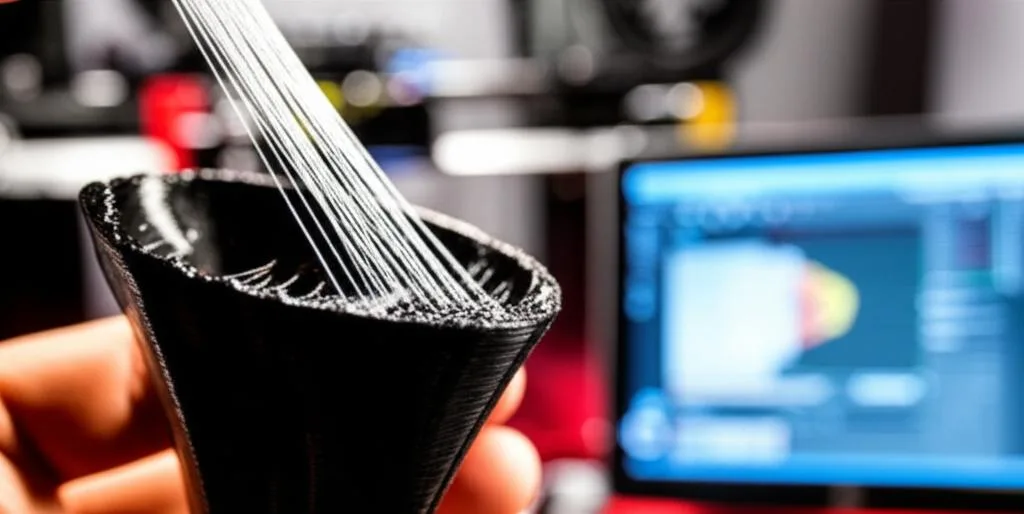
Few things are as frustrating in 3D printing as pulling a finished part from the build plate, only to find it riddled with fine, wispy strands of plastic – a phenomenon universally known as stringing or oozing. These unwanted threads can mar the aesthetics of an otherwise perfect print, requiring tedious post-processing or, worse, rendering the part unusable. While stringing can stem from various sources, the most common and often most effective 3D print stringing fix lies in meticulously tuning your retraction settings within your chosen slicing software.
This comprehensive guide delves deep into the advanced retraction parameters available in two of the most popular slicers, Cura and PrusaSlicer. We’ll demystify each setting, explain its impact, and provide practical advice on how to adjust them to achieve impeccably clean 3D prints, ultimately helping you to eliminate stringing for good. By understanding these nuances, you’ll gain the power to fine-tune your printer’s behavior, transforming those spaghetti monsters into pristine models.
Understanding the fundamentals of retraction
Before diving into specific slicer settings, it’s crucial to grasp the core concept of retraction. Simply put, retraction is the process where your 3D printer’s extruder motor briefly pulls the filament back, or retracts it, away from the hot end. This action occurs just before the print head makes a travel move (a movement where the nozzle isn’t actively extruding plastic) and then pushes the filament forward again, or primes it, when extrusion needs to resume.
Why retraction is essential for clean prints
The primary purpose of retraction is to relieve pressure within the nozzle and prevent molten plastic from oozing out during non-printing movements. Imagine a tube of toothpaste: if you squeeze it and then move it to another spot without releasing the pressure, toothpaste will continue to flow. The same principle applies to your 3D printer’s hot end. Without retraction, the residual pressure, coupled with gravity and capillary action, would cause melted filament to dribble from the nozzle as it travels across open spaces, creating those unsightly strings.
Effective retraction minimizes this uncontrolled oozing, ensuring that plastic is only deposited where and when it’s intended. It’s a delicate balance; too little retraction, and you get stringing; too much, and you risk other issues like under-extrusion at the start of new lines, nozzle clogs, or even grinding the filament.
Common causes of stringing beyond retraction
While retraction is your primary weapon against stringing, it’s not the only factor. Sometimes, even perfectly tuned retraction settings won’t completely solve the problem if other underlying issues are present. Addressing these can significantly improve your results and often make retraction tuning easier.
- Print Temperature Too High: Higher temperatures make plastic more viscous and prone to oozing. If your print temperature is above the optimal range for your specific filament, it will string more easily.
- Wet Filament: Hydroscopic filaments like PETG and nylon readily absorb moisture from the air. When wet filament is heated, the trapped water turns to steam, creating bubbles that expand and push molten plastic out of the nozzle, leading to stringing, poor layer adhesion, and a rough surface finish.
- Travel Speed Too Slow: If your print head moves too slowly during non-printing travels, there’s more time for plastic to ooze out, even with retraction. Increasing travel speed can sometimes help mitigate stringing.
- Nozzle Issues: A worn, damaged, or partially clogged nozzle can disrupt flow and contribute to stringing. A dirty nozzle exterior can also drag molten plastic.
- Z-Hop (Z-lift) Settings: While beneficial for preventing nozzle drag, Z-hop can sometimes exacerbate stringing if retraction isn’t aggressive enough, as it increases the time the nozzle spends in the air during travel moves.
Mastering advanced retraction settings in Cura
Cura offers a robust suite of retraction settings, some of which are hidden by default. To access all of them, ensure your visibility settings are configured to ‘Advanced’ or ‘Expert’ in the preferences menu. Let’s break down the most critical parameters for Cura retraction settings.
Retraction distance
This is arguably the most crucial retraction setting. It dictates how far the filament is pulled back from the hot end. The ideal distance varies significantly between printer setups, primarily due to the type of extruder:
Direct Drive Extruders: With the extruder motor mounted directly on the print head, the distance between the gears and the nozzle is very short. Consequently, direct drive systems typically require much shorter retraction distances, often ranging from 0.5mm to 2mm.
Bowden Extruders: These systems have the extruder motor mounted on the printer frame, pushing filament through a long PTFE (Teflon) tube to the hot end. The compressibility of the filament within this long tube necessitates much longer retraction distances, commonly between 4mm and 8mm, and sometimes even up to 10mm or 12mm for very long Bowden tubes.
Tuning advice: Start with a conservative value based on your extruder type (e.g., 1mm for direct drive, 5mm for Bowden). Then, use a retraction test tower (discussed later) to incrementally increase or decrease this value until stringing is eliminated without introducing other issues like clogs or under-extrusion at the start of lines. Too high a distance can lead to filament grinding, heat creep, or even the filament pulling out of the hot end completely.
Retraction speed
Retraction speed determines how quickly the filament is pulled back and then pushed forward. This setting is just as vital as distance, as it impacts both the effectiveness of the retraction and the wear on your filament.
Impact: A speed that’s too slow might not relieve the nozzle pressure quickly enough, leading to residual oozing and stringing. Conversely, a speed that’s too fast can cause the extruder gears to grind away at the filament, leading to inconsistent extrusion, or even snap brittle filaments. Very high speeds can also cause excessive pressure fluctuations, contributing to clogs.
Tuning advice: Typical retraction speeds range from 25mm/s to 60mm/s. For Bowden setups, slightly higher speeds (e.g., 40-60mm/s) are often beneficial to quickly overcome the friction and elasticity in the long PTFE tube. Direct drive systems can often use lower speeds (e.g., 25-45mm/s) effectively. As with distance, iterative testing with a retraction tower is key. Find the sweet spot where stringing is minimized without causing filament damage or clogs.
Retraction minimum travel
This setting specifies the minimum distance the print head must travel before a retraction is performed. It’s a crucial optimization for reducing wear on your extruder and filament.
Purpose: If every tiny travel move triggered a retraction, your extruder would be constantly retracting and priming, leading to excessive wear, potential filament grinding, and increased print times. This setting prevents retractions on very short, inconsequential travel moves.
Impact: A higher value means fewer retractions, which is generally good for extruder longevity and print speed. However, if set too high, it might allow stringing to occur on short gaps that would otherwise benefit from a retraction. A common value is 1mm to 2mm.
Tuning advice: Start with a default value (often 1.5mm). If you notice stringing over very small gaps, you might need to slightly reduce this value. If you’re experiencing excessive retractions and wear, consider increasing it, but always monitor for new stringing. This setting often works in conjunction with ‘Combing Mode’.
Retraction extra prime amount
After a retraction, the filament is pushed back into the hot end. This setting allows you to push a small, additional amount of filament beyond the retracted distance to compensate for any material that might have been lost or compressed during the retraction cycle.
Purpose: Its main goal is to prevent under-extrusion at the very beginning of a new line of plastic, which can manifest as small gaps or weak spots on the print surface, often referred to as ‘pitting’ or ‘zits’.
Impact: A small positive value (e.g., 0.05mm to 0.2mm³) can ensure consistent extrusion. However, too high a value will result in over-extrusion at the start of new lines, creating unsightly blobs or zits on the print surface. This value is in cubic millimeters (mm³) to account for nozzle diameter and layer height, ensuring a consistent volume of plastic regardless of other settings.
Tuning advice: Start with 0. If you observe small gaps or missing plastic at the beginning of extruded lines after retraction, try increasing this value incrementally by 0.01mm³. If you see blobs, reduce it. This is a fine-tuning setting that often requires careful observation of your printed surfaces.
Combing mode
Combing is a powerful feature in Cura that aims to reduce retractions by making travel moves within the printed parts of your model, rather than across open air.
Explanation: Instead of the nozzle retracting and moving directly from one point to another across an empty space, Cura will attempt to route the travel path over already printed infill or internal perimeters. This keeps any potential oozing contained within the print’s interior, where it won’t be visible.
Modes:
- Off: No combing, every travel move is a direct path.
- Not in Skin: Combing is allowed everywhere except on the top/bottom solid layers (the ‘skin’). This is a popular choice as it keeps oozing hidden but ensures a clean top surface.
- Within Infill: Combing only occurs within the infill structure, offering the most conservative approach.
- All: Combing is allowed everywhere, including over skin. This maximizes retraction reduction but can leave visible travel lines on the outer surfaces.
Impact: Combing can drastically reduce the number of retractions, thereby reducing wear on your extruder and potentially speeding up prints. It’s an excellent first line of defense against stringing, especially when paired with optimized retraction settings.
Tuning advice: Start with ‘Not in Skin’ or ‘Within Infill’. If stringing is still an issue, ensure your retraction settings are well-tuned first. Combing is a strategic way to hide oozing, but it doesn’t eliminate the underlying tendency to ooze if retraction is insufficient. Be mindful that ‘All’ can sometimes leave visible travel scars on your print’s surface.
Wipe
The wipe setting instructs the nozzle to move a small distance (usually 0.2mm to 0.4mm) just before it lifts off for a travel move or finishes a perimeter.
Purpose: This slight movement helps to clean any excess plastic from the nozzle tip before retraction or travel, effectively ‘wiping’ it onto the last printed line. It can significantly reduce blobs and stringing, especially with sticky filaments like PETG.
Impact: A small wipe distance can improve surface quality and reduce stringing. Too large a wipe distance can slightly thin out the perimeter where the wipe occurs, potentially weakening the print or creating visible imperfections.
Tuning advice: Enable wipe and start with a small value, like 0.2mm. Observe your prints for improvements in stringing and surface cleanliness. Adjust incrementally if needed. It’s a subtle but effective setting.
Z-hop (Z-lift)
Z-hop, also known as Z-lift, causes the nozzle to lift vertically by a specified amount during every travel move.
Purpose: The primary benefit of Z-hop is to prevent the hot nozzle from dragging across already printed layers. This reduces the risk of knocking over delicate features, scarring the print surface, or causing layer shifts.
Impact on stringing: While beneficial for surface quality, Z-hop can sometimes exacerbate stringing. When the nozzle lifts, it increases the travel distance through the air, giving molten plastic more time to ooze. If your retraction settings aren’t perfectly tuned, this extended air travel can lead to more visible strings. It also adds to print time due to the vertical movement.
Tuning advice: If you’re struggling with stringing, consider disabling Z-hop temporarily to see if it improves the situation. If you need Z-hop to prevent nozzle drag, ensure your retraction distance and speed are optimally tuned. A Z-hop height of 0.2mm to 0.4mm is typical. If you use Z-hop, you might need slightly more aggressive retraction settings.
Mastering advanced retraction settings in PrusaSlicer
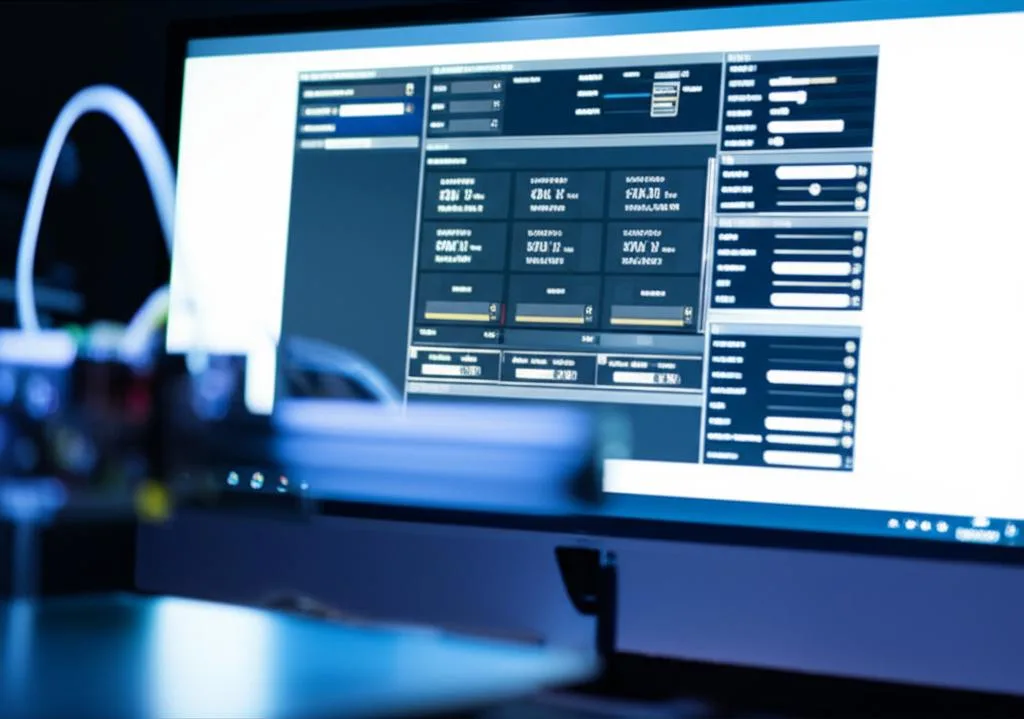
PrusaSlicer also provides a comprehensive array of settings to combat stringing, with many analogous to Cura’s, but some unique additions. Ensure you’re in ‘Advanced’ or ‘Expert’ mode to see all options under Printer Settings > Extruder 1 > Retraction.
Retraction length
This is PrusaSlicer’s equivalent of Cura’s Retraction Distance. It defines how far the filament is pulled back.
Explanation: Similar to Cura, Bowden setups require longer lengths (4-8mm), while direct drive systems need shorter ones (0.5-2mm).
Impact: Too short, and stringing persists. Too long, and you risk clogs, grinding, or under-extrusion at the start of new lines.
Tuning advice: Begin with a recommended value for your printer type. Use a retraction tower to systematically test different lengths, aiming for the shortest length that effectively eliminates stringing. PrusaSlicer also has a ‘Length before wipe’ setting which can slightly influence the effective retraction, but ‘Retraction length’ is the primary control.
Retraction speed
This setting controls the speed at which the filament is retracted and then un-retracted.
Explanation: A faster speed can more quickly relieve pressure, reducing oozing. However, excessively high speeds can cause filament grinding, snapping, or heat creep.
Impact: As with Cura, finding the right balance is key. Too slow, and stringing may persist; too fast, and reliability issues can arise.
Tuning advice: Typical values range from 30mm/s to 60mm/s. PETG often benefits from slightly higher retraction speeds due to its stringy nature. Experiment with a retraction tower, increasing speed incrementally until stringing disappears without causing other extrusion problems.
Lift Z (Z-hop)
PrusaSlicer’s version of Z-hop, which lifts the nozzle during travel moves.
Explanation: The ‘Lift Z’ value determines how high the nozzle rises. This prevents the nozzle from scraping against the print and potentially dislodging parts or leaving scars.
Impact on stringing: As discussed with Cura, Z-hop increases the air travel time, potentially worsening stringing if retraction isn’t aggressive enough. However, it’s often essential for print quality on complex models.
Tuning advice: A common value is 0.2mm to 0.4mm. If stringing is a major concern, try reducing or disabling Lift Z temporarily. If you must use it, ensure your retraction length and speed are well-optimized. You might need to slightly increase retraction length when Lift Z is enabled.
Minimum travel after retraction
This setting prevents retraction from occurring if the travel distance is shorter than the specified value.
Purpose: It’s designed to reduce unnecessary retractions on very short moves, which can cause excessive wear on the extruder and filament. It’s very similar to Cura’s ‘Retraction Minimum Travel’.
Impact: A higher value means fewer retractions, which can increase print speed and extruder longevity. However, if set too high, it can allow stringing to occur on short gaps.
Tuning advice: A typical starting point is 1mm to 2mm. Adjust based on observation: if you see stringing on short travel moves, decrease it; if you’re concerned about excessive retractions, increase it cautiously. This setting works in concert with ‘Avoid crossing perimeters’.
Retract on layer change
This checkbox explicitly forces a retraction whenever the printer moves to start a new layer.
Purpose: It helps prevent blobs or zits from forming at the start of new layers, especially on the outer perimeter, where the nozzle might otherwise slightly over-extrude or ooze as it transitions.
Impact: Enabling this can significantly improve the surface finish, particularly on models with smooth vertical walls. It adds one extra retraction per layer change.
Tuning advice: Generally, it’s a good idea to keep this enabled for most prints, as the benefits of cleaner layer changes usually outweigh the minor increase in retraction cycles. Only disable it if you’re experiencing severe filament grinding or specific issues related to layer change retractions.
Wipe while retracting
PrusaSlicer offers a unique setting that combines the wipe action with the retraction itself.
Explanation: Instead of the nozzle lifting and then moving, it performs a small wipe movement (defined by ‘Wipe distance’) while the filament is simultaneously retracting. This can be highly effective.
Purpose: It aims to clean the nozzle tip more effectively and simultaneously relieve pressure, reducing blobs and stringing.
Impact: Can significantly improve surface quality and stringing. The ‘Wipe distance’ (under Print Settings > Extruders) dictates how far this wipe occurs. A value of 0.2mm to 0.4mm is common.
Tuning advice: Experiment with enabling this. It’s often very effective, especially for sticky filaments like PETG. Adjust the ‘Wipe distance’ to find the sweet spot that cleans the nozzle without thinning perimeters too much.
Avoid crossing perimeters
This powerful PrusaSlicer feature (found under Print Settings > Layers and perimeters > Quality) significantly impacts stringing by intelligently planning travel paths.
Explanation: When enabled, PrusaSlicer attempts to make all travel moves either within the infill or inside the object’s perimeters, avoiding crossing open air or the outer walls of the print.
Impact: This drastically reduces the need for retraction and, consequently, stringing, as any oozing that does occur is hidden inside the print. It’s similar in concept to Cura’s Combing mode but often more robust.
Tuning advice: Always consider enabling ‘Avoid crossing perimeters’. It’s one of the most effective ways to reduce stringing and improve surface quality without directly adjusting retraction values. The trade-off is that it can sometimes increase print time as the slicer finds more complex internal travel paths.
Filament-specific considerations for retraction
The ideal retraction settings are not universal; they depend heavily on the type of filament you’re using. Different plastics behave differently when heated and extruded.
PLA (Polylactic Acid): Generally, PLA is one of the easiest filaments to print with and is less prone to severe stringing compared to others. It typically requires moderate retraction distances (e.g., 1-2mm for direct drive, 4-6mm for Bowden) and average speeds (30-50mm/s). Ensure your print temperature isn’t too high, as this is a common cause of PLA stringing.
PETG (Polyethylene Terephthalate Glycol): PETG is notoriously stringy. Its inherent stickiness and higher printing temperatures make it a challenge. You’ll often need slightly higher retraction distances (e.g., 1.5-3mm for direct drive, 6-8mm for Bowden) and often higher retraction speeds (40-60mm/s) to combat its tendency to ooze. Enabling wipe and combing (or ‘Avoid crossing perimeters’) is highly recommended for PETG. Also, ensure your PETG is dry, as wet PETG strings profusely.
TPU/Flexibles (Thermoplastic Polyurethane): Flexible filaments are the most challenging for retraction due to their elasticity. They compress and stretch within the extruder path, making precise retraction difficult. Many users find that the best approach for TPU is to minimize or even completely disable retraction (0mm distance) and rely heavily on other settings like very fast travel speeds, carefully chosen print temperatures, and potentially ‘Avoid crossing perimeters’ (PrusaSlicer) or ‘Combing’ (Cura). If retraction is used, it must be very short (0.5-1.5mm) and slow (10-25mm/s) to prevent tangles and clogs in the hot end.
ABS (Acrylonitrile Butadiene Styrene): ABS behaves somewhat similarly to PLA in terms of retraction, but often requires slightly higher temperatures. Moderate retraction distances (1-2mm direct, 4-7mm Bowden) and speeds (30-50mm/s) are good starting points. Like PLA, too high a temperature is a common culprit for ABS stringing.
Nylon: Highly hygroscopic and can be quite stringy. Requires very thorough drying. Retraction settings are often similar to PETG, with slightly higher distances and speeds often needed. Drying your nylon filament before every print is non-negotiable for string-free results.
The indispensable retraction test tower
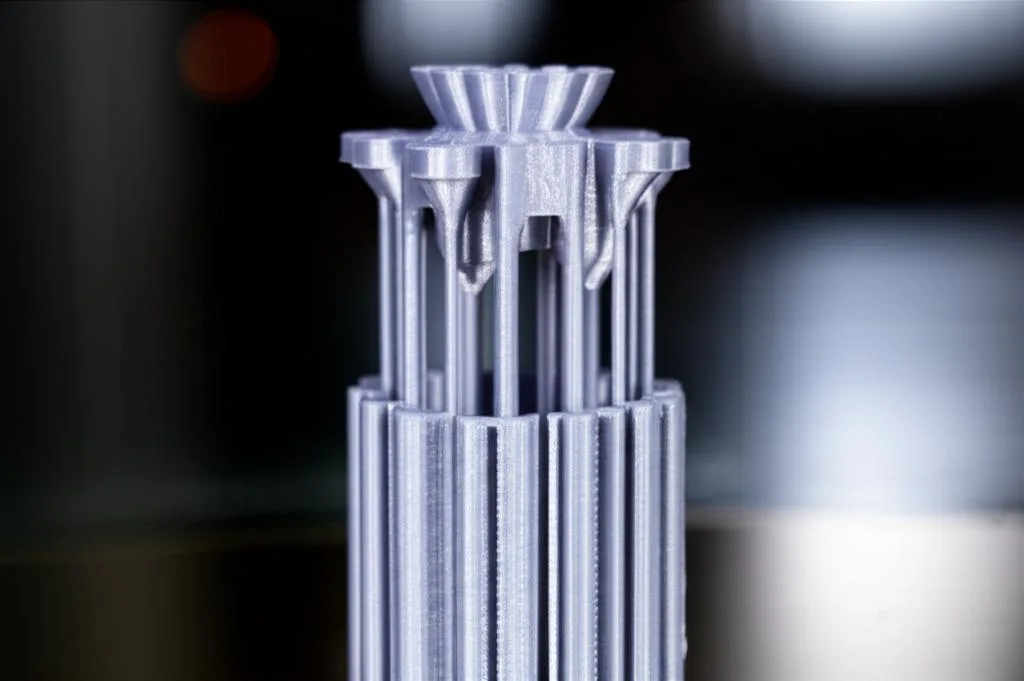
While theoretical knowledge is great, practical application through testing is paramount. The retraction test tower is your best friend for fine-tuning these settings. This is a small, typically vertical print with several thin towers or spikes, designed to force numerous retraction and travel moves.
How to use a retraction test tower
Find or Design a Tower: Many pre-made retraction towers are available on sites like Thingiverse or Printables. Some are designed to be printed once, with different settings applied at different Z-heights using post-processing scripts in your slicer (e.g., ‘Change at Z’ in PrusaSlicer, ‘Pause at height’ or ‘Modify G-code’ scripts in Cura). Others require you to print multiple towers, each with a single, unique setting.
Isolate Variables: When tuning, change only ONE retraction setting at a time. Start with retraction distance, then move to retraction speed. Keep all other print settings (temperature, print speed, fan speed) constant.
Establish a Baseline: Start with your current or recommended retraction settings for your printer and filament type.
Iterative Adjustment:
- For Retraction Distance: Print a tower where each section has an incrementally increasing or decreasing retraction distance (e.g., 0.5mm, 1.0mm, 1.5mm, 2.0mm, etc., for direct drive; 4mm, 5mm, 6mm, 7mm for Bowden). Observe which section shows the least stringing without signs of under-extrusion.
- For Retraction Speed: Once you’ve found an optimal distance, print another tower varying the retraction speed (e.g., 20mm/s, 30mm/s, 40mm/s, 50mm/s). Identify the speed that minimizes stringing without causing filament grinding or poor extrusion starts.
Observe and Evaluate: Closely examine the printed tower. Look for:
- The absence of strings between the towers.
- No signs of under-extrusion at the beginning of each tower’s print (e.g., gaps, weak spots).
- No grinding marks on the filament at the extruder.
Refine: Once you’ve found the best distance and speed, you can then fine-tune other settings like ‘Retraction Extra Prime Amount’ or ‘Wipe’ by printing smaller test pieces or observing your regular prints.
Troubleshooting guide: when retraction isn’t enough
If you’ve diligently worked through all the retraction settings in Cura or PrusaSlicer and still encounter stringing, it’s time to broaden your diagnostic approach. Remember, stringing is a symptom, and retraction is just one cure. Here are other areas to investigate:
Temperature Calibration: The single most impactful setting after retraction. Print a temperature tower for your specific filament. Too high a temperature will make the plastic excessively runny, making it impossible for retraction to fully compensate. Aim for the lowest temperature that still allows for good layer adhesion and smooth extrusion.
Dry Your Filament: This cannot be stressed enough, especially for PETG, Nylon, and even PLA in humid environments. Wet filament will produce steam bubbles that force molten plastic out of the nozzle, leading to severe stringing, popping sounds during extrusion, and poor print quality. Use a filament dryer or a food dehydrator to dry your spools. This is often the magic bullet for persistent stringing.
Travel Speed Optimization: Increase your travel speed (the speed at which the print head moves when not extruding). Faster travel means less time for oozing to occur between printed sections. Modern printers can often handle travel speeds of 150mm/s to 250mm/s or even more. Ensure your printer’s firmware and mechanics can handle these speeds without introducing vibrations or skipped steps.
Nozzle Inspection and Replacement: A worn or partially clogged nozzle can cause inconsistent extrusion and contribute to stringing. Inspect your nozzle for wear or damage. If in doubt, replace it. Ensure the nozzle is clean, free of external plastic buildup.
Flow Rate Calibration: An incorrectly calibrated flow rate (also known as extrusion multiplier) can lead to over-extrusion, which effectively means there’s always too much plastic in the hot end, making stringing more likely. Calibrate your E-steps and then your flow rate using a single-wall cube print.
Pressure Advance (Marlin/Klipper): For advanced users, firmware features like Pressure Advance (Marlin) or Input Shaping/Pressure Advance (Klipper) can significantly reduce pressure build-up in the hot end. This allows for sharper corners and less oozing, complementing retraction settings. While not a slicer setting, it fundamentally changes how the printer handles extrusion starts and stops.
Cooling: Ensure your part cooling fan is working effectively, especially for PLA and PETG. Better cooling can solidify the plastic faster, reducing its tendency to string. However, be cautious with ABS, which can warp with too much cooling.
Conclusion
Achieving truly clean 3D prints free from stringing is a hallmark of a well-tuned 3D printer and a knowledgeable operator. While it can feel like a game of whack-a-mole at times, mastering the advanced retraction settings in Cura and PrusaSlicer, alongside a holistic approach to print quality, will yield consistently excellent results. Remember that there’s no single magic bullet; the optimal settings are a unique combination for your specific printer, filament, and even the model you’re printing.
Embrace iterative testing, utilize retraction towers, and systematically adjust one setting at a time. By understanding the ‘why’ behind each parameter – whether it’s Cura retraction settings or PrusaSlicer retraction – you empower yourself to diagnose and resolve stringing issues with confidence. With patience and practice, you’ll soon be enjoying pristine, string-free 3D prints every time, truly mastering the art of additive manufacturing and effectively putting an end to the persistent problem of 3D print stringing fix.
Frequently asked questions
Will increasing retraction distance always fix stringing, or can it make things worse?
Too much retraction distance can cause new problems: the extruder gears may grind a flat spot into the filament, the melted filament can be pulled too far up into the cold zone of the hot end (causing a jam known as heat creep), or the filament may completely pull out of the nozzle, requiring a manual reload. Always start with a conservative value (1mm for direct drive, 5mm for Bowden) and increase only as needed using a retraction test tower.
Is it worth buying a filament dryer just to fix stringing?
Yes, especially if you print PETG, nylon, or live in a humid climate. Wet filament creates steam bubbles inside the hot end that violently push molten plastic out of the nozzle, causing stringing that no amount of retraction tuning can fully eliminate. Drying your filament is often the single most effective fix for persistent stringing that resists all retraction adjustments.
Can I use the same retraction settings for every type of filament?
No. Each filament type behaves differently: PLA is forgiving and needs moderate settings, PETG is notoriously stringy and usually requires higher retraction distances and speeds, while flexible TPU often prints best with retraction disabled entirely (0mm) because the filament compresses and stretches inside the extruder path, causing tangles and clogs if retracted too aggressively.