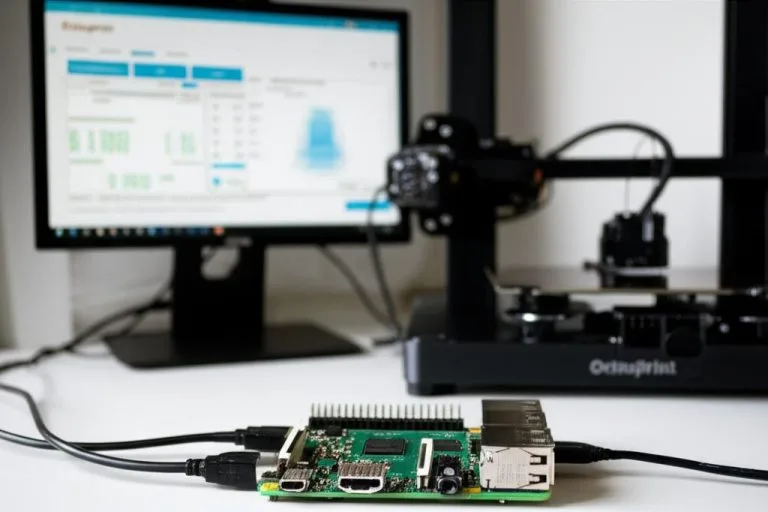

Updating the firmware on your 3D printer can feel like a high-stakes operation. On one hand, it promises enhanced features, improved stability, and better print quality. On the other, the fear of a botched update leaving you with a costly paperweight – a ‘bricked’ 3D printer – is a common anxiety among enthusiasts and professionals alike. While these concerns are valid, most 3D printer firmware update problems are resolvable with a systematic approach and a little patience. This comprehensive guide will walk you through the common firmware flashing errors, provide effective troubleshooting steps, and equip you with the knowledge to perform updates confidently.
Understanding 3D printer firmware
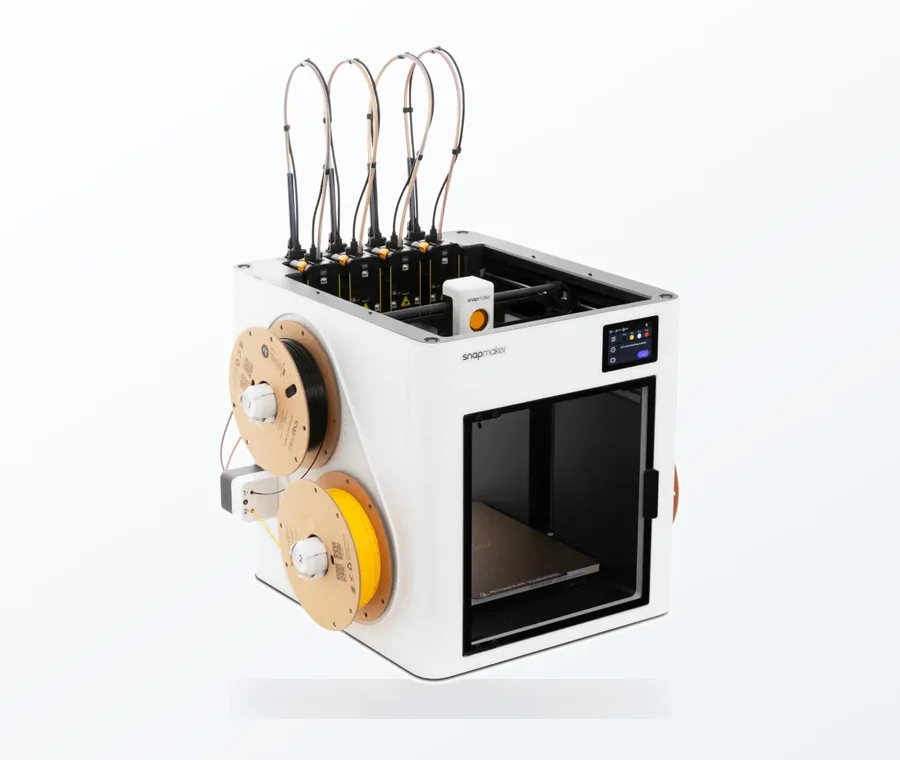
The consumer toolchanger 3D printer: the SnapSwap 4-toolhead system swaps heads in 5 seconds for true multi-color and multi-material printing, with smart calibration and auto filament loading.
- 4 toolheads · 5 s swap
- Up to 500 mm/s · 20,000 mm/s²
- 270 mm cube build volume
- Multi-color & multi-material
What is firmware?
At its core, firmware is the permanent software embedded in a hardware device, providing the low-level control for the device’s specific hardware. For a 3D printer, firmware is the brain that translates your G-code commands (generated by slicing software) into physical movements of the stepper motors, precise temperature control for the hotend and heated bed, and managing user interface interactions. It dictates everything from acceleration settings and thermal runaway protection to bed leveling routines and display menus. Popular open-source firmware like Marlin, Klipper, and RepRapFirmware are highly configurable, allowing users to tailor their printer’s behavior to an extraordinary degree.
Why update your 3D printer’s firmware?
- New features: Firmware updates often introduce exciting new capabilities, such as advanced bed leveling routines (e.g., UBL, Mesh Bed Leveling), input shaping for reduced ringing, or support for new hardware accessories like accelerometers or filament runout sensors.
- Performance improvements: Developers constantly optimize algorithms to improve print speed, accuracy, and overall print quality. An update can lead to smoother movements, quieter operation, and more consistent results.
- Bug fixes: Like any software, firmware can have bugs. Updates address these issues, preventing crashes, unexpected behavior, or even potential safety hazards.
- Enhanced safety features: Critical safety features, such as thermal runaway protection, are continuously refined. Keeping your firmware up-to-date ensures your printer operates with the latest safeguards against overheating and potential fire risks.
- Hardware compatibility: If you upgrade components on your printer (e.g., a new mainboard, stepper drivers, or an auto-bed leveling sensor), a firmware update might be necessary to support the new hardware properly.
Common causes of 3D printer firmware update problems
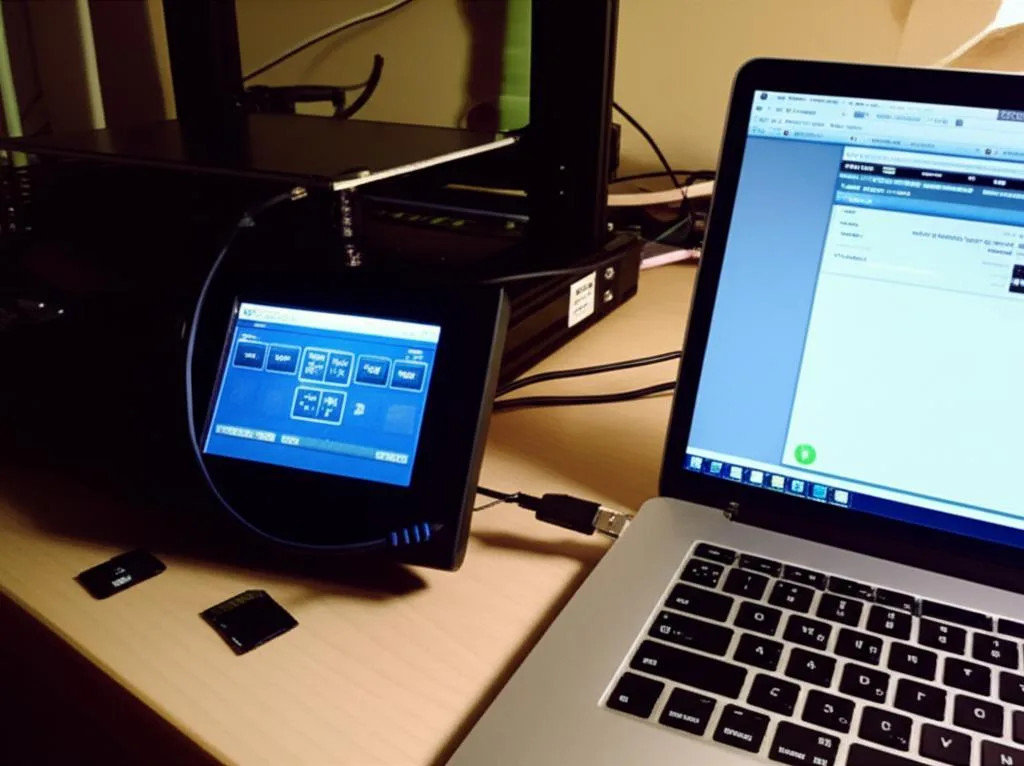
Before diving into solutions, it’s helpful to understand the root causes of typical 3D printer firmware update problems. Knowing these can help you prevent issues or quickly diagnose them when they arise.
Incorrect firmware file
One of the most frequent causes of update failures is attempting to flash the wrong firmware version or a file compiled for a different mainboard or printer model. Using a file not specifically designed for your hardware can lead to incompatibility errors, an unresponsive printer, or even permanent damage.
Improper connection or driver issues
A stable connection between your computer and the printer is paramount. Loose USB cables, faulty ports, or missing/outdated USB-to-serial drivers (like CH340, CP210x, or FTDI) can interrupt the flashing process, leading to incomplete or corrupted updates and severe firmware flashing errors.
Power interruptions
A sudden loss of power during the firmware flashing process is almost guaranteed to result in a bricked 3D printer. The firmware is being written to the printer’s non-volatile memory, and an interruption can leave the memory in an unbootable state.
Hardware incompatibilities
Sometimes, a new firmware version might have specific hardware requirements that your older mainboard or components don’t meet. While less common, this can lead to unexpected behavior or outright update failures.
Software conflicts
The software used to flash the firmware (e.g., Arduino IDE, XLoader, Cura’s built-in flasher) can sometimes conflict with other running applications, security software, or even outdated operating system components, preventing a successful connection or write operation.
Pre-update checklist: Minimizing risks
A little preparation goes a long way in preventing 3D printer firmware update problems. Follow this checklist before initiating any firmware update:
1. Backup existing firmware (if possible)
Many mainboards allow you to read and save the existing firmware. This creates a safety net, allowing you to revert to a known working state if the update goes awry. Tools like AVRDUDESS or specific manufacturer utilities can sometimes facilitate this, depending on your board’s microcontroller and bootloader.
2. Verify firmware compatibility
Absolutely crucial: Download the firmware specifically for your exact printer model and mainboard revision. Check the manufacturer’s official website or the firmware developer’s GitHub page. Double-check the microcontroller (e.g., ATmega2560, STM32F103, ESP32) and board type (e.g., SKR Mini E3 V2.0, Creality V4.2.2). Using the wrong file is a primary cause of update failures.
3. Ensure stable power
Connect your printer directly to a reliable power outlet. Avoid using power strips with other high-power devices or locations prone to power fluctuations. For critical updates, consider using an uninterruptible power supply (UPS).
4. Use a reliable USB cable and port
Not all USB cables are created equal. Use a high-quality, shielded USB cable that is known to carry data reliably. Avoid excessively long cables. Connect directly to a USB port on your computer’s motherboard (rear ports on a desktop) rather than a front panel port or an unpowered USB hub.
5. Close unnecessary applications
Before flashing, close all other programs on your computer, especially those that might communicate with USB devices or consume significant system resources. This minimizes potential software conflicts and ensures the flashing tool has exclusive access to the USB port.
6. Install necessary drivers
Ensure you have the correct USB-to-serial drivers installed for your printer’s mainboard. Common chipsets include CH340/CH341, CP210x, and FTDI. These drivers are usually available on your printer manufacturer’s website or the chip manufacturer’s site. Without them, your computer won’t be able to communicate with the printer.
Troubleshooting common firmware flashing errors
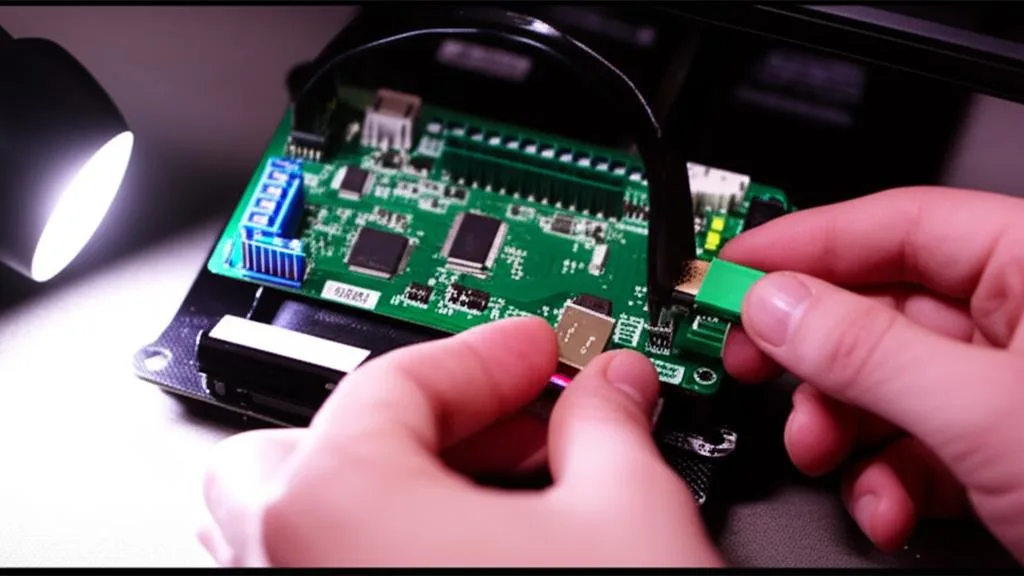
Even with careful preparation, you might still encounter issues. Here’s how to tackle the most common firmware flashing errors:
1. “Failed to open port” or connection errors
This is a very common initial hurdle, indicating that your computer cannot establish a stable communication link with your 3D printer. These `3D printer firmware update problems` often stem from driver or port issues.
- Verify driver installation: Open your computer’s Device Manager (Windows) or System Information (macOS) and look for your printer under ‘Ports (COM & LPT)’ or ‘USB Serial Device’. If you see a yellow exclamation mark or an ‘Unknown Device’, the driver is missing or corrupted. Reinstall the correct USB-to-serial driver.
- Select the correct COM port: In your flashing software (e.g., Arduino IDE, Pronterface, OctoPrint’s firmware updater), ensure you’ve selected the correct COM port corresponding to your printer. If multiple ports are listed, disconnect your printer, note which ports disappear, then reconnect and select the new port that appears.
- Check USB cable and port: Try a different USB cable, a different USB port on your computer, or even a different computer if available. Faulty cables or ports are surprisingly common culprits for update failures.
- Another program using the port: Ensure no other software (like OctoPrint, Cura, Pronterface, or even a virtual serial port monitor) is actively connected to the printer’s COM port. Close these applications before attempting to flash.
- Printer powered on: Make sure your 3D printer is powered on and connected before initiating the flash process.
2. “Invalid HEX file,” “checksum error,” or “upload failed”
These messages typically indicate an issue with the firmware file itself or the way it’s being transmitted. These `firmware flashing errors` are critical.
- Corrupted download: Re-download the firmware file from the official source. Sometimes, downloads can be incomplete or corrupted.
- Wrong firmware version/type: Double-check that the firmware file is indeed for your exact mainboard and printer model. Ensure it’s the correct file type (e.g., .hex for AVR boards, .bin for STM32 boards).
- Firmware compilation issues: If you’re compiling Marlin yourself, ensure you’ve selected the correct board and environment in
platformio.ini(for VS Code/PlatformIO) or the correct board in the Arduino IDE. Compilation errors will result in a non-flashable file. - Flashing method: Some boards (especially newer ones with STM32 microcontrollers) don’t use the traditional serial upload via Arduino IDE. Instead, you might copy a
firmware.binfile to the root of an SD card, insert it into the printer, and power cycle. The board will then flash itself. Ensure you’re using the correct method for your specific board.
3. Update stuck or freezing
If the flashing process halts midway or the progress bar doesn’t move, it usually points to an intermittent connection or a software issue during the update.
- Restart the process: Cancel the current upload, disconnect and reconnect the printer, restart the flashing software, and try again.
- Try a different flashing tool: If you’re using the Arduino IDE, try a dedicated flashing utility like XLoader (for some older boards) or a manufacturer-specific tool. For STM32 boards, ensure your SD card is formatted correctly (FAT32, 4096-byte allocation unit size) and try a different SD card.
- Disable antivirus/firewall: Temporarily disable your antivirus software and firewall, as they can sometimes interfere with the communication port. Remember to re-enable them afterward.
- Check power: Ensure the printer has consistent power throughout the process.
4. Printer unresponsive after update (bricked 3D printer fix)
This is the most dreaded scenario: your printer powers on, but the screen is blank, it doesn’t respond to commands, or it just displays a logo without booting. This is a classic `bricked 3D printer fix` situation, but often recoverable.
- Don’t panic: A truly unrecoverable bricking is rare. Most modern boards have bootloaders that are difficult to overwrite completely.
- Attempt to re-flash: Often, the previous flash attempt was simply incomplete or corrupted. Try to re-flash the correct firmware file using the same method. If the usual method fails, try a different flashing tool or a different computer.
- Check for bootloader issues: If the printer is completely unresponsive and won’t even connect for re-flashing, the bootloader might be corrupted. This is more common with AVR-based boards (like ATmega2560) and requires an external ISP (In-System Programmer) like an Arduino UNO or a dedicated USBasp programmer to re-flash the bootloader. This is a more advanced `firmware troubleshooting` step.
- Hardware reset: Some mainboards have a reset button. Pressing it might help. For boards that flash via SD card, ensure the
firmware.binfile is correctly placed on the root of the card and try a power cycle. If the file name changes (e.g., tofirmware.cur), it indicates a successful flash. - Check wiring: If you’ve recently opened up your printer, double-check all connections, especially the display cable. A loose cable can mimic a bricked printer.
- Seek manufacturer support: If all else fails, contact your printer’s manufacturer or the mainboard vendor. They might have specific recovery procedures or offer board replacement.
5. New features not working or unexpected behavior
After a successful flash, your printer boots, but new features aren’t active, or the printer behaves erratically (e.g., wrong temperatures, strange movements). These `update failures` are often configuration-related.
- EEPROM reset: Most Marlin-based firmware stores some configuration settings in the printer’s EEPROM (Electrically Erasable Programmable Read-Only Memory). Old settings can conflict with new firmware. Perform an EEPROM reset (usually via the printer’s menu:
Configuration -> Advanced Settings -> Reset EEPROMor by sending G-code commandsM502thenM500). This will load the default settings from the new firmware. - Verify configuration in firmware: If you compiled custom firmware, double-check your
Configuration.handConfiguration_adv.hfiles for correct settings related to your printer’s hardware (e.g., thermistor types, stepper driver types, bed size, ABL probe offsets). - Check slicing software settings: Ensure your slicing software (Cura, PrusaSlicer, etc.) settings align with any new capabilities or changes introduced by the firmware. For example, if you enabled linear advance in firmware, ensure it’s not conflicting with a similar setting in your slicer.
Advanced troubleshooting and recovery
For persistent `3D printer firmware update problems`, especially those leading to a seemingly bricked device, more advanced methods might be necessary.
Using an ISP programmer for bootloader issues
If your AVR-based board (e.g., ATmega2560 on older RAMPS or some Creality V1.1.x boards) has a corrupted bootloader, preventing serial communication, you’ll need an ISP programmer. An Arduino UNO can be used as an ISP, or you can purchase a dedicated USBasp programmer. This involves connecting the ISP to the printer’s ICSP header and using software like AVRDUDESS or the Arduino IDE’s “Burn Bootloader” function to restore the bootloader. This is a critical step for `bricked 3D printer fix` scenarios when basic re-flashing fails.
Compiling custom firmware
While flashing pre-compiled firmware is convenient, learning to compile your own firmware (e.g., Marlin using VS Code with PlatformIO) offers ultimate control and troubleshooting capabilities. When you compile, you can enable verbose output, which often reveals specific errors that might not be apparent with pre-compiled files. This also allows you to precisely match the firmware to your printer’s unique configuration, addressing many `update failures` related to incompatibility.
Preventative measures for future updates
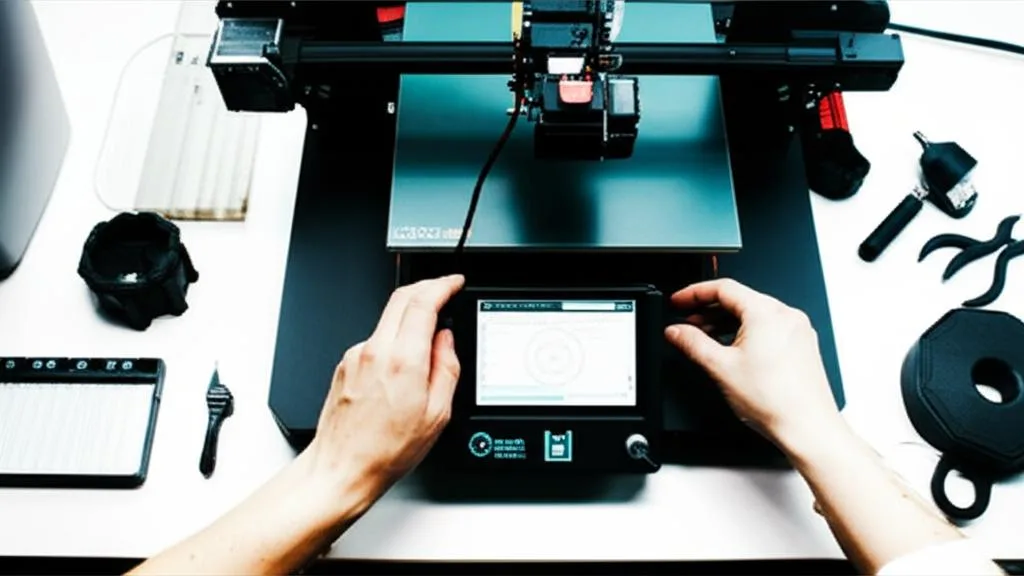
Once you’ve successfully navigated the complexities of firmware updates, adopt these habits to make future updates smoother and less stressful:
- Maintain regular backups: If your board supports it, regularly back up your EEPROM settings and, if possible, your entire firmware. Keep a copy of the working firmware file before any updates.
- Consult community resources: Before updating, check online forums (e.g., Reddit’s r/3Dprinting, specific printer model forums), manufacturer communities, and Discord channels. Others may have already encountered and resolved similar `3D printer firmware update problems` with your specific model.
- Follow manufacturer guidelines: Always refer to your printer manufacturer’s official update instructions. They often provide specific tools, drivers, and procedures tailored to their hardware.
- Update incrementally: If you’re several firmware versions behind, consider updating to an intermediate stable version first, rather than jumping directly to the latest. This can sometimes prevent compatibility issues.
- Document your changes: If you compile custom firmware, keep a detailed log of all modifications you make to the configuration files. This makes future updates and `firmware troubleshooting` much easier.
While encountering `3D printer firmware update problems` can be frustrating, remember that they are a normal part of working with complex machinery. By understanding the common causes, following a diligent pre-update checklist, and systematically troubleshooting any `firmware flashing errors`, you can confidently keep your 3D printer’s brain up-to-date, unlocking its full potential and ensuring a smooth printing experience. Don’t let the fear of a `bricked 3D printer fix` deter you from the benefits of current firmware.
Frequently asked questions
Can I recover a bricked 3D printer at home without sending it back to the manufacturer?
Yes, most bricked printers are recoverable at home. For AVR-based boards (like older ATmega2560 boards), you can use an Arduino UNO as an ISP programmer or a dedicated USBasp programmer to re-flash the bootloader via the ICSP header. For STM32-based boards, a corrupted flash can often be fixed by copying a fresh firmware.bin file to a properly formatted (FAT32, 4096-byte allocation unit) SD card and power cycling the printer.
Why does my printer connect fine for printing but fail when I try to flash firmware?
The most common cause is another program already holding the COM port open. Close all slicing software, OctoPrint, Pronterface, and any serial monitor applications before flashing. Also ensure the correct USB-to-serial driver (CH340, CP210x, or FTDI) is installed and that you have selected the correct COM port in your flashing tool.
What should I do if new features from a firmware update aren’t working after a successful flash?
Old configuration settings stored in the printer’s EEPROM can conflict with new firmware. Perform an EEPROM reset by navigating to Configuration > Advanced Settings > Reset EEPROM on your printer’s menu, or by sending the G-code commands M502 followed by M500. This loads the new firmware’s default settings and clears any conflicting saved values.