Mastering 3D print overhangs is often considered one of the holy grails of FDM 3D printing. These challenging features, where a new layer of material is deposited with little or no direct support from the layer beneath it, can quickly turn an otherwise perfect print into a tangled mess of drooping plastic. Achieving clean, crisp overhangs, especially on complex prints, is not merely a matter of luck but a testament to a deep understanding and precise calibration of your slicer settings. While many beginners rely heavily on support structures, a nuanced approach to fundamental parameters can significantly reduce the need for supports, save material, decrease print time, and ultimately lead to superior surface quality.
Understanding the challenge of 3D print overhangs
An overhang occurs when a part of your 3D model extends outwards, creating an angle relative to the print bed that exceeds the printer’s ability to self-support. Gravity is the primary antagonist here; as hot plastic is extruded into thin air, it sags downwards before it has a chance to cool and solidify. The severity of this challenge is typically measured by the overhang angle, which is the angle formed between the overhang surface and the vertical axis. While most FDM printers can handle angles up to around 45 degrees without much fuss, anything steeper often requires careful optimization or dedicated support. Understanding this fundamental principle is the first step toward conquering even the most aggressive 3D print overhangs.
Essential slicer settings for managing 3D print overhangs
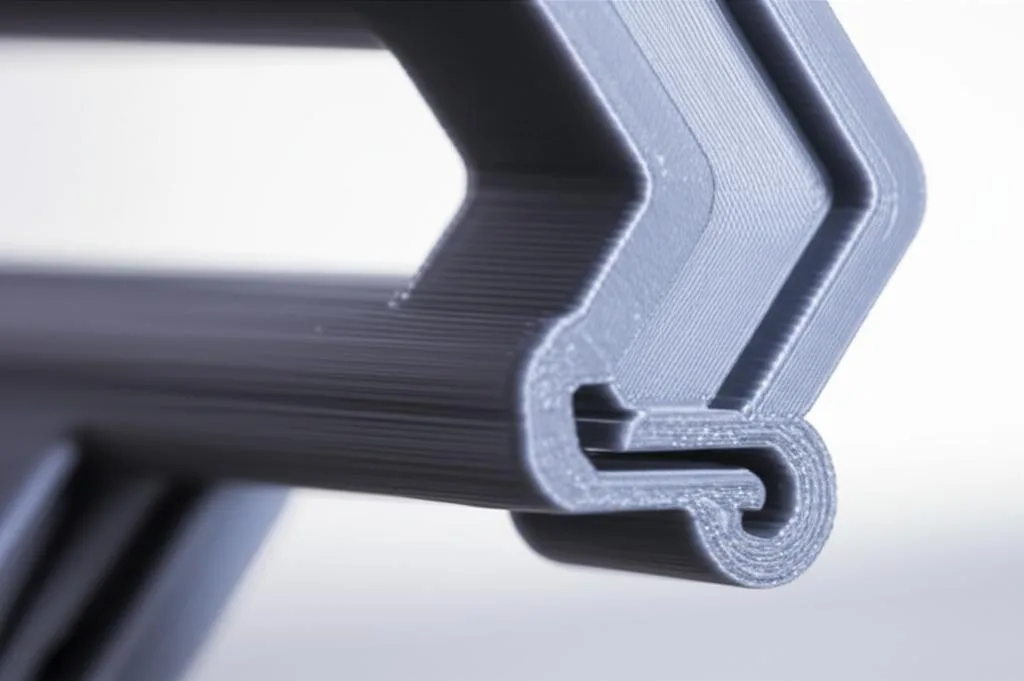
The secret to flawless overhangs lies in a combination of well-tuned slicer settings, each playing a crucial role in how the extruded filament behaves. Adjusting these parameters effectively can make the difference between a pristine surface and a problematic print.
Cooling settings: Your best friend for overhangs
- Part Cooling Fan Speed: This is arguably the most critical setting for overhangs. Adequate cooling helps the extruded filament solidify quickly before gravity can cause it to sag. For overhangs, increasing your fan speed significantly (often to 100%) is a common strategy. However, be mindful that excessive cooling can lead to poor layer adhesion, especially with materials like ABS.
- Minimum Layer Time: This setting ensures each layer has sufficient time to cool before the next one is deposited. If a layer prints too quickly, the fan might not have enough time to do its job. Increasing the minimum layer time (e.g., to 10-15 seconds) can be particularly beneficial for small features and the tips of overhangs, allowing them to cool properly.
Print speed: A delicate balance
While faster printing is often desirable, slowing down specific aspects of your print can dramatically improve overhang quality. When dealing with 3D print overhangs, consider these adjustments:
- Outer Wall Speed: Reducing the speed for outer walls, especially those forming overhangs, gives the filament more time to cool and adhere properly. Experiment with speeds significantly lower than your general print speed, perhaps 50% or less, for these critical sections.
- Overall Print Speed: For very challenging overhangs, a general reduction in overall print speed might be necessary to allow for better cooling and more controlled extrusion.
Layer height: Impact on overhang quality
The choice of layer height can subtly influence overhang performance. Thinner layers (e.g., 0.12mm) tend to have less material per layer, making them potentially more prone to sagging if cooling isn’t sufficient. However, thinner layers also mean smaller “steps” between layers, which can sometimes lead to a smoother appearance on shallower overhangs. Conversely, thicker layers (e.g., 0.2mm or 0.28mm) have more material to bridge the gap, but if they sag, the effect can be more pronounced. Often, a moderate layer height combined with optimized cooling and speed offers the best results for 3D print overhangs.
Bridging settings: For horizontal spans
Bridging refers to printing a horizontal span of filament between two existing points without direct support underneath. While technically a specific type of overhang, many slicers offer dedicated bridging settings:
- Bridging Speed: Often, slowing down bridging speed allows for more precise filament deposition.
- Bridging Flow: Reducing the flow rate slightly (e.g., 90-95%) can prevent too much material from being extruded, minimizing sagging.
- Bridging Fan Speed: Maxing out the fan speed during bridging is crucial to rapidly cool and solidify the unsupported span.
- Bridging Line Width: Some slicers allow adjusting line width for bridges; a slightly wider line can sometimes offer better adhesion.
Support structures: When all else fails (or to be proactive)
Despite all optimization efforts, some extreme 3D print overhangs simply cannot be printed reliably without support. Proper support settings are vital to ensure easy removal and a clean surface finish.
- Support Type:
- Normal/Grid Supports: Traditional, dense, robust, but often harder to remove and may mark surfaces.
- Tree Supports: Often more efficient, using less material and offering easier removal by branching to specific points.
- Support Density: A higher density provides more contact points but uses more material and can be harder to remove. For most overhangs, a density between 10-20% is often sufficient.
- Support Z Distance (Top/Bottom): Critical vertical gap. Larger (e.g., 0.2mm) eases removal but leaves rougher finish; smaller (e.g., 0.1mm) smoother but risks fusion.
- Support X/Y Distance: This controls the horizontal distance between the support and the model’s walls. A larger distance prevents fusion but might compromise support for very steep overhangs.
- Support Interface: An interface layer (a denser layer on top of the support) can significantly improve the surface quality of the supported area and make removal easier by creating a distinct separation plane.
Nozzle temperature: Finding the sweet spot
Printing too hot can exacerbate overhang issues as the filament remains molten for longer, increasing sag. Conversely, printing too cold can lead to poor layer adhesion and underextrusion. For 3D print overhangs, aim for the lower end of your filament’s recommended temperature range while ensuring good layer adhesion. This balance promotes faster solidification.
Flow rate or extrusion multiplier: Subtle but impactful
An over-calibrated flow rate can deposit too much material, making overhangs more prone to sagging. Ensuring your flow rate is accurately calibrated (often around 95-100% after e-steps calibration) is fundamental for all aspects of print quality, including overhangs. A slight reduction (1-2%) for overhangs specifically can sometimes help, but this should be approached cautiously to avoid underextrusion.
Beyond slicer settings: Design and orientation for complex prints optimization
While slicer settings are paramount, smart design choices and print orientation can drastically reduce the challenges posed by 3D print overhangs.
- Model Orientation: Before even touching your slicer, consider how your model is oriented on the print bed. Rotating a model can often transform a challenging overhang into a less severe one or even eliminate it entirely. Prioritize orientations that minimize the steepest overhangs or place them in less visible areas.
- Designing for Printability: When designing models, incorporate features that inherently reduce overhang issues. Adding chamfers or fillets to sharp overhang edges can make them much more manageable for your printer to handle, essentially turning a very steep angle into a series of gentler ones.
Troubleshooting common 3D print overhang issues
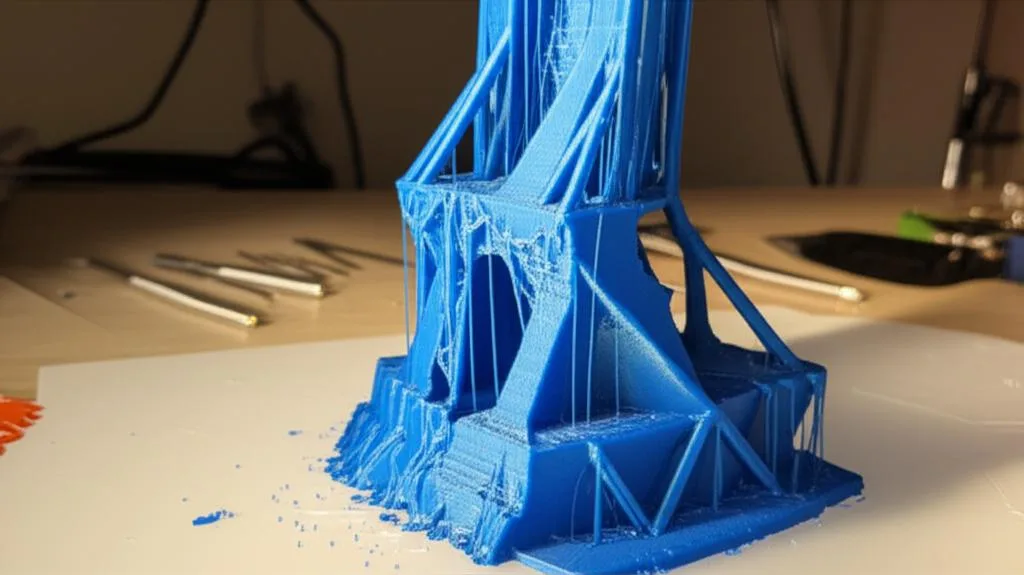
Even with optimized settings, you might encounter issues. Here’s a quick rundown of common problems and their potential fixes:
- Sagging/Drooping: Increase fan speed, reduce print speed for outer walls, increase minimum layer time, lower nozzle temperature slightly.
- Poor Adhesion on Overhangs: Ensure adequate cooling (not too much), check nozzle temperature (not too low), verify flow rate.
- Stringing/Wisps: Often related to temperature and retraction settings, but can be exacerbated by slow speeds on overhangs if the nozzle lingers. Optimize retraction or slightly reduce nozzle temp.
- Rough Undersides (from supports): Adjust Support Z Distance (increase slightly), use a support interface, or try tree supports for easier removal.
Conclusion
Achieving flawless 3D print overhangs on complex prints is a nuanced art, blending careful observation with precise adjustments to your slicer settings. There’s no single magic bullet; rather, it’s a symphony of cooling, speed, layer height, and support strategies working in harmony. By understanding the principles behind each setting and experimenting with their interplay, you can significantly elevate the quality of your prints, reduce post-processing, and unlock a new level of complexity in your 3D printing endeavors. Don’t be afraid to iterate and fine-tune – every printer and filament combination is unique, and mastering overhangs is a journey of continuous learning and optimization.
Frequently asked questions
Will maxing out the part cooling fan to 100% always fix sagging overhangs?
Not always. While increasing fan speed to 100% is the primary strategy for rapid solidification, excessive cooling can actually cause poor layer adhesion, especially with materials like ABS. If you see poor adhesion on your overhangs despite max fan speed, try slightly lowering the nozzle temperature or reducing the fan speed instead.
Can I print a 90-degree overhang (like a shelf) without supports if I tune the slicer perfectly?
No. A true 90-degree overhang is a horizontal bridge, not a slanted overhang. For horizontal spans, you must use your slicer’s dedicated bridging settings (slower bridging speed, reduced flow around 90-95%, and maxed bridging fan speed). Even with perfect bridging, very long unsupported spans will still sag, so supports or tree supports remain necessary for extreme cases.
Is it better to use a 0.12mm or a 0.28mm layer height for steep overhangs?
Neither is universally better. Thinner layers (0.12mm) have less material and can sag more easily if cooling is insufficient, but produce smoother steps on shallower overhangs. Thicker layers (0.28mm) have more material to bridge the gap, but if they do sag, the defect is more pronounced. A moderate layer height (e.g., 0.2mm) combined with optimized cooling and slower outer wall speed usually gives the most reliable results for steep overhangs.