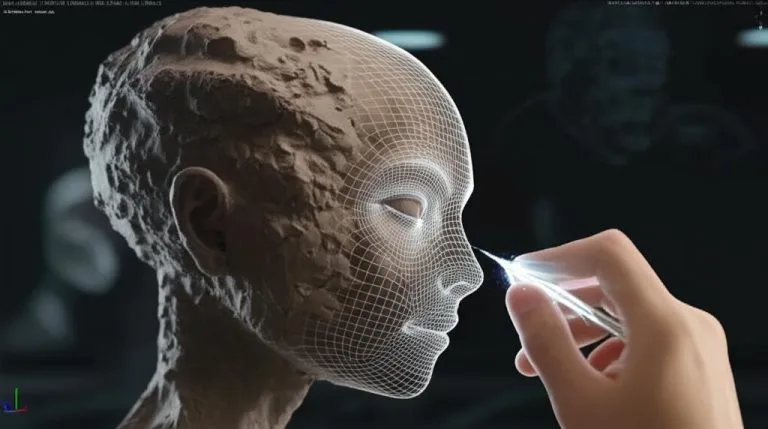

Achieving a truly professional 3D sculpt often boils down to one critical element: smoothness. While the initial blocking out of forms can be rough and expressive, the journey from a lumpy, uneven mesh to a refined, production-ready asset requires a deliberate and skilled approach to surface refinement. Ignoring sculpting imperfections can lead to a host of problems down the line, from poor shading and lighting to difficulties in texturing and animation. Mastering the techniques to achieve a perfectly smooth 3D sculpt is not just about aesthetics; it’s fundamental to creating high-quality digital art.
Understanding the root of sculpting imperfections
The consumer toolchanger 3D printer: the SnapSwap 4-toolhead system swaps heads in 5 seconds for true multi-color and multi-material printing, with smart calibration and auto filament loading.
- 4 toolheads · 5 s swap
- Up to 500 mm/s · 20,000 mm/s²
- 270 mm cube build volume
- Multi-color & multi-material
Before diving into solutions, it’s crucial to understand why sculpts often end up with an undesirable lumpy texture or uneven surfaces. Several factors contribute to these common sculpting imperfections:
- Insufficient mesh density: Starting with too few polygons can make it difficult to add detail smoothly, leading to jagged edges or “stair-stepping” artifacts when trying to refine surfaces.
- Over-reliance on large brush strokes: While great for primary forms, large, uncontrolled strokes can push and pull the surface unevenly, creating subtle hills and valleys that are hard to spot until later.
- Lack of consistent brush pressure/intensity: Variations in how intensely a brush is applied can lead to localized bumps and dips.
- Topological issues: Poor underlying topology, such as stretched polygons or ngons, can resist smooth deformation and cause pinching or weird shading.
- Zoom level: Often, imperfections are only visible when zooming in close. Sculpting too much from a zoomed-out perspective can hide these details.
Essential techniques for refining sculpt surfaces
No matter your preferred 3D sculpting software, the core principles for refining sculpt surfaces remain largely consistent. Here are the go-to methods for fixing lumpy sculpts and achieving that coveted smooth 3D sculpt.
The ubiquitous smooth brush
This is your primary weapon against lumpiness. Every sculpting software has a smooth brush, typically activated by holding down a modifier key (e.g., Shift in ZBrush and Blender). However, simply holding Shift and scrubbing indiscriminately can erase detail and make your sculpt look overly soft or “melted.”
- Vary intensity: Don’t always use maximum smooth intensity. Often, a gentle, light touch with the smooth brush is more effective for subtle refinement without destroying underlying forms.
- Targeted smoothing: Focus on specific areas that need attention rather than sweeping over the entire model. Use masking or selection tools to isolate regions.
- Small, controlled strokes: Instead of long, sweeping motions, use short, circular, or back-and-forth strokes over the problem area.
- Combine with other brushes: After smoothing, you might need to gently redefine forms with a clay or standard brush at a very low intensity.
Dynamic mesh density and remeshing
Tools like ZBrush’s Dynamesh or Blender’s Voxel Remesher are game-changers for maintaining uniform mesh density as you sculpt. They automatically rebuild the mesh, ensuring polygons are evenly distributed, which is crucial for a smooth 3D sculpt.
- Early stages: Use these tools frequently in the early and mid-stages of sculpting to avoid stretched polygons and maintain a workable mesh.
- After major changes: Whenever you make significant structural changes, a remesh can help distribute the new topology evenly, making subsequent smoothing operations more effective.
- Resolution awareness: Be mindful of the remesh resolution. Too low, and you lose detail; too high, and performance suffers. Find a balance that suits your current stage of work.
Subdivision surfaces and multi-resolution sculpting
Most sculpting software leverages subdivision surfaces (like Catmull-Clark in Blender or ZBrush’s subdivision levels) to add resolution non-destructively. This is key for organic smoothness.
- Work on lower subdivisions: Make large-scale changes and primary form adjustments on lower subdivision levels. This keeps your mesh manageable and ensures changes propagate smoothly across the entire model.
- Step up for detail: Only move to higher subdivision levels when you need to add finer details. This hierarchical approach is essential for maintaining control and achieving a smooth 3D sculpt.
- Global vs. local smoothing: Smoothing at a lower subdivision level will have a more global effect, while smoothing at a higher level will refine localized details.
Polish brushes and surface relaxers
Beyond the standard smooth brush, many software packages offer specialized tools for surface refinement:
- Polish brushes (e.g., ZBrush’s Polish/Trim Dynamic): These brushes are excellent for flattening surfaces, sharpening edges, and giving a more manufactured or chiseled look, but can also be used subtly to even out minor surface inconsistencies.
- Relax tools: Some programs have dedicated “relax” or “flatten” brushes that work by evening out the distance between vertices without significantly altering the overall form. These are great for fixing lumpy sculpts without losing volume.
- Deformation tools: Global deformation tools like “smooth” or “relax” found in a software’s deformation palette can be applied to the entire model or a masked area for broader surface evening.
Advanced strategies for clean geometry and perfection
For truly professional results, especially when aiming for animation or game-ready assets, refining sculpt surfaces often extends beyond just brushing.
Retopology for pristine clean geometry
While dynamic remeshing helps during sculpting, dedicated retopology is often the ultimate solution for achieving clean geometry. Retopology involves creating a new, optimized mesh on top of your high-detail sculpt, with carefully placed edge loops and quad-based topology.
- Why it’s crucial: A retopologized mesh is easier to animate, texture, and deform smoothly. It eliminates all the messy, uneven topology that accumulates during freeform sculpting.
- Process: You typically create a low-polygon mesh that conforms to the shape of your high-poly sculpt. This new mesh becomes your base for animation and further refinement.
- Projection: Once retopologized, the high-detail information from your original sculpt (normal maps, displacement maps) is “projected” onto the new, clean low-poly mesh, preserving all the visual fidelity. This ensures your smooth 3D sculpt details are transferred perfectly.
Targeted masking and isolation
When dealing with intricate details or specific problem areas, masking is your best friend. Masking allows you to protect certain parts of your sculpt while you work on others.
- Refining crevices: Mask off the surrounding smooth areas to prevent the smooth brush from eroding delicate edges or details within crevices.
- Evening large planes: Mask off areas you want to remain untouched, then use a flatten or polish brush over the unmasked lumpy areas to even them out precisely.
Layered sculpting for non-destructive refinement
Many sculpting applications support sculpting layers (e.g., ZBrush layers, Blender’s multiresolution layers with shape keys). This allows you to work non-destructively.
- Isolate changes: Create a new layer specifically for smoothing or refining. If you overdo it, you can simply adjust the layer’s intensity or even delete it without affecting your base sculpt.
- Blend and control: Layers give you fine control over how different levels of detail and refinement blend together, making it easier to achieve a balanced and smooth 3D sculpt.
Addressing specific types of imperfections
- Pinching: Often caused by overly tight topology or aggressive creasing. Use a very gentle smooth brush, or if severe, consider local retopology or remeshing.
- Wobbles/waves: Subtle undulations across a surface. Use a flatten or polish brush with a large radius and low intensity, or a gentle smooth brush over the affected area.
- Uneven build-up: Areas where material has accumulated inconsistently. Use the smooth brush, perhaps combined with a scrape or trim brush, to level the surface.
The role of observation and practice
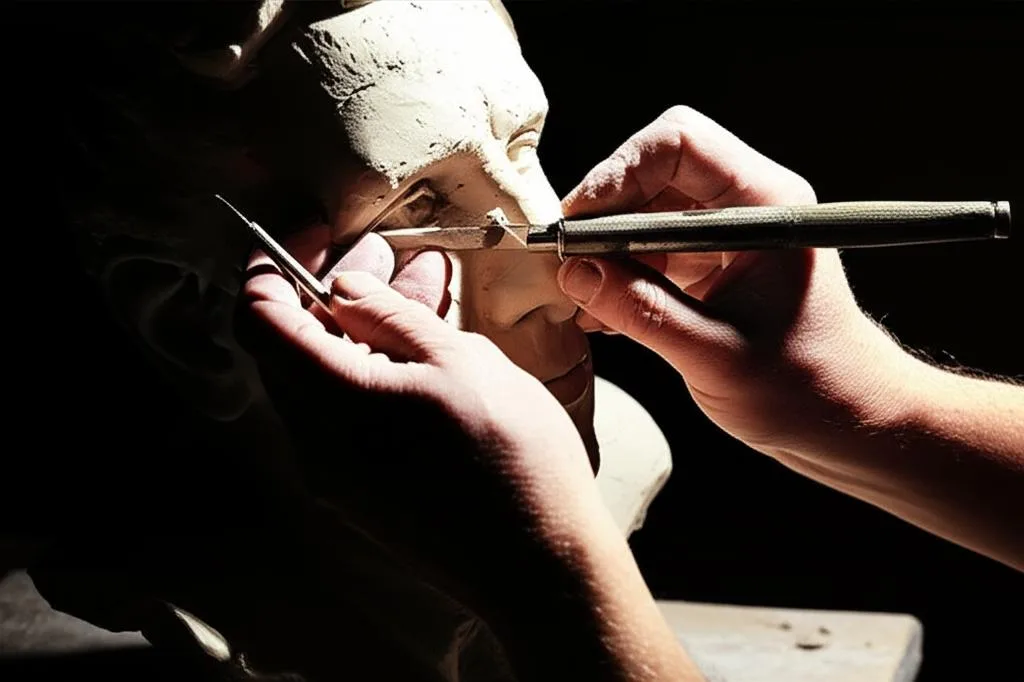
Ultimately, achieving a smooth 3D sculpt is an iterative process that relies heavily on your artistic eye and consistent practice. Develop the habit of constantly rotating your model, checking it from different angles, and under various lighting conditions to spot imperfections early.
- Reference: Always compare your sculpt to real-world references. Are the transitions as smooth? Are there any unexpected bumps or dips?
- Patience: Rushing the refinement stage almost always leads to a less polished final product. Take your time, work methodically, and don’t be afraid to undo and redo.
- Clean workspace: Keep your sculpting environment organized. A cluttered interface can distract from focusing on the subtleties of your sculpt.
By integrating these techniques into your workflow, you’ll be well on your way to transforming lumpy, rough models into exquisitely refined and professional 3D sculpts. The journey from initial block-out to a pristine surface is one of patience, precision, and continuous learning, culminating in truly clean geometry that stands up to scrutiny.
Frequently asked questions
Is there any risk of damaging my sculpt by using the smooth brush too aggressively?
Yes. Scrubbing indiscriminately at maximum intensity can erase fine detail and make the surface look overly soft or “melted.” The article recommends varying the brush intensity and using a gentle touch for subtle refinement, then redefining lost forms with a clay or standard brush at very low intensity afterward.
Should I use Dynamesh/Voxel Remesher at the end of my sculpting workflow or during the process?
Use these tools frequently during the early and mid-stages of sculpting, and after any major structural change, to maintain uniform mesh density and avoid stretched polygons. Relying on them only at the end will not fix topology issues that accumulated during the sculpt, making subsequent smoothing less effective.
What is the practical difference between smoothing at a low subdivision level versus a high subdivision level?
Smoothing at a lower subdivision level has a broad, global effect on the overall form, while smoothing at a higher subdivision level refines only localized, fine details. The article advises making large-scale adjustments on lower levels and stepping up to higher levels only when you need to add finer surface refinement.