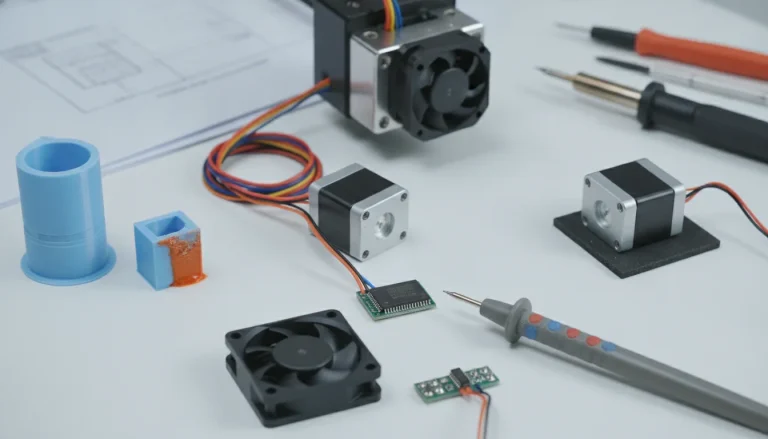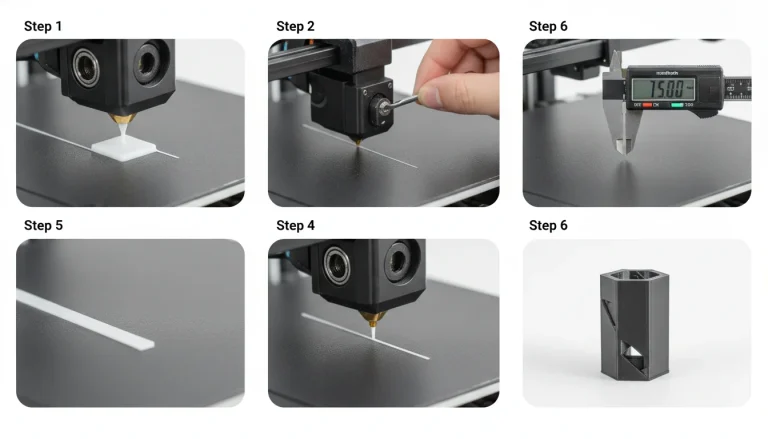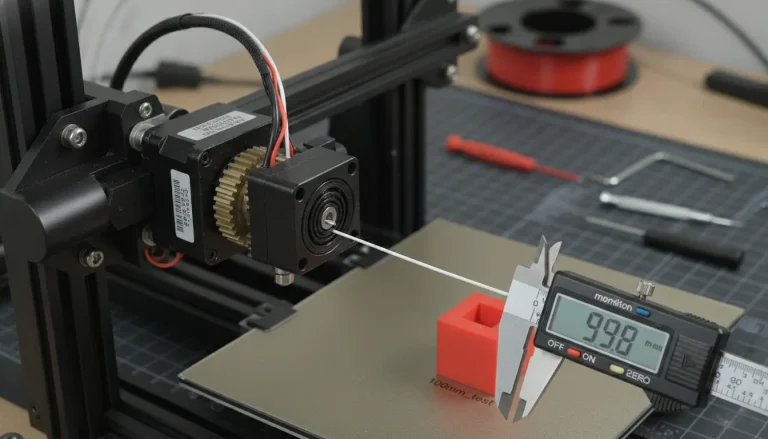
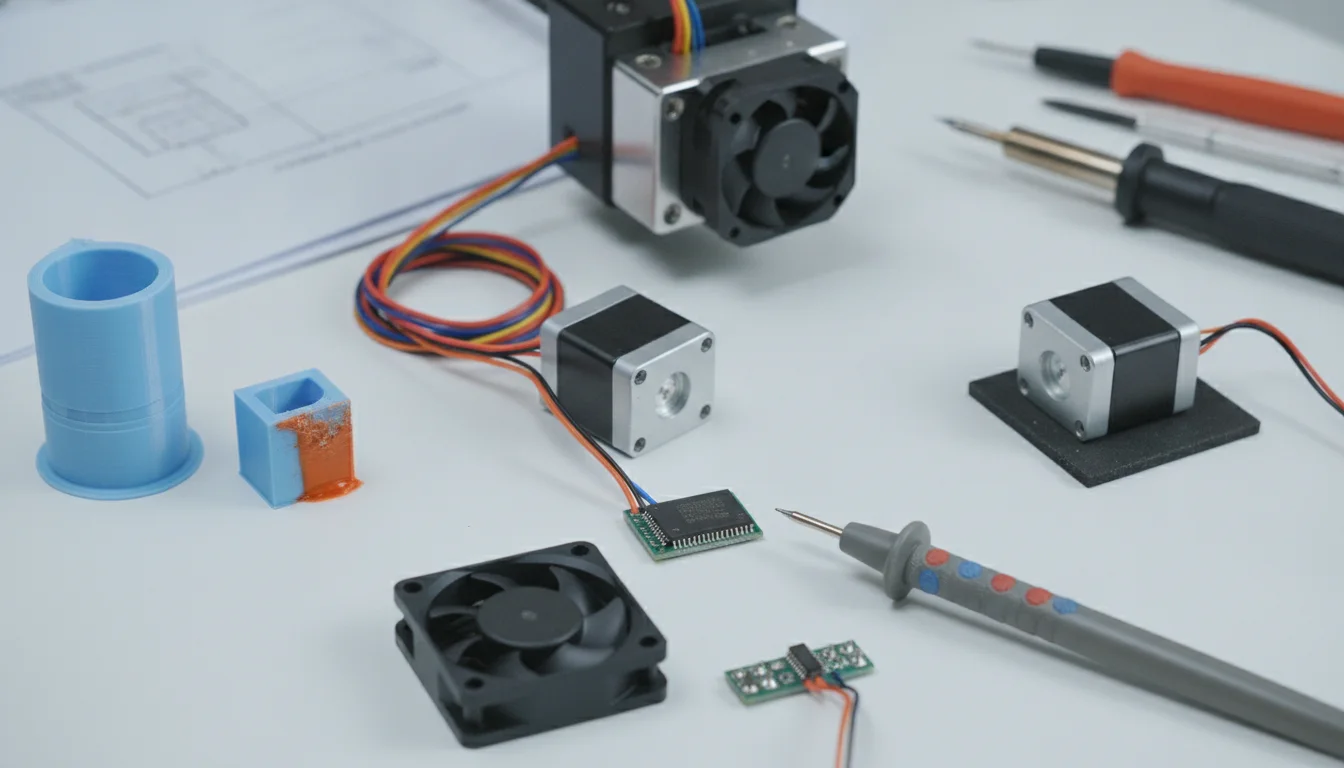
Stepper drivers are the unsung heroes of your 3D printer, meticulously translating digital signals into precise motor movements. When they misbehave, the symptoms can range from annoying motor noise to devastating print failures like layer shifts or complete operational shutdowns due to overheating. Understanding how to diagnose and rectify these common stepper driver issues is crucial for maintaining a reliable and high-performing 3D printer. This guide will walk you through a systematic approach to troubleshooting, helping you pinpoint problems and implement effective solutions.
Understanding the role of stepper drivers
Before diving into troubleshooting, it’s helpful to grasp what stepper drivers do. These small but mighty components control the current sent to your stepper motors, determining their speed, direction, and torque. Modern drivers, especially those from the TMC (TRINAMIC) family, also offer advanced features like silent operation (stealthChop), advanced current control (spreadCycle), and even sensorless homing. When any aspect of this control goes awry, your print quality and machine’s performance can suffer significantly.
General troubleshooting steps for stepper drivers
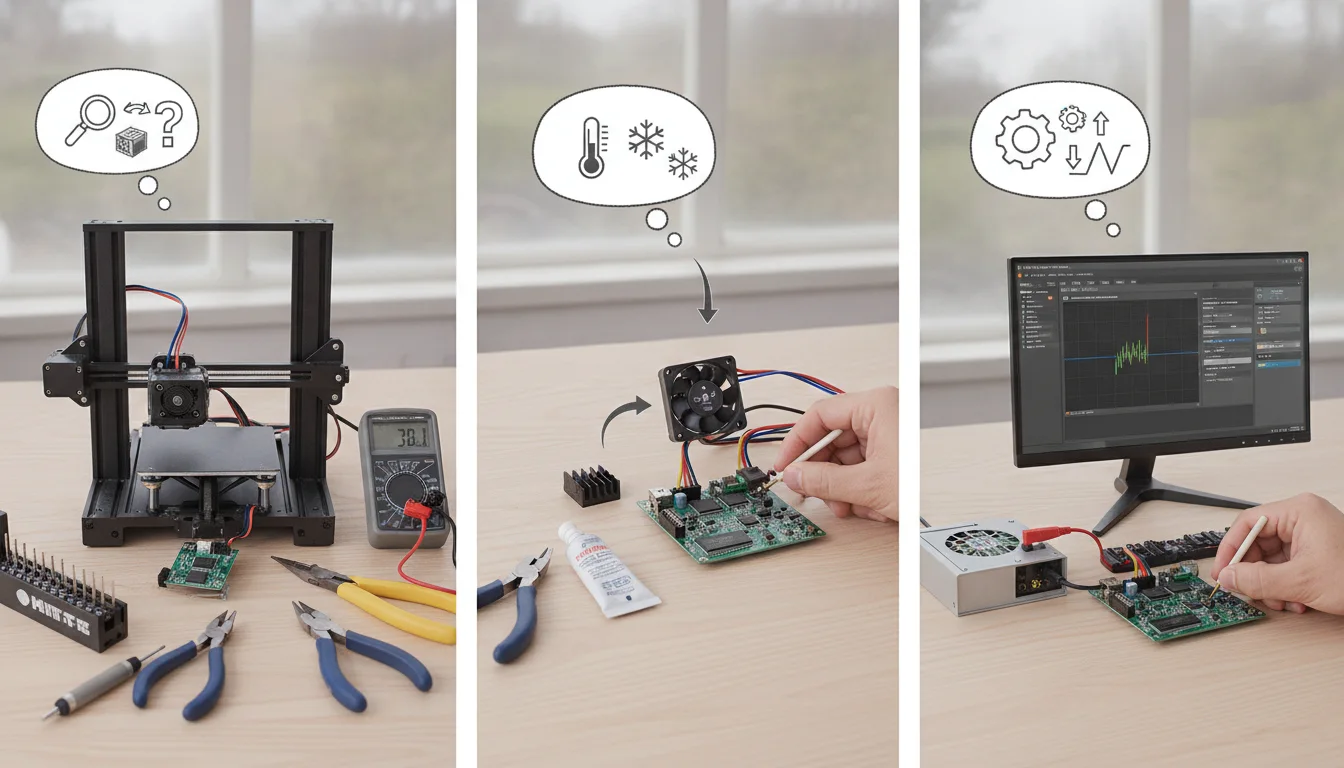
A systematic approach is key to effective troubleshooting. Always start with the basics before delving into more complex solutions.
- Visual inspection: Begin by carefully examining your stepper drivers and the surrounding components. Look for any visible damage, burnt components, loose connections, or improperly seated drivers. Ensure heatsinks are securely attached.
- Check wiring and connections: Loose or incorrectly wired motor cables are a frequent culprit. Verify that all motor wires are firmly seated in their connectors and correctly matched to the driver’s pins. A common mistake is miswiring A4988/DRV8825 drivers, which can lead to instant damage.
- Verify power supply: Ensure your power supply is providing stable voltage and sufficient current. Fluctuations or insufficient power can lead to erratic motor behavior.
- Firmware settings: Incorrect firmware settings for microstepping, motor current, or acceleration can mimic hardware issues. Double-check your Configuration.h or equivalent settings for your specific printer and drivers.
- Swap drivers (if possible): If you suspect a specific driver, try swapping it with a known good one from a different axis (e.g., swap X and Y drivers). If the problem moves with the driver, you’ve likely identified a faulty component.
Diagnosing and fixing noisy stepper motors
A noisy 3D printer can be incredibly irritating, and often, the stepper drivers are at the heart of the racket. Here’s how to quiet things down:
Common causes of noisy motors:
- Incorrect Vref (voltage reference): If the Vref is set too high, the motor receives too much current, leading to excessive vibration and noise. Too low, and it loses torque, potentially causing skipped steps.
- Driver type and mode: Older drivers like A4988s are inherently louder than modern TMC drivers, especially when operating in full step or half step modes. TMC drivers in stealthChop mode are significantly quieter.
- Mechanical resonance: Sometimes, the motor’s vibration resonates with the printer frame or other components.
- Loose motor mounts or pulleys: Vibrations can be amplified by loose hardware.
Troubleshooting noisy motors:
- Adjust Vref: Using a multimeter, carefully measure and adjust the Vref potentiometer on each driver. Consult your driver’s datasheet or manufacturer’s recommendations for the correct Vref setting based on your motor’s rated current. A common practice is to aim for Vref settings that result in 70-80% of the motor’s rated current. Be extremely cautious when adjusting Vref while the printer is powered on to avoid short circuits.
- Check microstepping settings: Higher microstepping (e.g., 1/16, 1/32, 1/256) generally results in smoother, quieter motor operation, though it requires more processing power from the mainboard. Ensure your firmware and driver jumpers are configured correctly for your desired microstepping.
- Consider driver upgrade: If noise is a persistent issue with older drivers, upgrading to modern TMC drivers (e.g., TMC2208, TMC2209, TMC2226) can drastically reduce noise levels due to their advanced current control technologies like stealthChop. While this involves an investment, the improvement in print quality and acoustic comfort can be substantial.
- Secure mechanical components: Tighten all motor mounting screws and check for any loose pulleys or belts. Add rubber dampeners between the motors and the frame if resonance is an issue.
Resolving persistent layer shifts
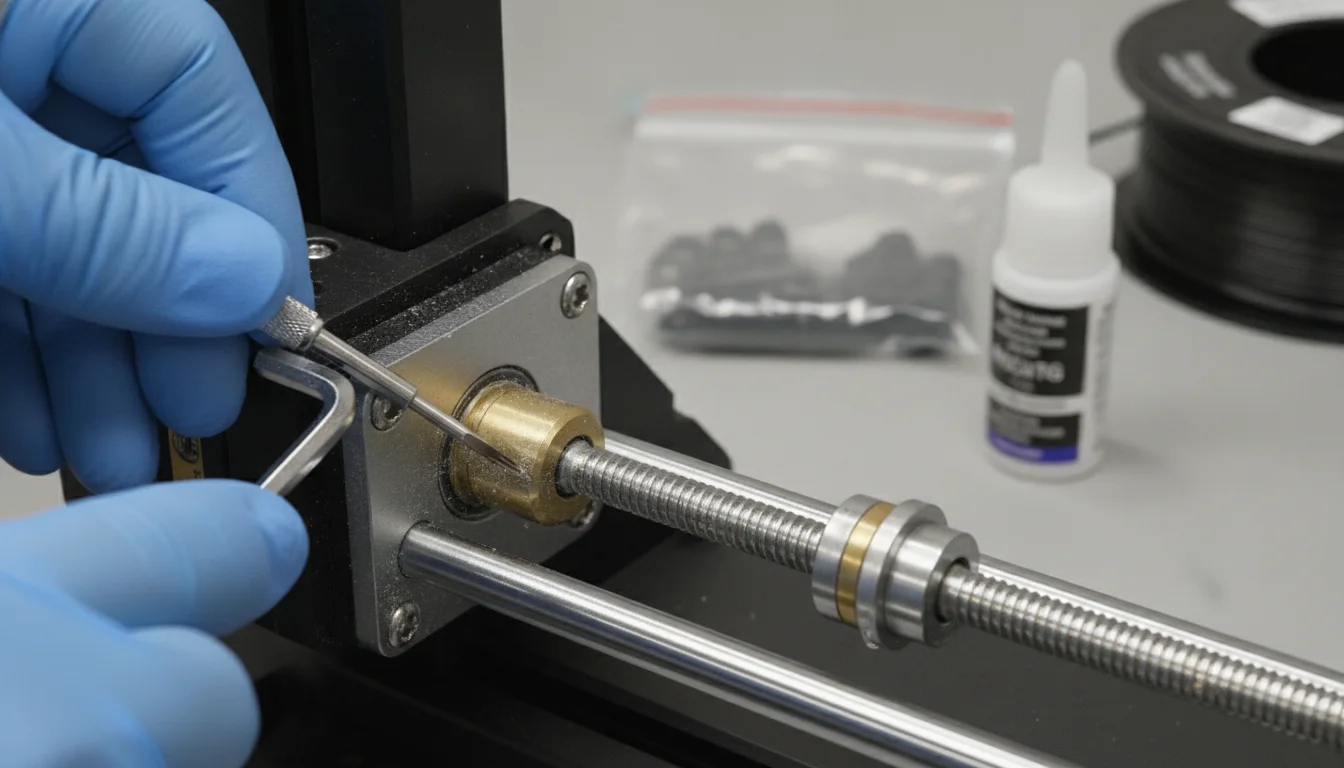
Layer shifts are one of the most frustrating 3D printing failures, often indicating a problem with motor movement. Stepper drivers are a common culprit.
Common causes of layer shifts:
- Overheating drivers: When a driver overheats, it can momentarily shut down or reduce current, causing the motor to lose steps.
- Insufficient motor current (Vref too low): If the motor doesn’t receive enough current, it lacks the torque to overcome resistance, leading to skipped steps, especially during rapid movements.
- Mechanical binding or obstruction: Anything impeding the smooth movement of an axis (e.g., tight belts, bent rods, debris on linear rails) can cause motors to skip steps.
- Excessive acceleration or jerk settings: If your firmware’s acceleration or jerk settings are too aggressive, the motors might not be able to keep up, leading to skipped steps.
- Loose belts or pulleys: A loose belt won’t accurately transmit motion, causing layers to misalign.
Troubleshooting layer shifts:
- Improve driver cooling: This is paramount for preventing overheating-induced layer shifts. Ensure heatsinks are properly attached with thermal adhesive. Add a dedicated fan blowing across your drivers, especially if they are enclosed or operating at higher currents.
- Adjust Vref: If Vref is too low, increase it incrementally. However, be cautious not to set it too high, as this can lead to overheating. Aim for the sweet spot where the motor has sufficient torque without excessive heat.
- Check mechanical components: Manually move each axis by hand to feel for any resistance, grinding, or binding. Lubricate rods, clean linear rails, and ensure all bearings are moving freely.
- Tighten belts and pulleys: Belts should be taut but not overly tight. Check that pulleys are securely fastened to motor shafts and not slipping.
- Review firmware acceleration/jerk settings: Reduce acceleration and jerk values in your firmware (or slicer settings if overriding firmware). Start with conservative values and gradually increase them if the problem disappears.
Tackling overheating stepper drivers
Overheating drivers are a major source of instability and print failures. Addressing this directly is critical.
Common causes of overheating:
- Excessive Vref/current: The most common reason. Too much current generates excess heat.
- Inadequate cooling: Poor airflow, small or missing heatsinks, or an enclosed printer without ventilation.
- High ambient temperature: Operating the printer in a hot environment.
- Faulty driver: Rarely, a driver might be inherently defective and run hot even at correct current settings.
Troubleshooting overheating drivers:
- Reduce Vref: If your motors are running hot but not skipping steps, try incrementally reducing the Vref. Monitor motor temperature and print quality. This is often the quickest fix.
- Enhance cooling:
- Heatsinks: Ensure all drivers have heatsinks properly attached with thermal adhesive.
- Fans: Install a dedicated fan to blow directly over the stepper drivers. For enclosed printers, consider adding exhaust fans.
- Airflow: Ensure adequate airflow around the mainboard and drivers. Avoid obstructing vents.
- Check ambient temperature: If your printer is in a warm room or enclosure, consider moving it or improving the enclosure’s ventilation.
- Replace faulty driver: If a specific driver continues to overheat despite correct Vref and adequate cooling, it might be defective and require replacement.
Specific troubleshooting for TMC drivers
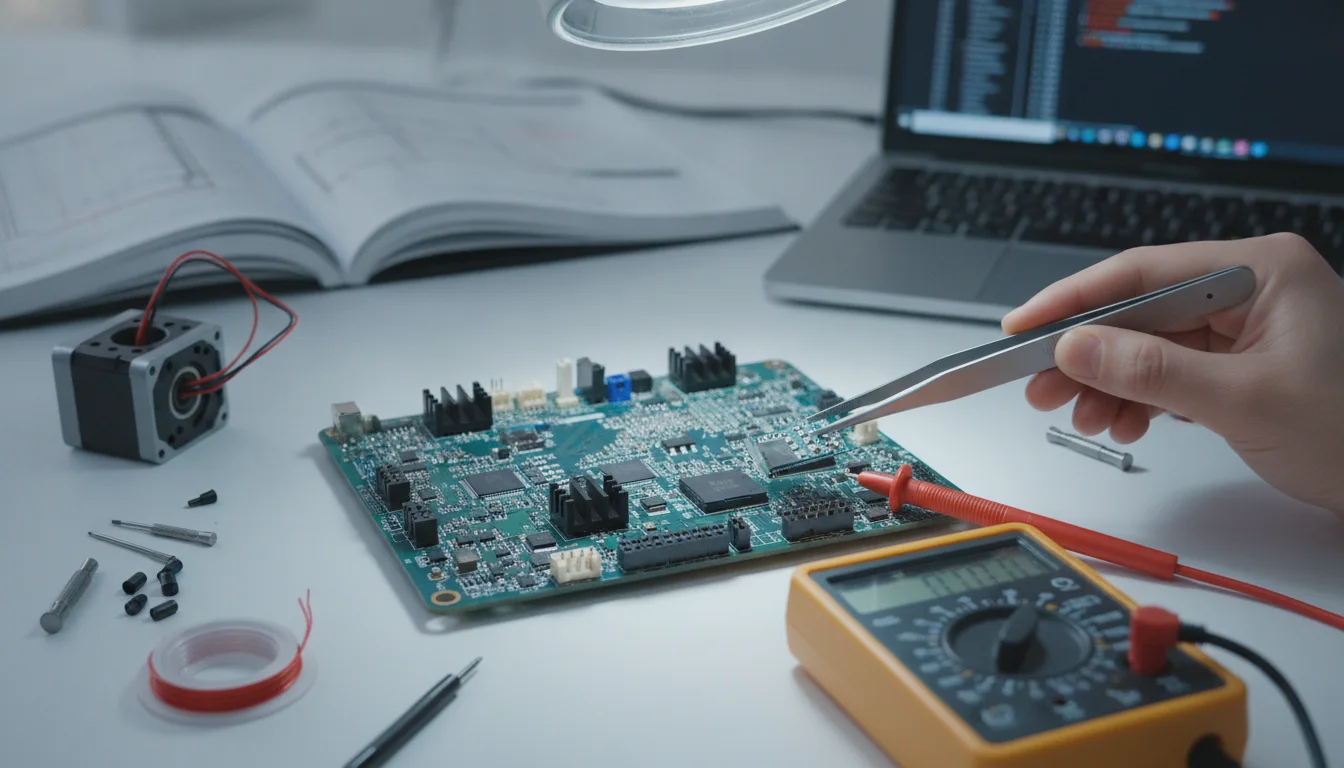
TMC drivers (e.g., TMC2208, TMC2209, TMC2226) offer advanced features but can introduce unique troubleshooting challenges:
- UART/SPI configuration issues: Many TMC drivers operate in UART or SPI mode, requiring specific wiring and firmware configuration. Incorrect settings can lead to non-responsive motors or erratic behavior. Double-check wiring diagrams and firmware definitions (e.g., #define X_DRIVER_TYPE TMC2208_STANDALONE vs TMC2208_UART).
- stealthChop vs. spreadCycle: stealthChop is for silent operation at lower speeds, while spreadCycle provides more torque at higher speeds. Incorrect switching between modes (or being stuck in one when the other is needed) can cause issues like skipped steps or excessive noise. Ensure your firmware manages these modes appropriately.
- Sensorless homing sensitivity: TMC drivers can perform homing without endstops, but the sensitivity (SENSORLESS_HOMING_X_TRSHLD) needs careful tuning. Too high, and it won’t detect the end of travel; too low, and it might detect false positives or slam into the end.
- Driver current settings: While Vref is often set via firmware for UART/SPI TMC drivers, ensure the current values are correctly defined and saved.
A final word on methodical debugging
Troubleshooting stepper driver issues requires patience and a methodical approach. Always make one change at a time and test its effect before moving on. Document your changes and observations. By systematically addressing potential causes, you can effectively diagnose and resolve common stepper driver problems, ensuring your 3D printer runs smoothly and delivers consistent, high-quality prints.
Frequently asked questions
How do I safely measure and adjust Vref on my stepper driver?
To adjust Vref, power on your printer and use a multimeter set to DC voltage. Place the black probe on a ground point (like a power supply terminal) and the red probe on the Vref potentiometer’s metal adjustment screw or test pad. Turn the potentiometer very slowly with a non-conductive screwdriver while monitoring the reading, and always aim for a Vref that delivers 70-80% of your motor’s rated current to avoid overheating.
Can I mix different stepper driver models (e.g., A4988 and TMC2209) on the same printer?
Yes, you can mix driver models on different axes, but you must configure each driver’s Vref and firmware settings independently to match its specifications. For example, a TMC2209 in UART mode requires firmware current settings, while an A4988 relies on a physical Vref potentiometer. Keep in mind that mixing drivers may cause inconsistent noise levels or performance between axes, so test thoroughly after installation.
Why do my TMC drivers work fine at low speeds but skip steps during fast moves?
This typically happens when your firmware is stuck in stealthChop mode, which provides silent operation but limited torque at higher speeds. TMC drivers need to switch to spreadCycle mode for fast, high-torque movements. Check your firmware configuration to ensure hybrid mode is enabled, allowing automatic switching between stealthChop and spreadCycle based on speed or acceleration thresholds.